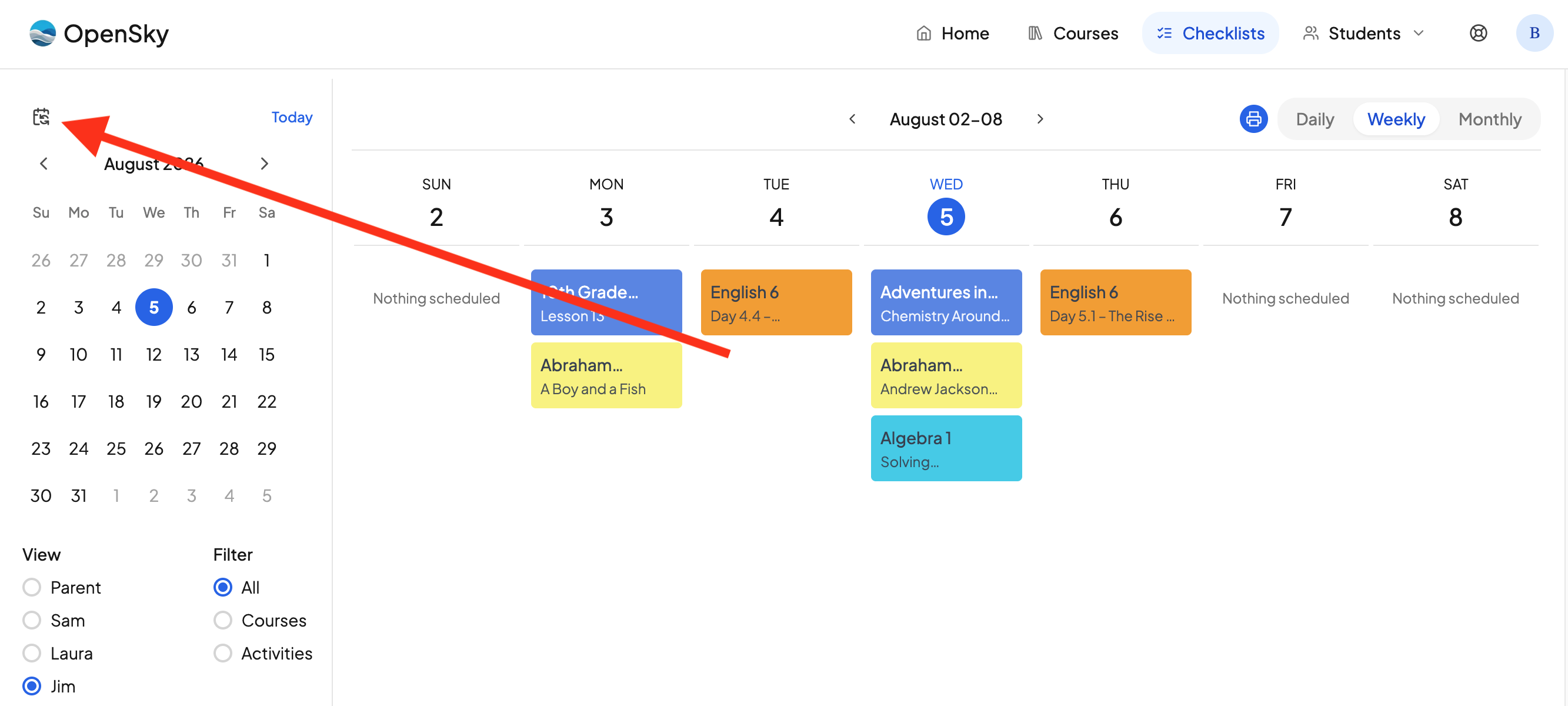
Homeschoolers use many different calendars to keep their families organized, including Google Calendar, Outlook, and Skylight. OpenSky can share your schedule with all of them. Here is how:
- Click your profile icon in the nav and go to Settings.
- Click Calendar Integrations in the left nav.
- Under Share OpenSky calendars, pick the calendar you want — Whole family, or an individual student.
- Choose what that calendar should show.
- Copy the link, or use one of the one-click buttons beside it.
Looking to go the other way and bring an outside calendar into OpenSky? See Importing Outside Calendars.
Choosing a calendar
The page gives you more than one link:
- Whole family — everyone's schedule in a single calendar. When you have more than one student, each course entry is labeled with the student's name so you can tell them apart.
- One per student — just that student's schedule. Handy if you want to give a calendar to a grandparent, a tutor, or an older student with their own phone.
You can subscribe to as many of these as you like, and each one keeps its own settings.
Parent profiles do not get their own shared calendar — the per-student list covers your students only.
Choosing what to show
Under Include:, every link has four checkboxes:
- School days — an all-day marker on each instructional day.
- Holidays — your breaks and days off, including multi-day breaks as a single entry.
- Events — activities, co-ops, field trips, and anything else you've added as an event.
- Courses — the lessons scheduled for each course.
A course with a scheduled time appears at that time. A course without a scheduled time appears as an all-day event. If a course has several lessons on the same day, they're combined into one entry ("Algebra I — 3 lessons") so your calendar doesn't fill up.
You need at least one box ticked — with none selected OpenSky will tell you to "Select at least one thing to show."
What timezone are the times in?
Scheduled times are sent in your household's timezone, which OpenSky picks up automatically from your computer. The page shows which timezone it's using. Daylight saving time is handled for you, so a 10:00 lesson stays at 10:00 all year.
If the timezone shown looks wrong, sign in to OpenSky from a computer in the right timezone and it will update itself. All-day entries — school days, holidays, and untimed courses — aren't affected by timezone at all.
Changing a checkbox changes the link. If you've already subscribed and then change what a calendar shows, copy the new link and add it in your calendar app again.
Keeping your links private
Your links are private. Anyone who has one can view that calendar, so only share a link with people you want to see the schedule.
If a link was shared by mistake, click Regenerate all links. That permanently disables every current URL and replaces it with a new one, so you will need to re-subscribe anywhere you were using the old links.
Google Calendar
Use the Google Calendar button, or add it manually:
- Open Google Calendar on a computer.
- In the left sidebar, find Other calendars and click +.
- Choose From URL.
- Paste your OpenSky link and click Add calendar.
Apple Calendar
Use the Apple Calendar button, or add it manually:
On a Mac
- Open the Calendar app.
- Choose File → New Calendar Subscription.
- Paste your OpenSky link and click Subscribe.
On iPhone or iPad
- Open Settings.
- Go to Calendar → Accounts → Add Account → Other.
- Tap Add Subscribed Calendar.
- Paste your OpenSky link and tap Next, then Save.
Outlook
Use the Outlook button, or add it manually:
Outlook.com
- Open Outlook Calendar.
- Click Add calendar → Subscribe from web.
- Paste your OpenSky link, give the calendar a name, and click Import.
Outlook desktop app
- Go to Add Calendar → From Internet.
- Paste your OpenSky link and confirm.
Syncing with Skylight, Cozyla and other products
Products like Skylight allow you to add calendars via a calendar URL. Your OpenSky calendar URL is available on the Calendar Integrations page for you to copy. Paste it into the other product, and it will sync your OpenSky calendar with that product.
How often does it update?
Calendar apps decide how often to check for changes — most refresh every few hours, and some take up to a day. This is set by your calendar app, not by OpenSky, so a change you make in OpenSky may take a little while to appear elsewhere.
Need more help?
Reach out any time at support@openskyplanner.com and we will be happy to help.