Reading is an integral part of many homeschools, and OpenSky offers a deeply integrated book list. Here is how to assign books, track reading, and review everything your student has read.
Add a book to a Student's checklist
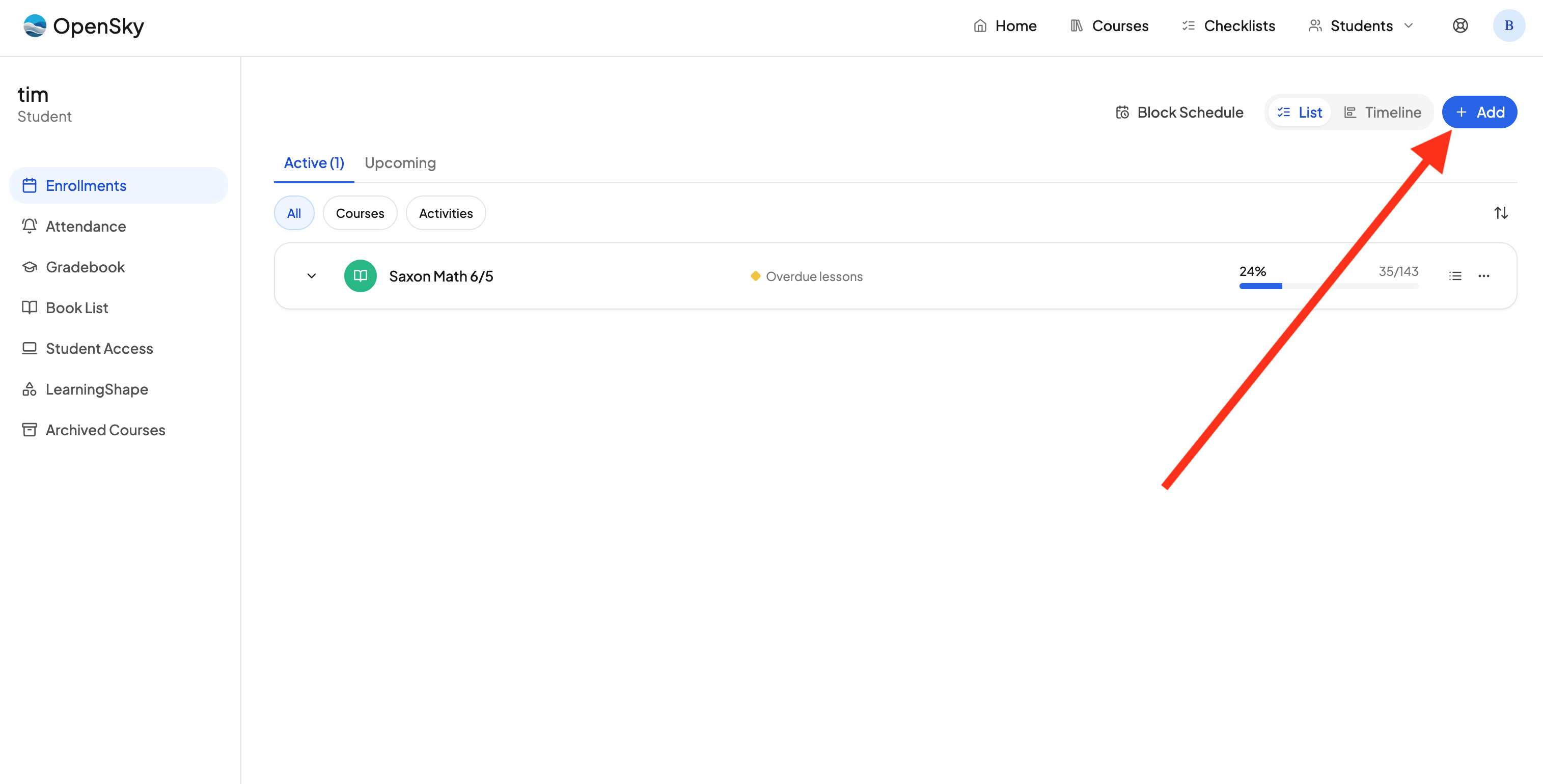
- Click Add from the Student's dashboard like you're adding a course
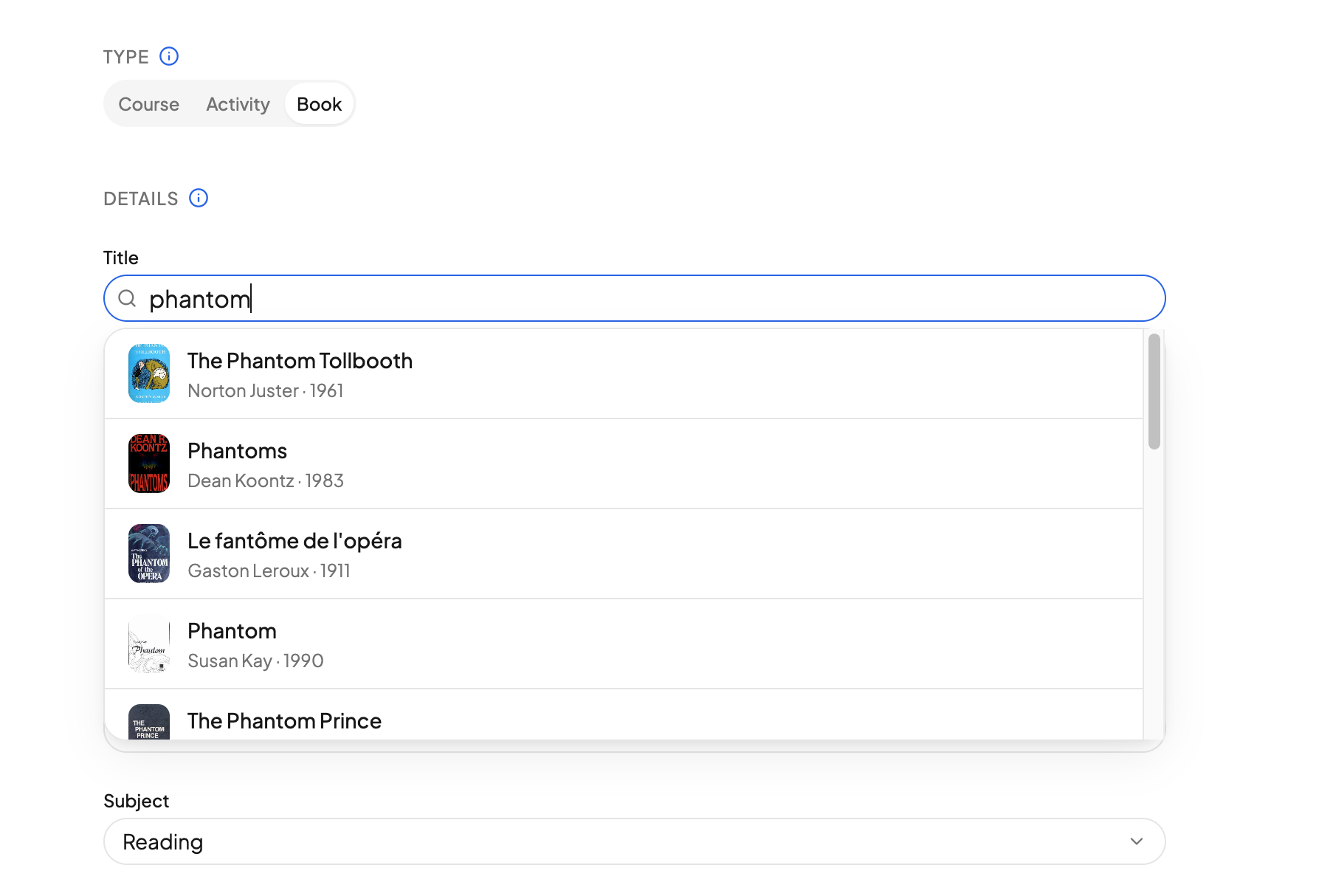
- Either type, dictate, or click Book to add a book from scratch.
- On the enrollment page, add the book and the number of chapters.
- Under People, pick who the book is for. Each person gets their own copy and progress.
Books are assigned to People rather than students, because parents have their own book list too — so you can track your own reading alongside your students'. See Inviting Other Parents.
Choose a reading mode
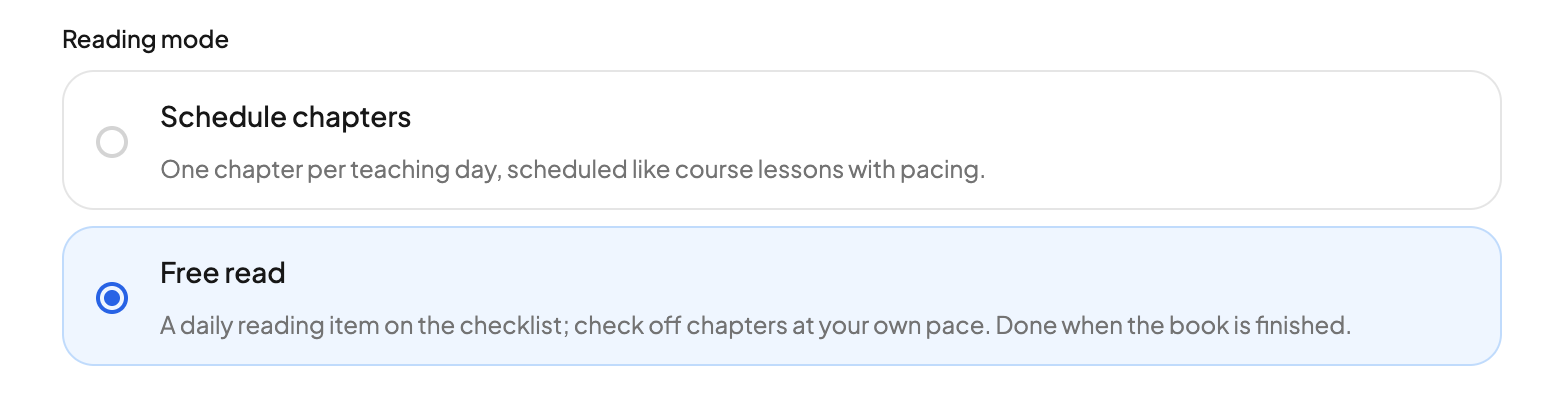
There are two ways to read a book in OpenSky:
- Schedule chapters. Each chapter is scheduled to be read on a specific day.
- Free read. An item is added to the checklist. Your student clicks the item and checks off however many chapters they read that day. The item moves to the next day automatically, so your student can read as they go. You can also add a target finish date.
Track books against a course
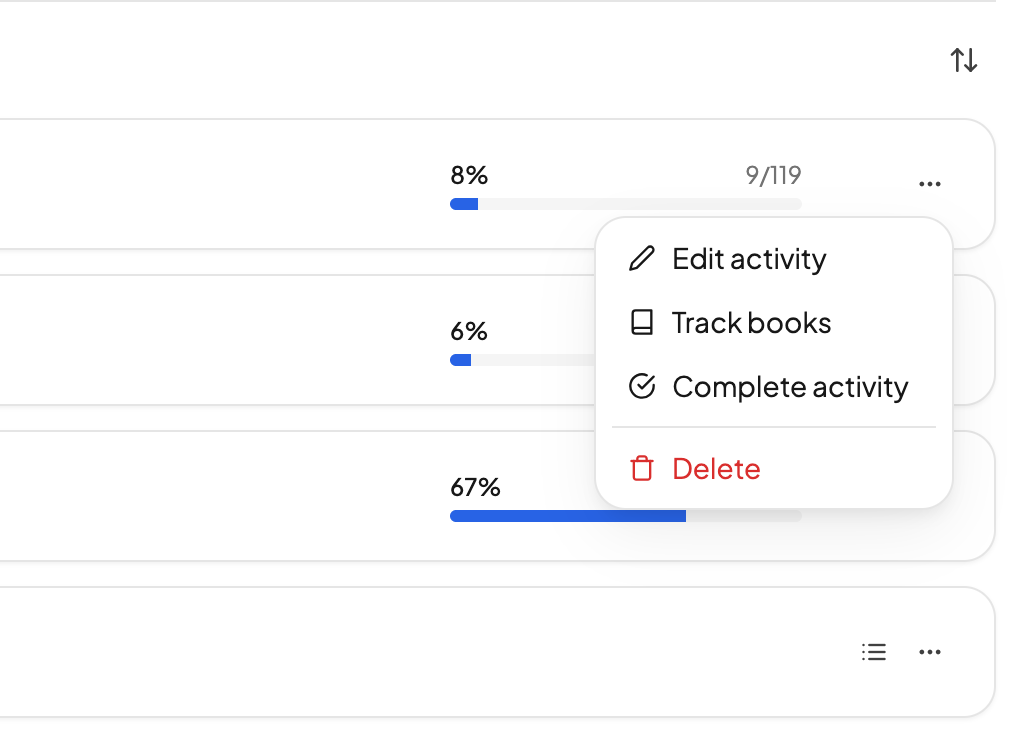
You can tag courses with books to see reading alongside the rest of your schoolwork. Note that books can be tracked against courses, but not activities.
- When creating a course, add books in the Books section.
- Or, from the course list, click the three dot menu and choose Track Books.
Review everything your student has read
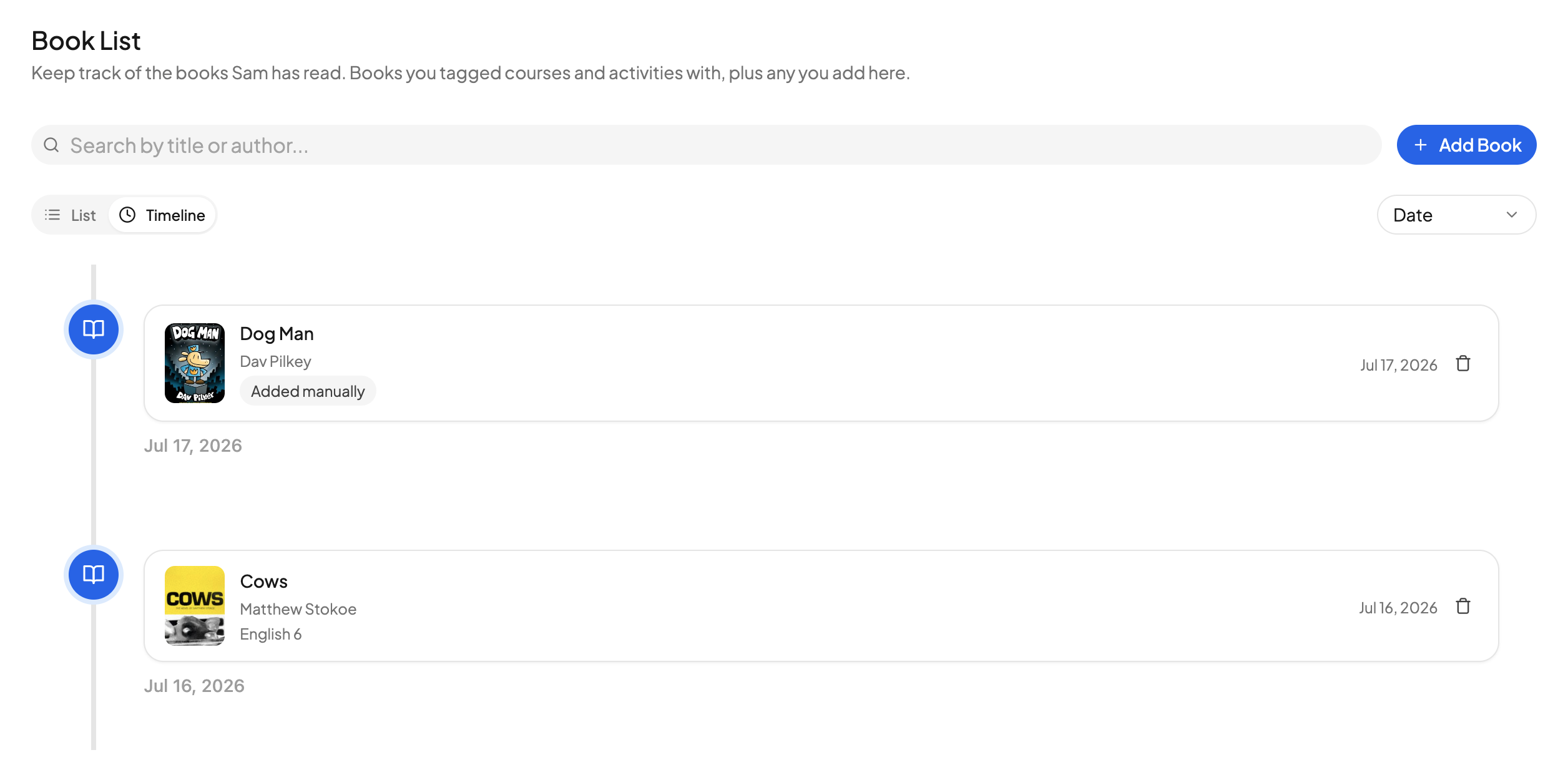
Click Book List to see every book your student has read. You can view it as a list or as a timeline, so it is easy to keep track of everything your student has read over the years.
Add books directly to the book list
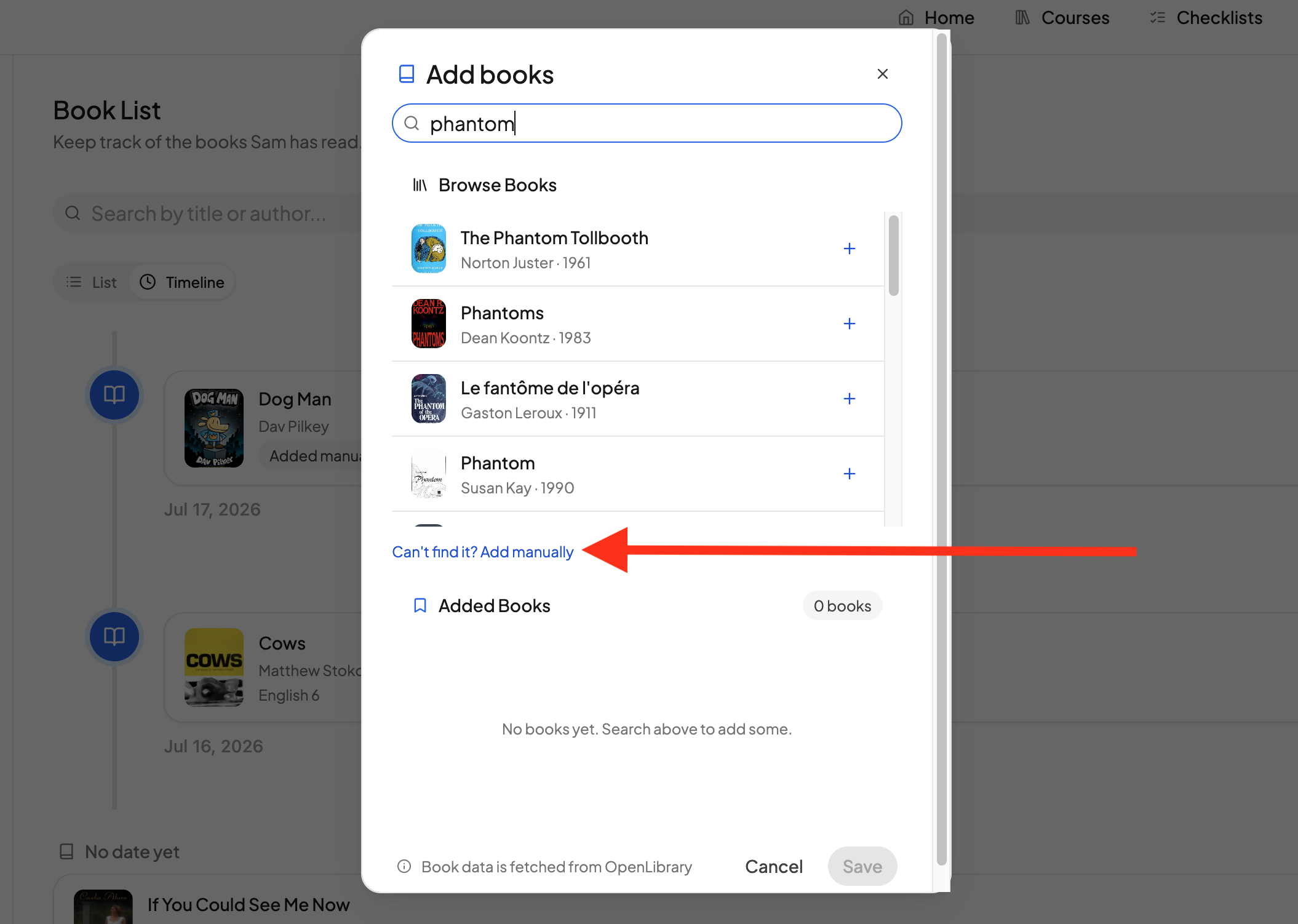
You can also add books directly to the book list:
- Search for the book you want to add. Searches require at least three characters to return a book.
- If our search cannot find a particular book, you can always add it manually by clicking the blue link.
Need more help?
Reach out any time at support@openskyplanner.com and we will be happy to help.