Most families do not start OpenSky on the first day of a curriculum. You might be on lesson 40 of Saxon 5/6 in February, or halfway through a history spine you began last fall. OpenSky handles this in one step: enroll the course with the date you actually started it, then tell OpenSky which lesson you are on. Everything before that lesson is marked complete, and everything after it is rescheduled forward.
Step 1: Enroll the course with your real start date
Add the course exactly as you normally would. The full walkthrough is in How to Enroll a Student in a Course.
The one thing to do differently: when you set the start date, use the date you actually began the curriculum, not today's date. That is what lets OpenSky fill in honest completion dates for the work your student has already done.
Step 2: Find and expand the course in the course list
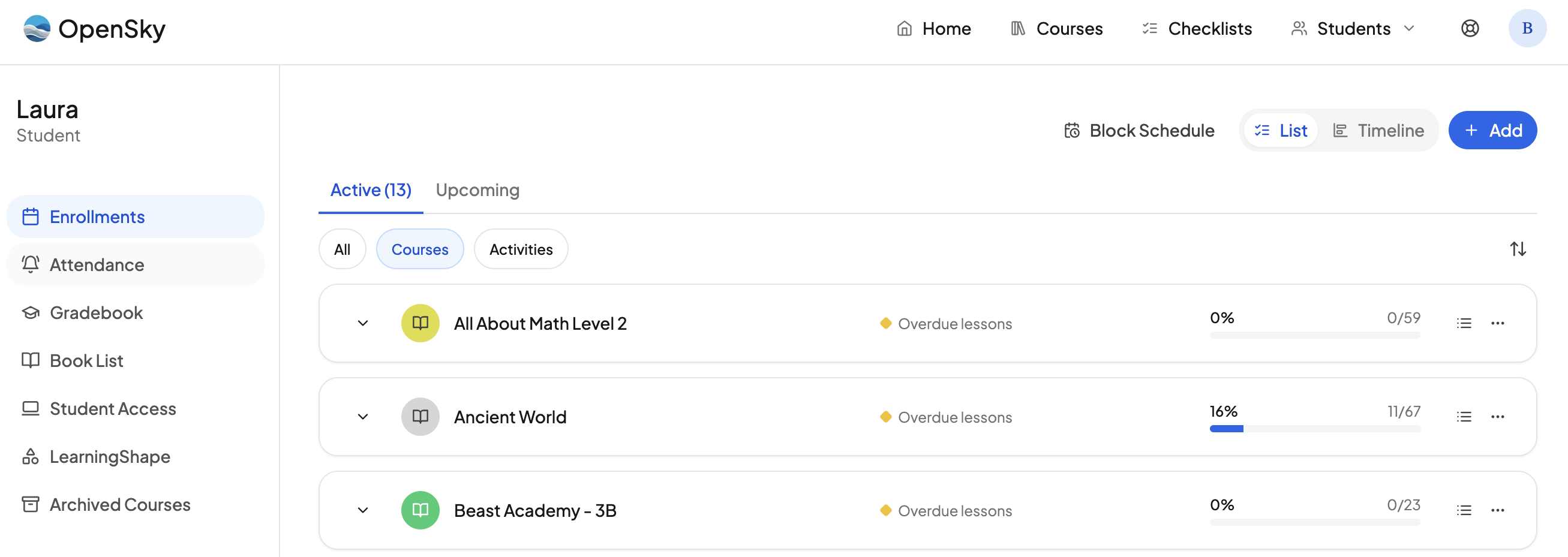
Go to the student's course list and click the chevron on the left of the course row, or click the row itself, to expand it.
You will see a long column of Overdue badges, with the first one labeled First Overdue Lesson. This is expected. OpenSky scheduled the course from your real start date, so every lesson between then and now is sitting in the past. The next step clears all of it at once.
Step 3: Click the status badge on the lesson you are up to
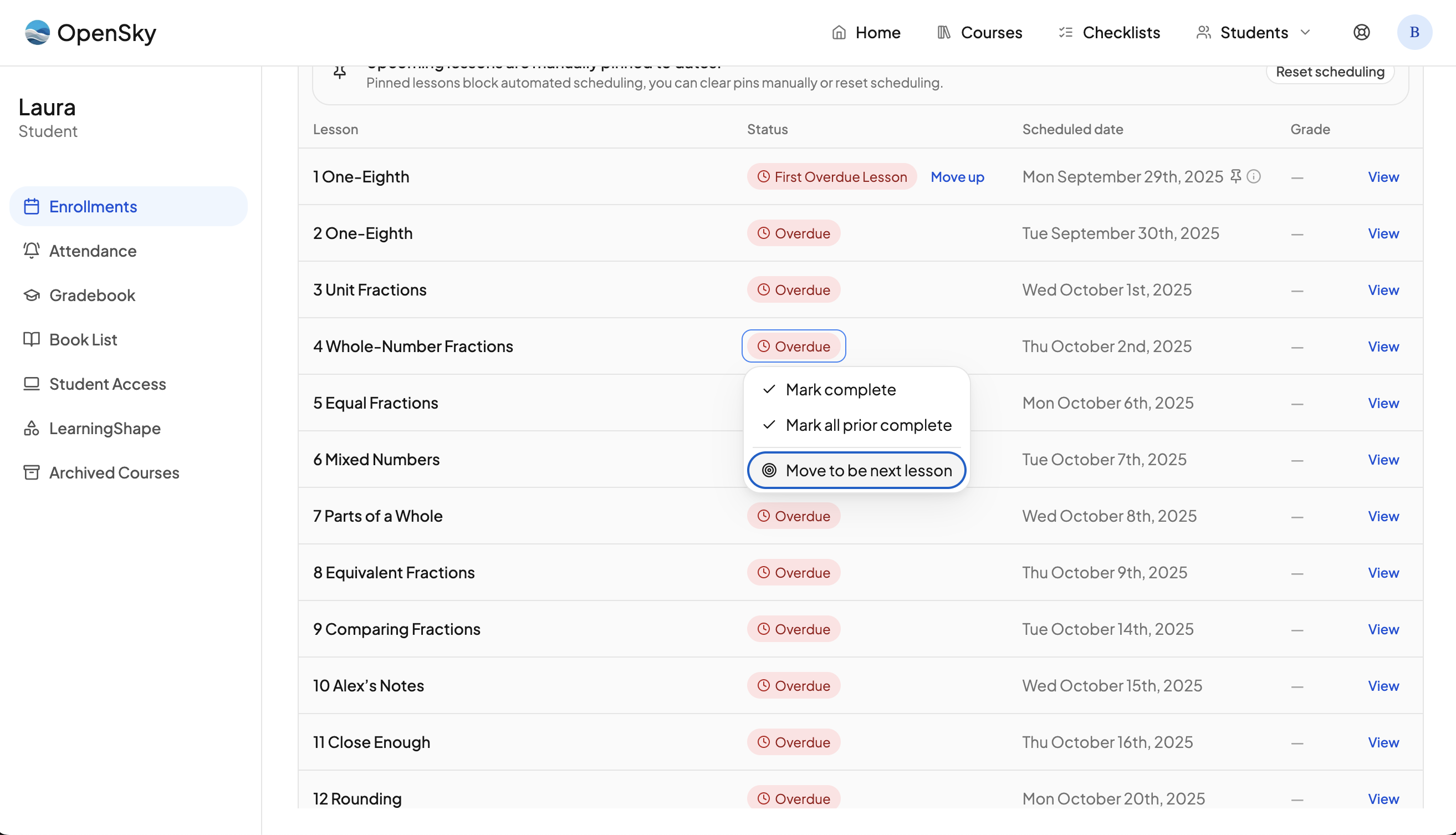
Find the lesson your student is actually ready to do next and click its Overdue badge. The badge itself is a menu. It opens with three options:
- Mark complete
- Mark all prior complete
- Move to be next lesson
Choose Move to be next lesson.
Step 4: Confirm the lesson and the date
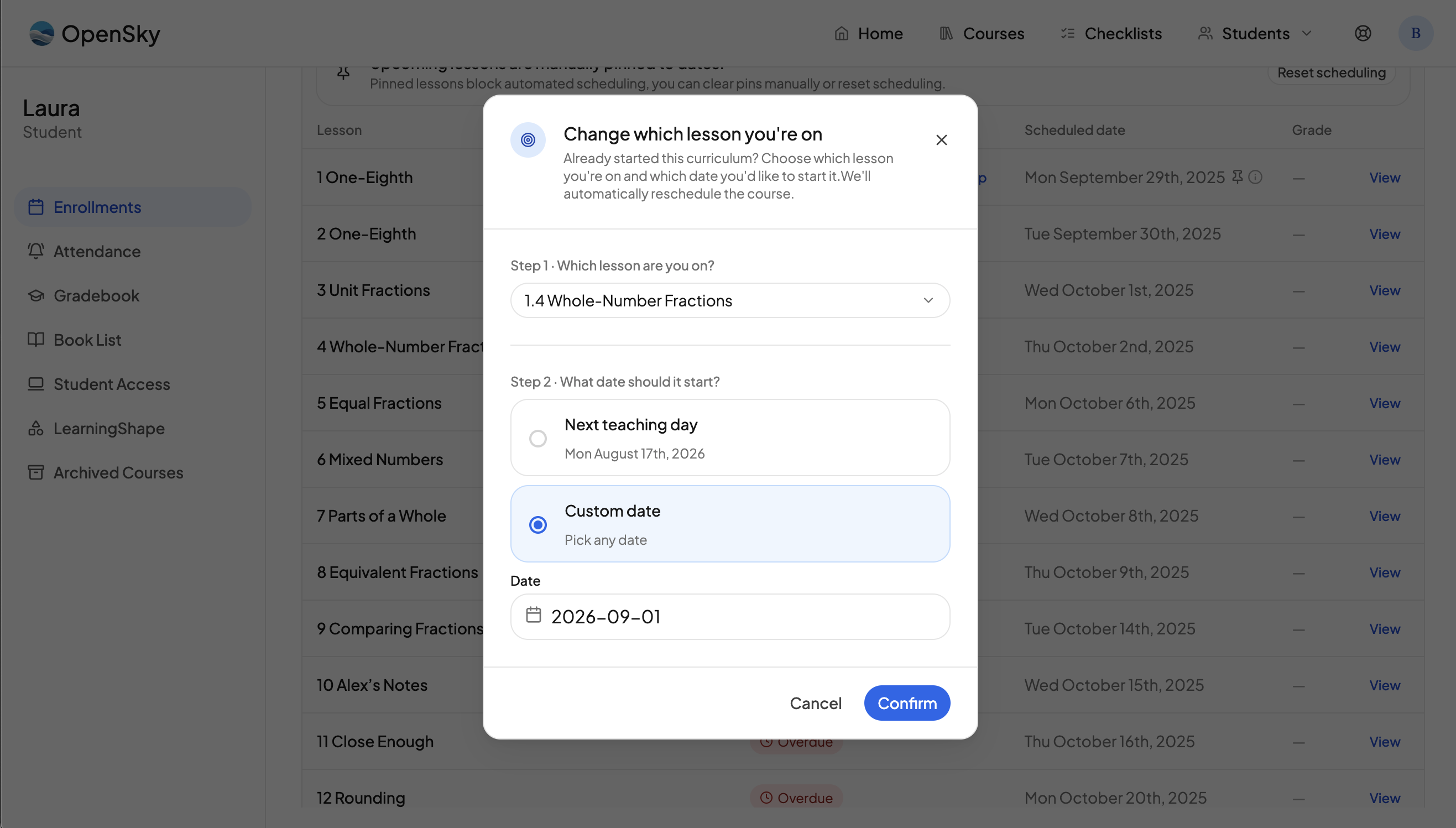
A dialog opens titled Change which lesson you're on:
- Step 1 · Which lesson are you on? The lesson whose badge you clicked is already selected. You can pick a different one from the dropdown if you clicked the wrong row. Only lessons that are not yet complete appear in the list.
- Step 2 · What date should it start? Choose Next teaching day to pick up on your next scheduled day for this course, or Custom date to choose your own. If you pick a day the course does not meet, OpenSky will tell you and suggest the nearest teaching day.
Hit Confirm.
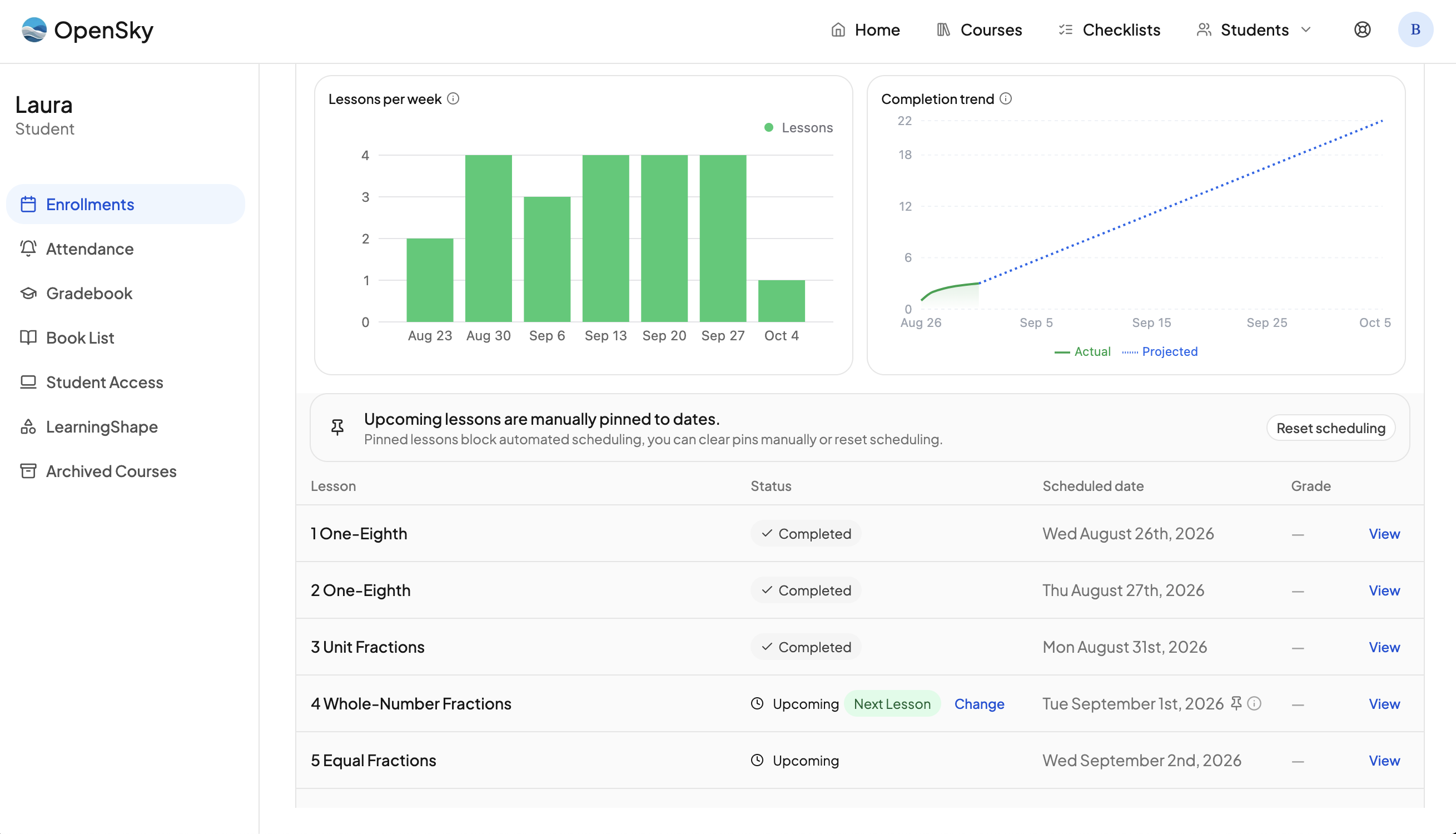
What just happens
When you confirm, OpenSky does three things:
- Every prior lesson is marked complete. They are backdated across the course's real teaching days, so your records show the work spread out the way it actually happened rather than piled onto a single date.
- The lesson you chose becomes the next pending lesson, scheduled on the date you picked.
- Every lesson after it is rescheduled forward from that date, following your normal teaching days and pacing.
That is it. The course is now fully in sync and ready to go.
One thing you may notice afterward
The course row will show a note that reads Upcoming lessons are manually pinned to dates, along with a Reset scheduling button. This is normal. It is simply the pin holding your chosen lesson on the date you selected.
If you see an error
If OpenSky says New date would put lessons out of order, the date you picked conflicts with work that is already recorded, usually because it falls before a lesson that is already marked complete. Choose a later date, or pick an earlier lesson as your starting point.
Need more help?
Reach out any time at support@openskyplanner.com and we will be happy to help.