Every course in OpenSky has a cadence: Daily lessons or Weekly lessons. With daily lessons, each lesson is scheduled on a specific day and you can adjust how many lessons each day gets. With weekly lessons, the course gets one lesson per week, and that lesson appears across the entire week. Your student completes the lesson and its individual tasks over the course of the week, on whatever days work.
Weekly lessons are a great fit for unit studies, science kits, projects, and any curriculum that is written week-by-week rather than day-by-day.
Choosing a cadence when you enroll a course
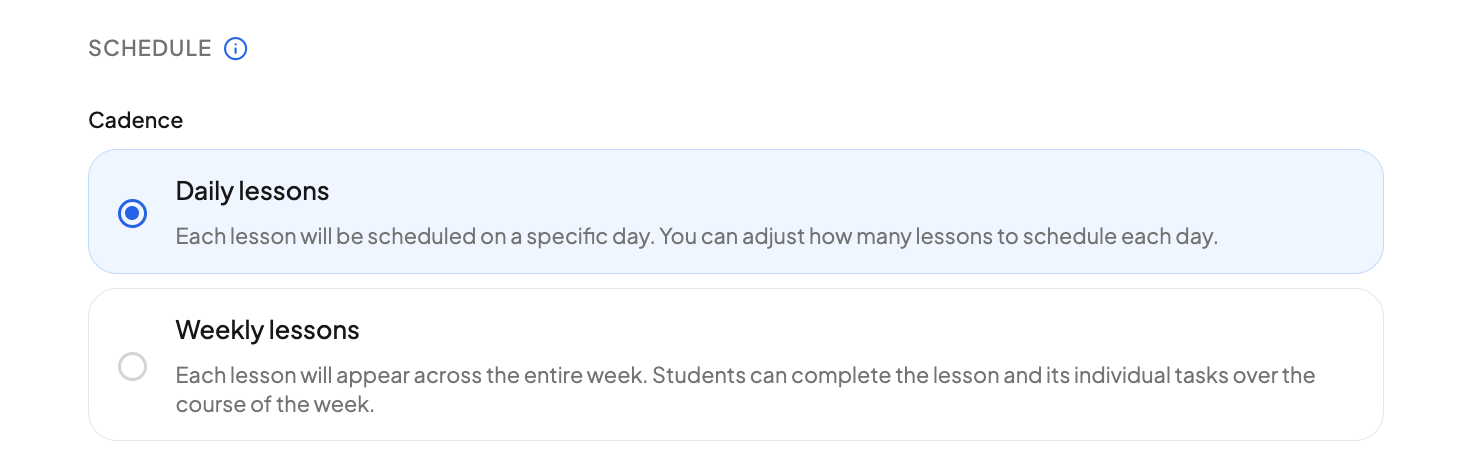
When you add a course, the cadence choice is the first thing in the Schedule section:
- Daily lessons. Each teaching day will get assigned individual lessons. You can adjust how many lessons each day gets.
- Weekly lessons. Each lesson will appear across the entire week. Students can complete the lesson and its individual tasks over the course of the week.
When you pick weekly lessons, the pacing controls disappear — there is nothing to pace, because the course always moves at exactly one lesson per week. Your start date and teaching days still apply: the lesson shows on every teaching day of its week.
If you add a course from a template, the cadence starts out matching what the curriculum was built for, and you will see "Set by this course's curriculum" under the choice. You can still change it, but OpenSky will ask you to confirm first so a week-based curriculum does not accidentally end up scheduled day-by-day.
How weekly lessons work on the checklist
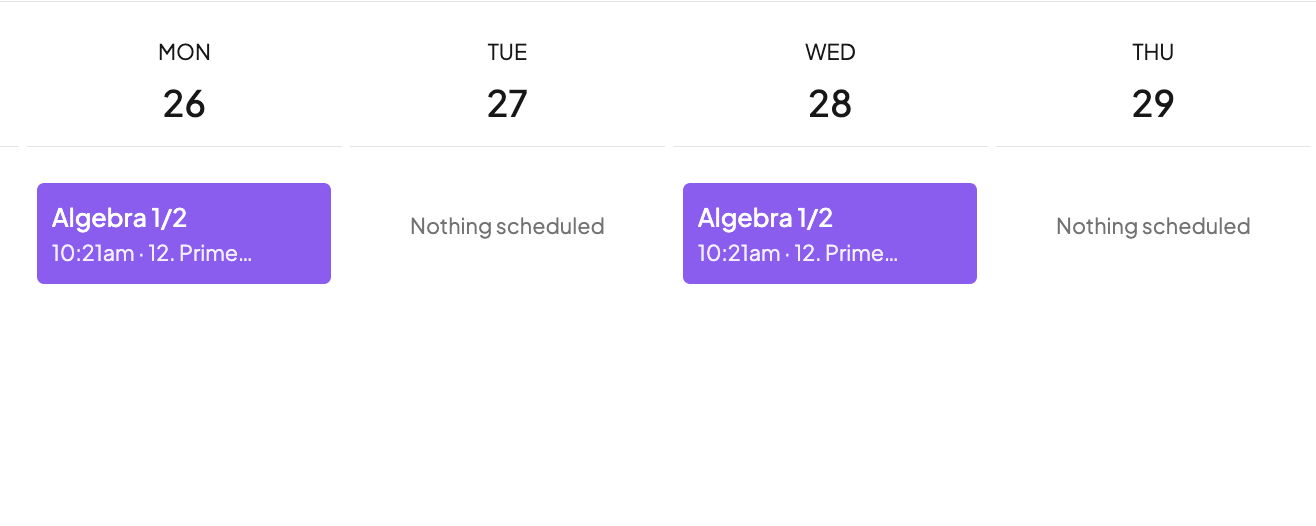
The same lesson appears on every teaching day of its week, so it is always in front of your student:
- Check off a day without finishing the lesson. Each day has its own check that means "done for today." The checklist for that day goes clean, and the lesson is still there tomorrow.
- Complete the lesson once, during the week. For weekly lessons, all required tasks have to be checked off before the lesson can be marked complete — that is true for parents and students alike.
- Move a lesson by the week. Drag the lesson to a day in another week and the whole lesson moves to that week. Dragging it to another day in its own week does nothing — it is already there all week.
If your schedule shifts, weekly courses reschedule automatically just like daily ones — see Staying Flexible With Your Schedule.
Switching an existing course
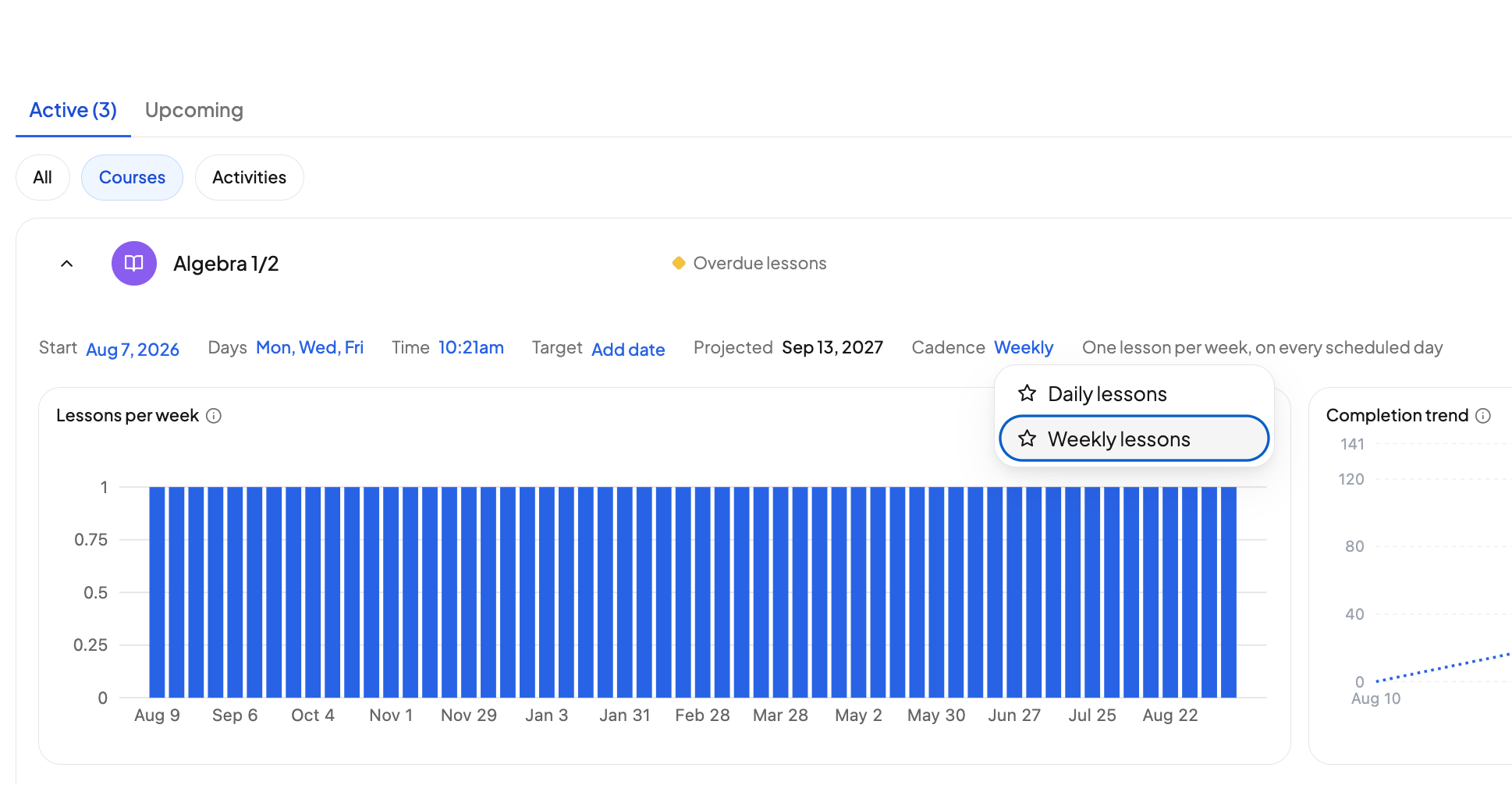
You can switch a course between daily and weekly lessons at any time:
- Expand the course in the student's course list to open its scheduling strip.
- Open the Cadence dropdown and pick Daily lessons or Weekly lessons.
- Hit Save. OpenSky will ask you to confirm: switching cadence unpins any pinned lessons, because a pinned date means "this day" under daily lessons and "this week" under weekly lessons.
A target finish date still works on a weekly course — OpenSky just projects it week by week instead of day by day.
Weekly lessons for course templates
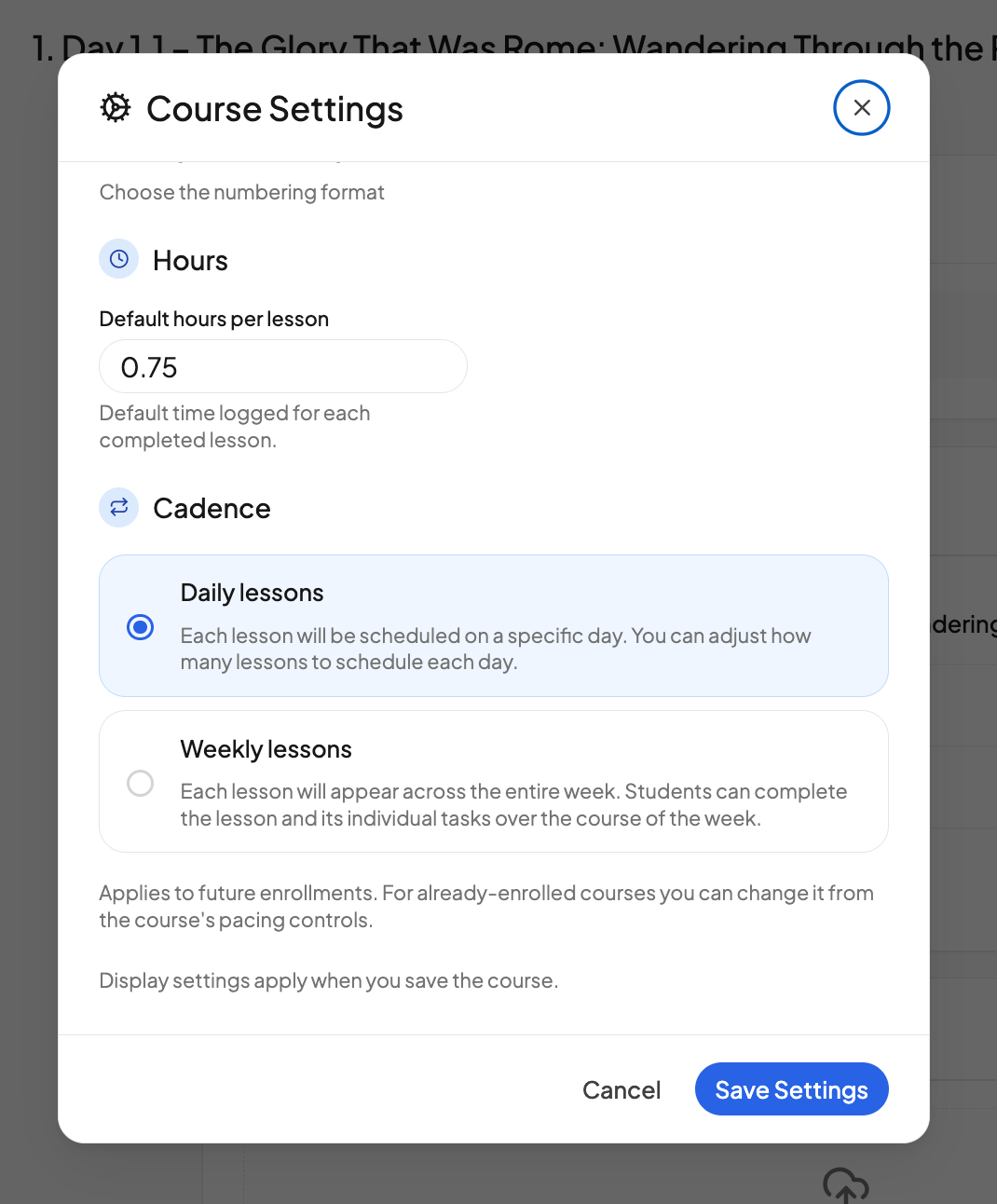
If you build your own course templates, you can set the cadence there too:
- When you create a new course template, pick Daily lessons or Weekly lessons right in the create dialog.
- To change it later, open the template's Course Settings.
A template's cadence applies to future enrollments — students already enrolled in the course keep their current cadence, which you can change from the course's scheduling strip as usual.
Need more help?
Reach out any time at support@openskyplanner.com and we will be happy to help.