
Grading lessons
Grade individual lessons as they are completed.
Updated
Grades go on lessons one at a time, as the work is finished. As soon as a course has a graded lesson it gets a calculated grade in the gradebook.
Grading from the checklist#
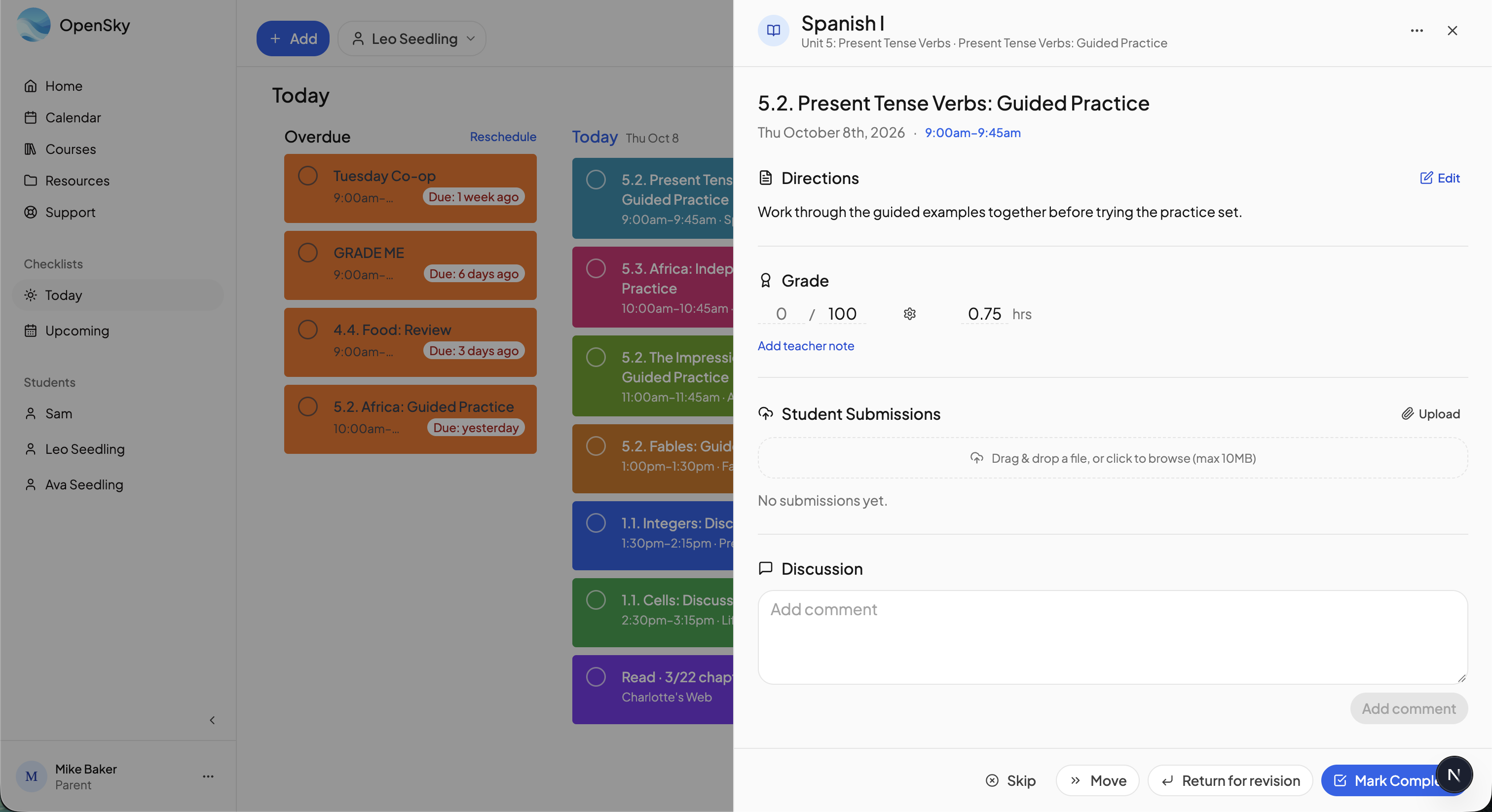
- Open the lesson from your checklist to show the lesson drawer.
- In the Grade section, type the score and the maximum (out of 100 by default). It saves as you type.
- For another style, click the gear beside the grade and choose Numeric, Pass / Fail or Standards-Based. Standards-Based gives a level: Advanced, Proficient, Basic or Below Basic.
- Click the × to clear a grade.
New grades start in the course's Grading style. See Grading styles.
Grading a whole course at once#
Open the student's Gradebook and click the course. Every lesson is a row with Lesson Type, Status, Hours and Grade columns. The Grade cell is the same editor as the drawer, and Tab moves down the column. The ⋮ menu on a row switches the style or clears the grade.
A lesson with tasks can be graded task by task; its grade is then their average, unless you enter one on the lesson itself, which Clear grade override undoes.
Teacher notes#
Under the grade in the drawer, Add teacher note stores a private note about that grade. Only parents see it; a student sees nothing. The lesson needs a grade before a note can be saved.
The Ungraded column#
For a course where every lesson should be graded, switch on Appear in Ungraded column on the Grading tab of Course Settings. Each lesson the student completes then waits in the Ungraded section at the top of your checklist until it has a grade. Click a card to open the drawer and grade it, or click Won't grade to dismiss it. For an activity the setting is Grade every occurrence, or Add to parent grading queue when you create it. To change the set of courses in one go, open the ⋯ menu on the Ungraded heading and choose Edit courses.
Letting students grade#
Students see grades in the drawer unless See grades is off in their Student Portal settings. To let a student enter their own, switch on Add & edit lesson grades there, or for one course only, under Student Permissions in its Course Settings, Allow students to add and edit lesson grades for this course. See Permissions.
Need more help?#
Reach out any time at support@openskyplanner.com and we will be happy to help.