
Where's my course?
A course that is missing from the Gradebook is not linked to that grade yet. Here is how to add it, and how grades are organized.
Updated
If a course is missing from a student's Gradebook, it is not linked to the grade you are looking at. The Gradebook shows one grade at a time, and a course only appears in the grade it has been added to. Lesson grades, progress and dates make no difference; the link is all that matters.
Add the course to a grade#
- Open the student's Gradebook tab.
- Click the grade name at the top left of the page and choose Manage grades at the bottom of the menu.
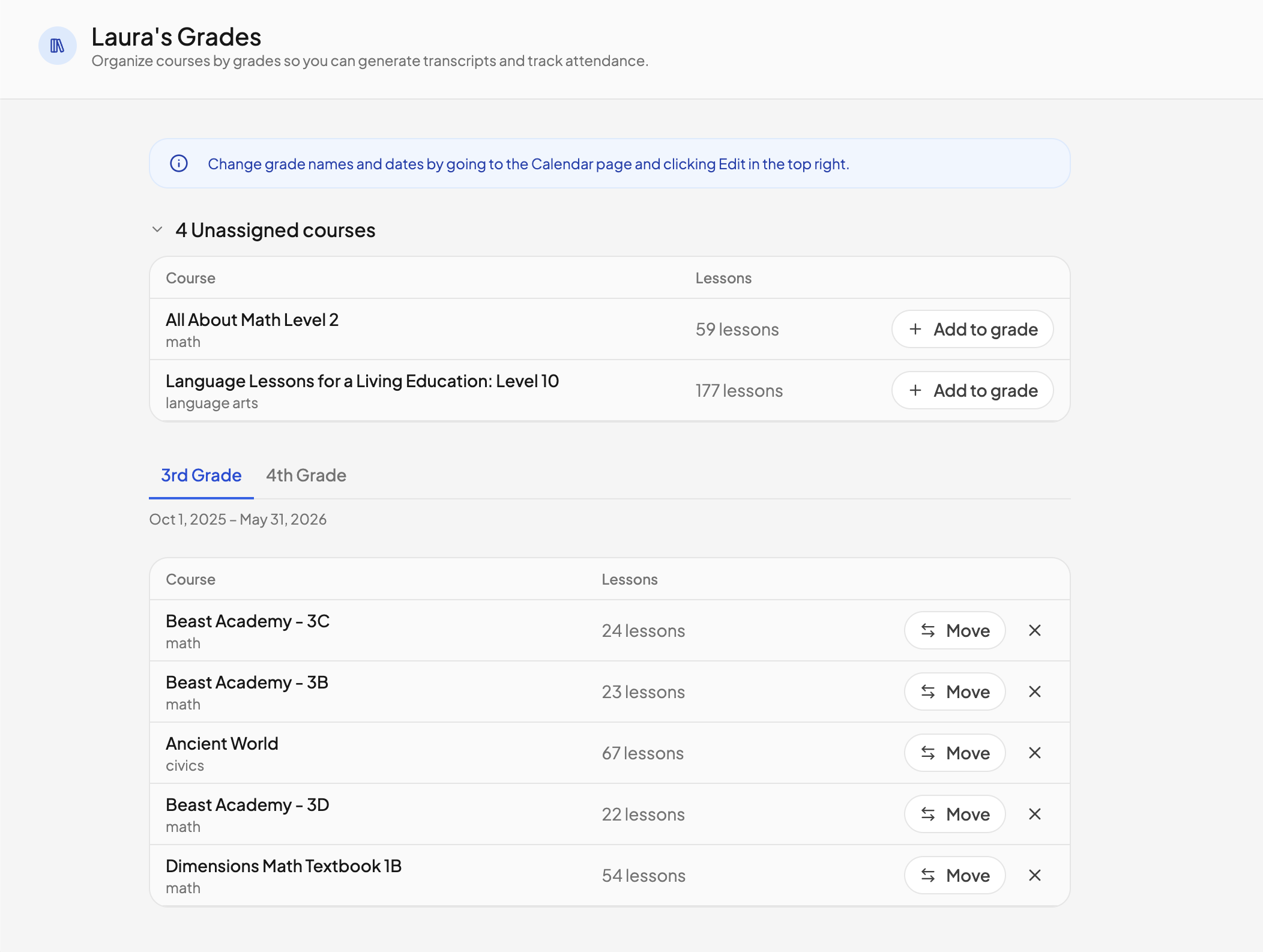
- Expand Unassigned courses. Every enrolled course that is not in a grade yet is listed here with its lesson count.
- Click Add to grade on the course and pick the grade it belongs to.
Close the dialog and the course is in the Gradebook, with any grades and hours it already has.
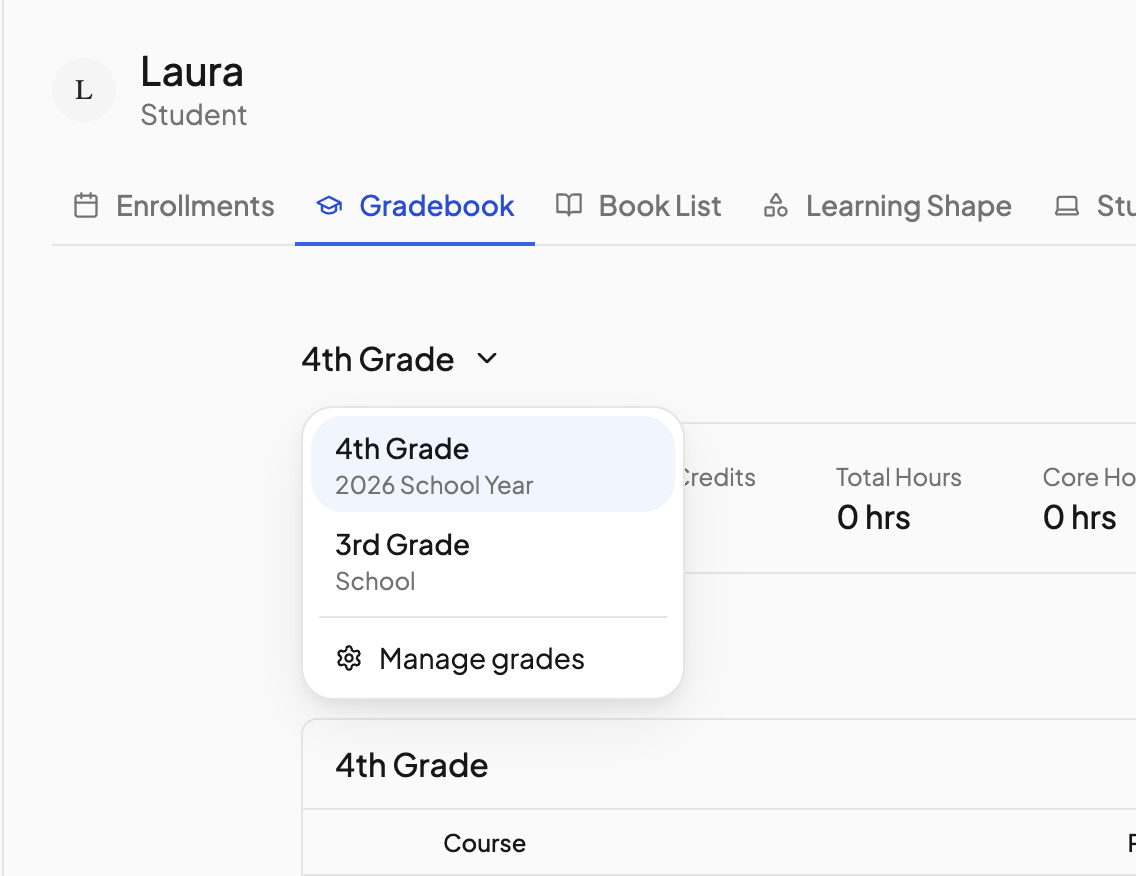
If the course is not under Unassigned courses, check the other grade tabs in the same dialog. A course can only be in one grade, so a course sitting in the wrong one can be sent to the right one with Move. The × on a course sends it back to Unassigned courses.
If the dialog says Add a school year from the Calendar first, the student has no grade yet. See Understanding school years.
Why a course goes missing#
- It was added to a different grade. New courses go into the student's most recently created grade automatically. If you set up next year's grade early and then added a course, it is probably sitting there. Switch grades from the picker at the top of the Gradebook, or move it.
- It is a free-read book. Book courses added for free reading are never put in a grade automatically. Add them from Unassigned courses if you want them on the record.
- It was removed. The × on a Gradebook row takes the course out of that grade but keeps its grades and lessons. Add it back from Manage grades.
How grades are organized#
A school year belongs to the household and sets the dates, teaching days and attendance goal. Each student is enrolled in the school year as a grade, named by their grade level, such as 9th Grade. Courses and activities are added to a grade, and the Gradebook, transcripts and portfolios read from it. Within a grade you can add semesters to split the courses into columns.
School year (household)
└── Grade (one per student, e.g. 9th Grade)
    ├── Semester (optional columns)
    │   └── Courses
    └── Tests & awards
Grade names and dates are edited from the Calendar page: click Change year in the top right, then Edit years. See Understanding school years and Adding a new school year.
How a course is graded is set on the course itself, not on the grade. See Grading styles for the grading style, category weights, credits and course grade override.
Activities work differently from courses: they appear in the Gradebook when Add to parent grading queue is ticked on the activity. See the Activities section of Gradebook.
Need more help?#
Reach out any time at support@openskyplanner.com and we will be happy to help.