
Adding a new school year
Start the next school year without losing the current one.
Updated
A school year holds each student's grade, their first and last day, their attendance totals and the courses that appear in reports. When one year ends, create the next. The old one stays, and you can switch between them at any time.
Creating the year#
- Open Calendar in the sidebar, click Change year, then Edit years.
- Click New School Year.
- Check the Start Date and End Date. They are suggested from the latest year moved forward twelve months, and the Name follows the dates unless you type your own.
- Click Create School Year.
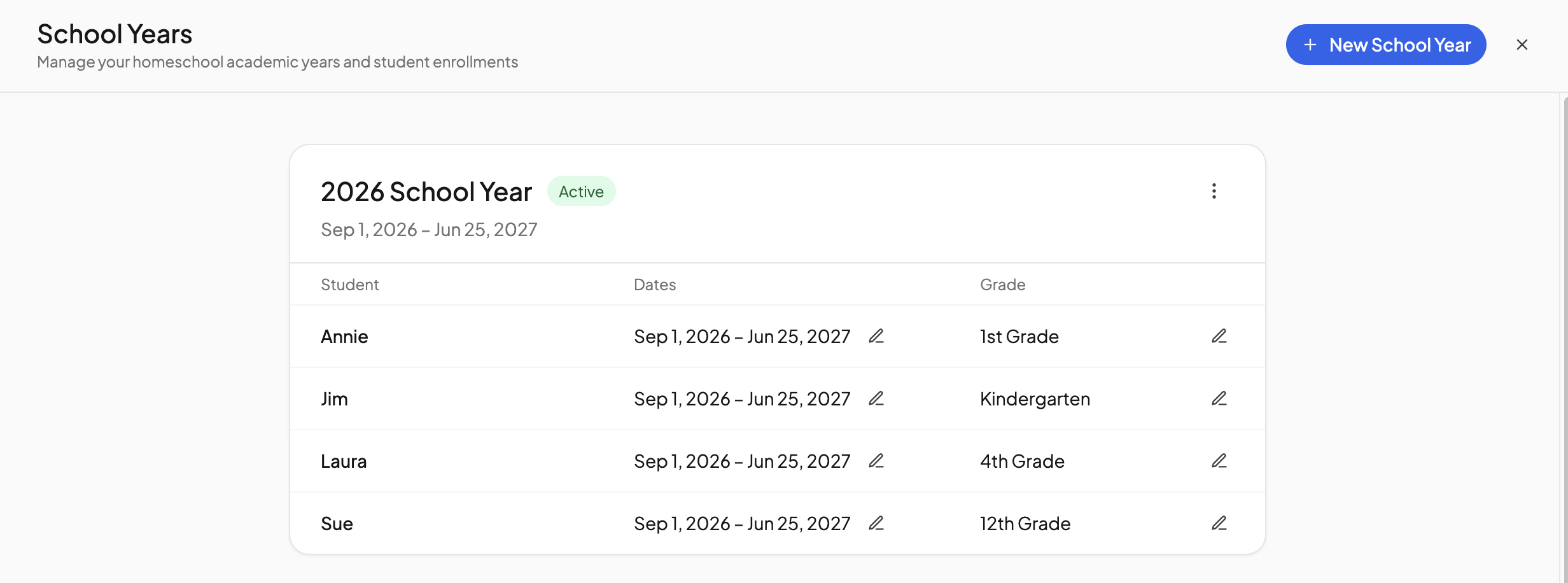
Every student is enrolled in the new year, with their grade moved up one from the year before where that is possible. A custom grade, or a student who has no grade, is left as No grade for you to set.
Setting grade levels#
Grade belongs to the school year, not the student, which is why it is set here. On a year's card, click the pencil beside a student's grade and pick one from the list, or choose Custom… and type your own, such as Year 7. The grade appears on transcripts and the attendance record for that year.
Switching between years#
The year with the Active badge is the one the Calendar page opens on. Open the ⋮ menu on another year's card and choose Set as active to change it. Change year in the Calendar header switches the view without changing which year is active.
Changing a year's dates#
From the same ⋮ menu, choose Edit name & dates. Every student who follows the year moves with it. To give one student different dates, click the pencil beside their dates, click Unsync, set their First day and Last day and click Save dates. They show an Own dates badge from then on; Follow term dates puts them back on the year's dates.
A student missing from a year#
If a student was added after the year was created, their row on that year's card shows an Add button, labelled with the grade it will give them. Click it to enrol them.
Holidays carry over#
Holidays and teaching days belong to the school calendar, not to a school year, so there is nothing to copy. Breaks are dated, though, so add next year's. See Importing standard holidays.
Need more help?#
Reach out any time at support@openskyplanner.com and we will be happy to help.