
Managing enrolled courses
Edit, archive and reorganize the courses in your homeschool.
Updated
Each student's courses are managed from the Enrollments tab on their page. Courses in the sidebar, under Enrolled Courses, lists every enrollment across the household in one place.
The course list#
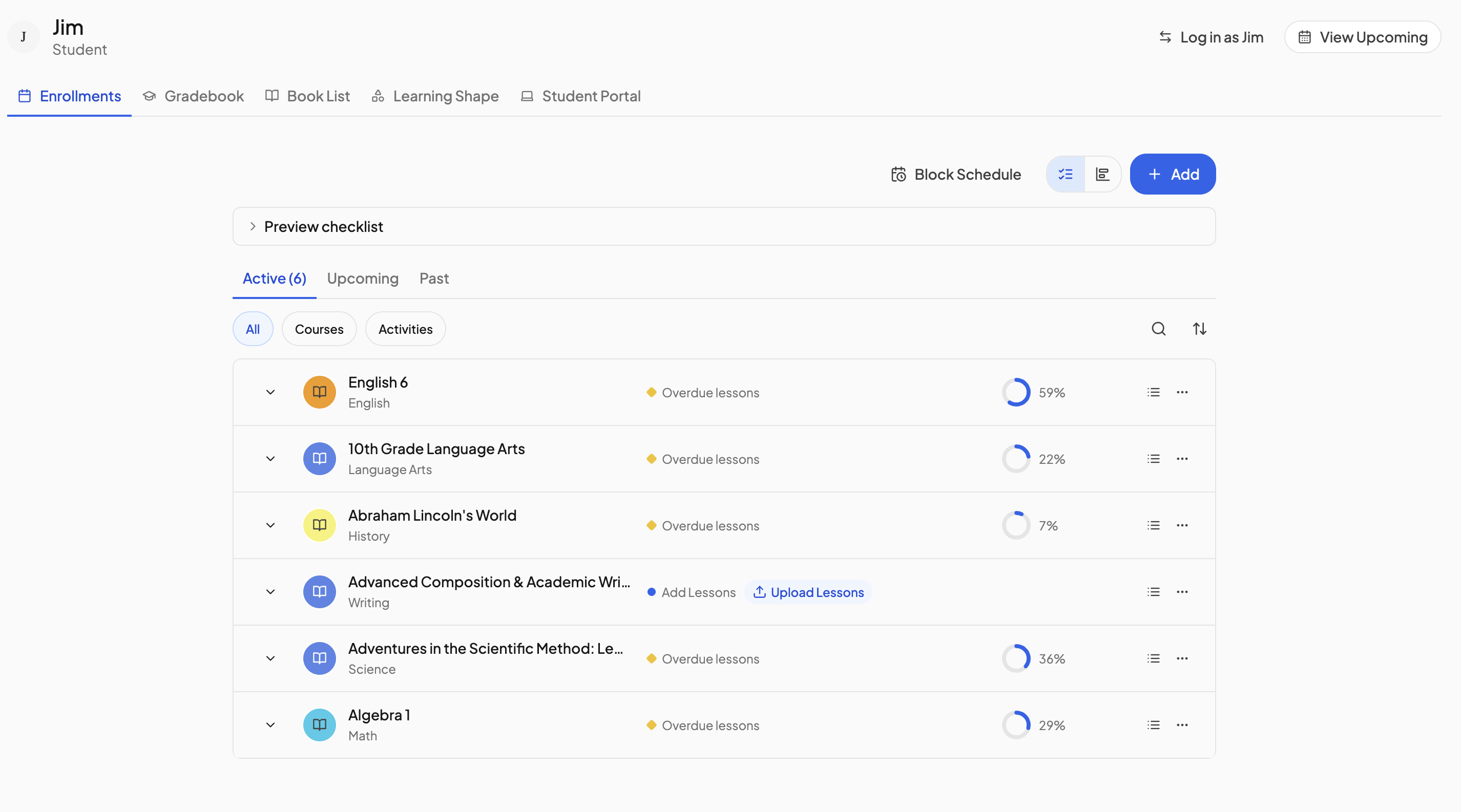
Click the student in the sidebar, then Enrollments. The list has three tabs: Active, Upcoming and Past. Filter it with the All, Courses and Activities chips, search titles, or sort by Checklist order, Name, Earliest start date or Earliest end date.
Edit order… in the sort menu opens a drag-to-reorder list. This sets the order courses appear on the student's checklist and nothing else.
What the course statuses mean#
Every row carries a status beside its title. Which one you see follows a fixed order: a finished course is Completed; otherwise anything late shows Overdue lessons; otherwise, if the course has a target date, its pace is compared with that date; and with no target it is Beautiful.
| Status | Meaning |
|---|---|
| Completed | Every lesson is done. The course sits on the Past tab. |
| Beautiful | Nothing is overdue and no target date is set, so there is nothing to measure against. |
| Ahead of plan | The projected finish is more than a week before the target date. |
| On plan | The projected finish is within a week of the target date, either side. |
| Shifting Rhythm | The projected finish is more than a week after the target date. Add days, raise the lessons per day, or move the target. |
| Overdue lessons | At least one lesson is past its scheduled day. See Overdue lessons. |
| Starting next week | The first lesson falls within the coming week. The course is on the Active tab. |
| Upcoming | The first lesson is further out than next week. The course sits on the Upcoming tab with its start date. |
| Add Lessons | The course has no lessons yet, so there is nothing to schedule. |
| Paused | Scheduling is stopped; see Pausing a course. |
The projected finish is the date of the last lesson on the current schedule. Both dates appear on the expanded row as Projected and Target, and the Completion trend chart plots completions against them.
Setting a target date to track progress#
A target date turns the status into a pacing check and draws the target line on the chart. Set one even when you are happy with a fixed pace: it tells you early whether the course will end before the school year does.
- On the Enrollments tab, expand the course row.
- In the strip at the top, click the blue value beside Target and pick a day on the calendar.
- Click Save.
The × beside the date clears it, which takes the course back to Beautiful. With Pacing set to Fixed pace, the target is only a measure. With Pacing set to Deadline, the target is the date OpenSky spreads the remaining lessons to reach, and it cannot be saved without one. Weekly courses keep a target date too, though their pace is always one lesson a week. See Course pacing.
Row actions#
Each row has a list icon that opens the course editor, and a menu with:
- Edit lessons — the course editor.
- Track books — tag books the course uses; see Books.
- Course settings — grading, display and student permissions (below).
- Print course — see Printing a course.
- Complete & archive — marks the course finished and removes it from checklists and the planner. Progress and grades are kept, and the course stays eligible for transcripts. It moves to the Past tab, where Make active brings it back.
- Pause / Resume — stops scheduling without losing progress; see Pausing a course.
- Delete — permanently removes the course with its grades, completions and progress. This cannot be undone.
To change a course's title, subject or publisher, open it in the course editor and click the pencil beside the title.
Course settings#
Course Settings has three tabs for an enrolled course (a template shows only Display, plus its Cadence):
- Grading — the default Grading style, credits, Category weights, and Count hours toward, where you tag the course Core, Non-Core or Elective. A course can carry more than one tag; the gradebook totals hours by category across the term. See Gradebook and Adjusting grade weights.
- Display — lesson Numbering (by position in the parent folder or in the whole course, decimal or single numbers) and Default hours per lesson.
- Student Permissions — one switch, Allow students to add and edit lesson grades for this course.
Changing the schedule#
Start date, teaching days and pacing are edited from the row itself and from the Block Schedule view. See Course pacing, Block scheduling and Scheduling a course that started already.
Need more help?#
Reach out any time at support@openskyplanner.com and we will be happy to help.