
Tracking attendance
Record attendance by day and see totals for the year.
Updated
Attendance is automatically recorded as students use OpenSky. Each day with a completed lessons is automatically marked as Present. You can track and override these labels at any time.
Recording a day#
- Open Calendar in the sidebar and click the student's name. The ring on it is their days present out of the year's school days.
- Hover over a day (tap on a phone) and pick a status from the bar: Half Day, Absent, Present, Sick, Holiday or Weather Day.
- The footer counts your unsaved changes; click Save to commit them or Discard to drop them.
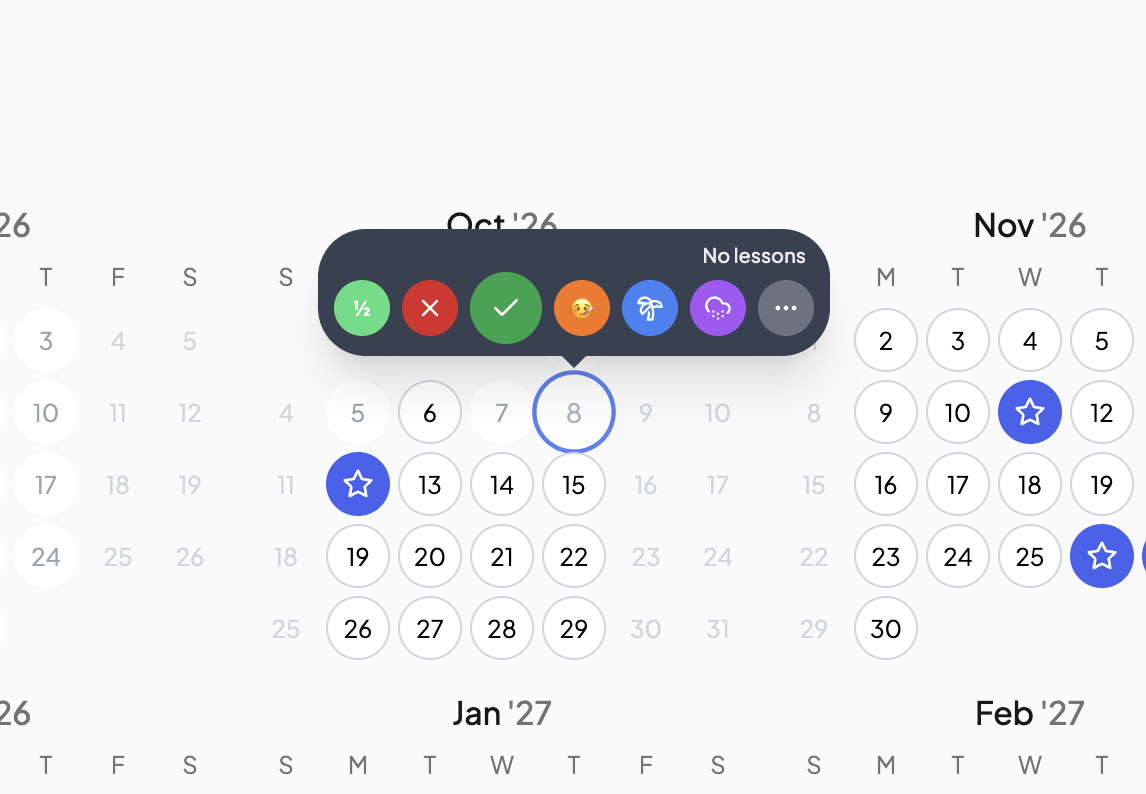
More options opens Update Attendance, which adds Late, a Note (optional), and Remove Override to hand the day back to automatic.
How statuses work#
- Present, Half Day and Late count towards attendance. A half day counts as 0.5 and a late day as present.
- Absent and Sick are school days the student missed.
- Holiday and Weather Day are excused and come off the school-day total.
- Any absence status also takes that student's lessons off the day; they move to the next teaching day.
A future day accepts only absences. A break day accepts only presence, which counts it as a school day for that student alone. Weekends and other non-teaching days cannot be marked. A past school day with lessons scheduled and nothing completed counts as absent until you mark it. An activity with Counts towards attendance ticked marks the day present when completed; see Activities.
Catching up on a backlog#
Click the three dots "..." on a day to open Update Attendance, and click Mark all marks that day and every earlier teaching day in the year as Present. It overwrites any statuses already on those days.
From the checklist#
A date's ⋯ menu has Change day status for one student or for all, and Add then Add day off records a Sick Day, Weather Day or Absent over a range.
Totals and the goal#
The Overview tab shows Days Present against the year's target, Progress, Days Remaining and a breakdown by status. Click the pencil beside Days Present to set the target, such as 180.
Exporting a record#
With a student selected, click the printer icon above the calendar. The PDF is a one-page Attendance Record: your school's name and contact details from School profile, the student's name, grade and school year, the totals, and a month-by-day grid using the codes P, H, L, A, S, X and W. The same record can go in a portfolio; see Generating a portfolio.
Need more help?#
Reach out any time at support@openskyplanner.com and we will be happy to help.