
Assigning books
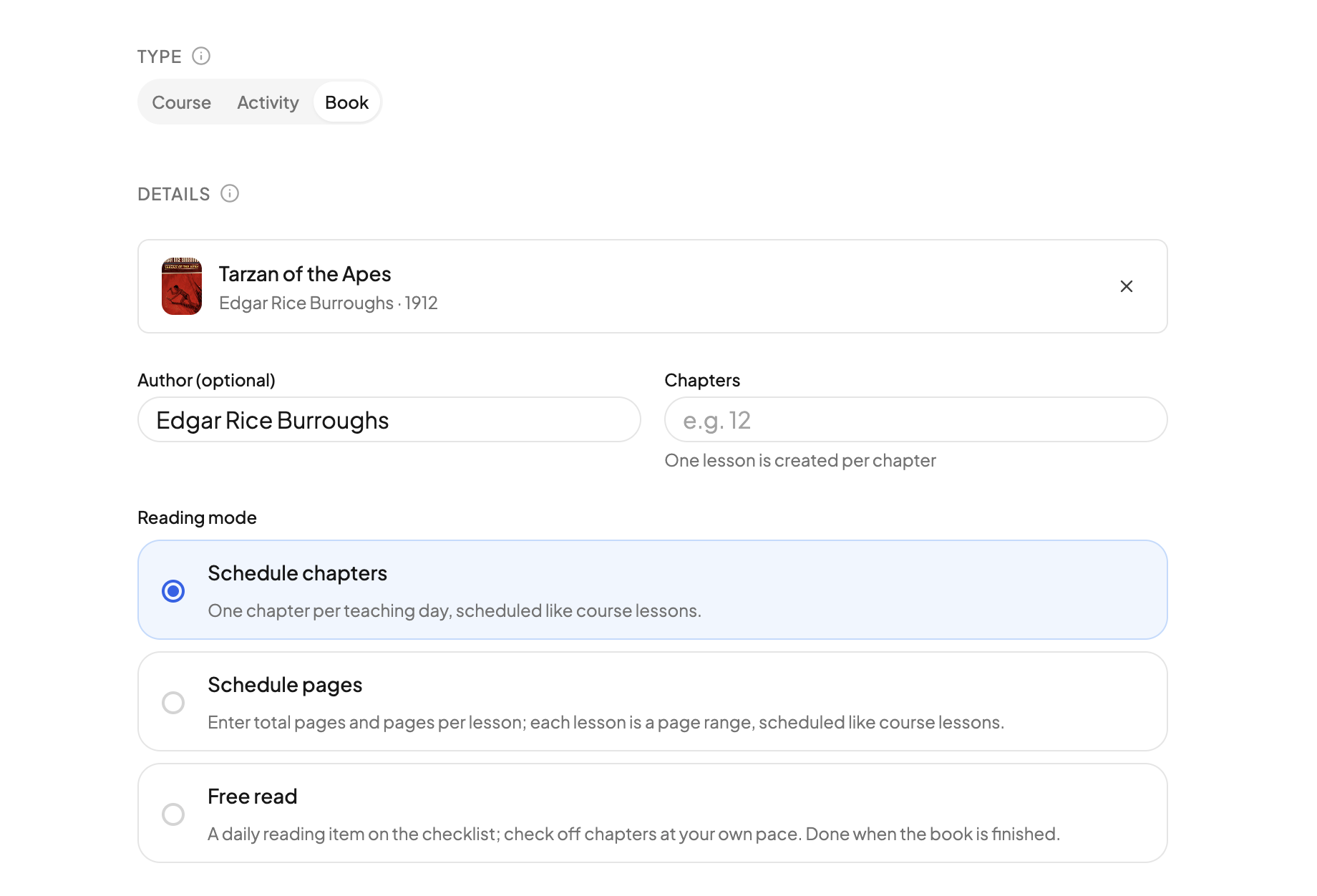
Add books to a student and decide whether they are scheduled chapter by chapter or read freely.
Updated
Every student has a Book List: a record of what they have read, built from the books you tag on courses and activities plus any you add by hand. To read a book as scheduled chapters or a daily free-read item, see Scheduling books.
The Book List#
Click the student in the sidebar, then the Book List tab. Each row shows the cover, title, author, where the book came from (a course or activity name, or Added manually) and a date read. Search by title or author, switch between List and Timeline, and sort by Date or Title.
Click a row's date to change it. For a course book the date starts as the course's start date; for an activity, the activity's date.
Adding a book directly#
- On the Book List, click Add Book.
- Search Open Library by title or author and click the plus beside a result. If it is not there, click Can't find it? Add manually and type the title and author.
- Set a date read on each staged row if today is not right.
- Click Save.
Tagging books on a course or activity#
Books tagged on a course or activity appear on the Book List of every student enrolled in it:
- When adding a course or activity, use Add books next to Books: on the Add form.
- Later, choose Track books from the row's menu on the Enrollments tab.
The same book tagged on two courses appears twice, each with its own date.
Removing a book#
Click the trash icon on a row. A manually added book leaves this student's list. A course or activity book is removed from the course or activity itself, for every student on it, so OpenSky asks you to confirm.
Students and parents#
Students see their own Book List when Allow access to Book List is on in their Student Portal settings; Allow student to add, edit, and delete books lets them add to it. A student can only remove books they added themselves. See Student access.
Parents can keep a reading list too: when you add a book from the Add form, People includes the household's parents as well as students.
Need more help?#
Reach out any time at support@openskyplanner.com and we will be happy to help.