
Scheduling books
Schedule a book across the calendar by chapter or by reading time.
Updated
A book can be scheduled like a course, one chapter or page range per teaching day, or read freely with a single daily item the student checks off as they go. Either way the book is tagged on the student's Book List.
Adding a book#
- Click the student in the sidebar, open Enrollments, and click Add.
- Click Book under Add from scratch, or describe it, such as "Read The Hobbit at his own pace", and click Continue.
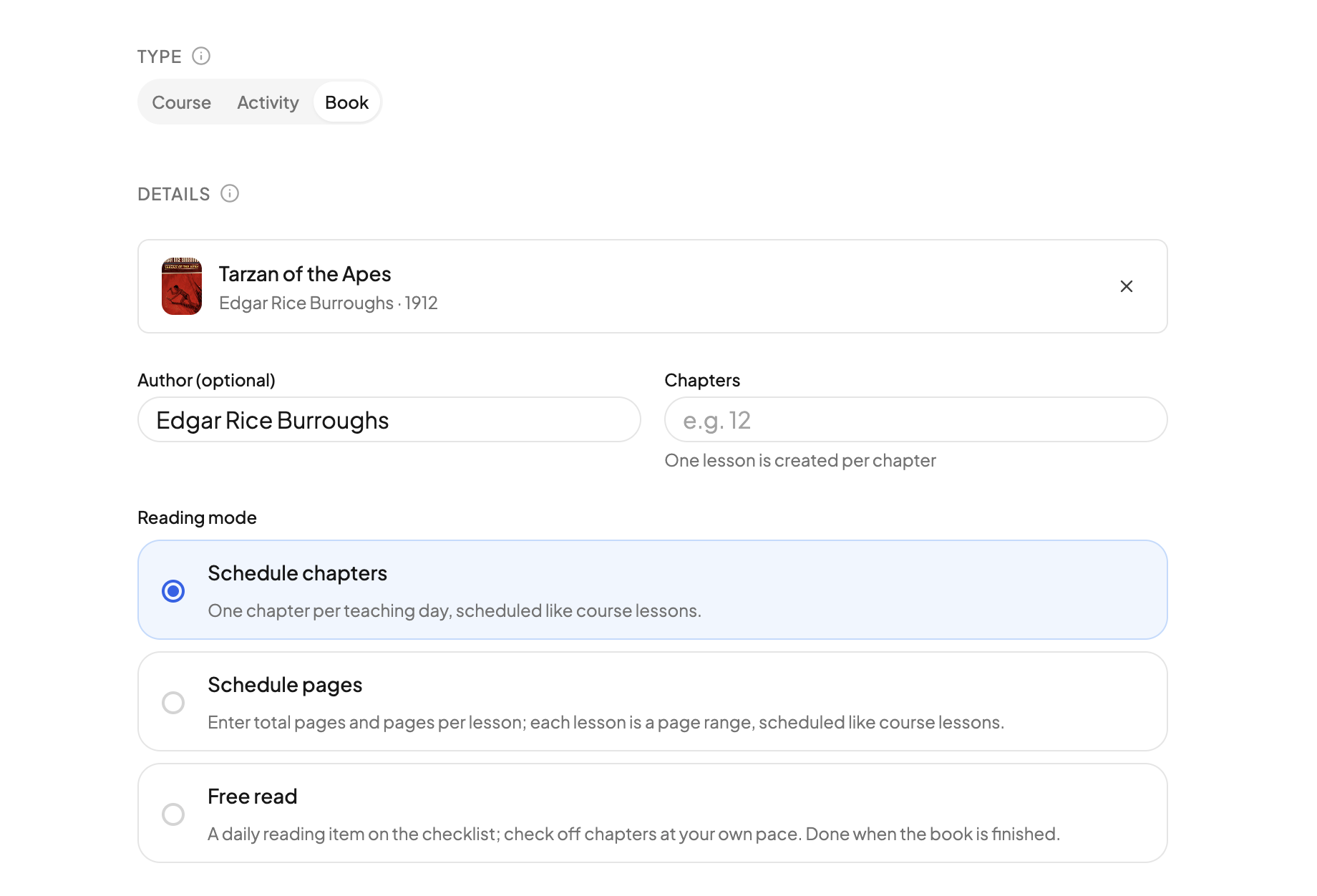
- Under Details, search for the book by title. Picking a match pulls in the cover, author and page count from Open Library; you can also just type a title.
- Choose a Reading mode and fill in the schedule.
- Pick who reads it under People and click Add.
Reading modes#
- Schedule chapters — enter the number of Chapters. One lesson is created per chapter and scheduled like course lessons.
- Schedule pages — enter Total pages (filled from Open Library when it knows the book) and Pages per lesson. Each lesson covers the next run of pages, such as "Pages 1–20". The form shows how many lessons that makes; a book cannot expand to more than 300.
- Free read — enter the chapter count. The student gets one Read item on the checklist each day and checks off chapters in its drawer at their own pace. The book is done when every chapter is checked.
The schedule#
For the two scheduled modes, set a Start date, tick Which days to read, and choose pacing: Fixed pace with Lessons per day, or Finish by deadline with a Finish by date and a front-loaded or back-loaded Distribution. Set a specific time gives every reading a time on the calendar.
For Free read, set a Start date and a Target finish date. The target is a pacing guide only: the drawer tells the student which chapter to be at to finish on time, and nothing goes overdue.
After adding#
A scheduled book is a course with the book's title, filed under the subject Reading unless you change it, and each reader gets their own copy and progress. It appears on the student's Enrollments tab and is managed like any other course. See Managing courses and Course pacing.
The reading mode is chosen when you add the book.
Need more help?#
Reach out any time at support@openskyplanner.com and we will be happy to help.