
Adding courses
Create a course from scratch, from a template, or from your own curriculum.
Updated
A course is a set of ordered lessons that OpenSky schedules onto a student's checklist. You add one from the student's page, and the same form handles a blank course, a template, or several things at once.
Adding a course#
- Click the student in the sidebar, then open the Enrollments tab.
- Click Add.
- Type or dictate what you want, such as "Saxon Math 5/6 every Tuesday starting July 1", and click Continue. Or skip the AI and click Course under Add from scratch.
- Review the form and click Add.
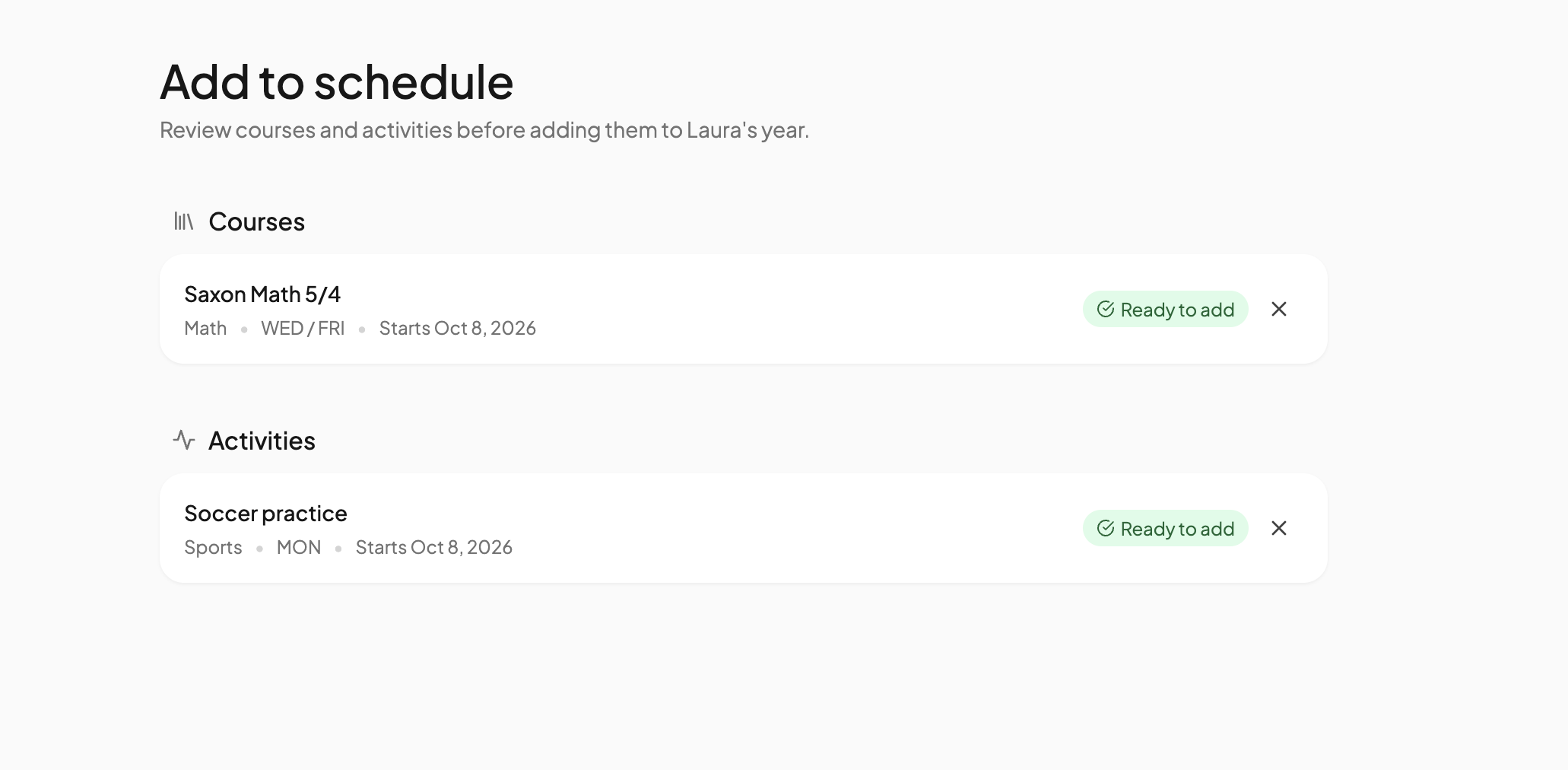
If you listed several things at once, OpenSky splits them into separate rows for you to review, then adds them all with Add to schedule.
What the form asks#
- Details — title, Subject and Publisher.
- Students — pick one or more. With more than one, choose Individual (each student has their own progress and grades) or Family Mode (one shared course; marking a lesson complete applies to everyone).
- Community template — OpenSky searches shared lesson plans that match the title. Click View to see the table of contents, or remove the match to start empty.
- Schedule — Daily lessons or Weekly lessons, a start date, which days, and pacing: Fixed pace sets lessons per day, Finish by deadline spreads the lessons to a date. See Course pacing.
- Books: tag books the course uses so they appear on the student's Book List.
- More options — tag the course Core, Non-Core or Elective for gradebook hour totals.
From a template#
Open Courses in the sidebar. Community Templates lists curricula other families have shared; My Templates holds your own. Click Enroll a Student on a row to open the same form with the lessons filled in. See Community templates.
Templates in My Templates marked Created by AI were built through the AI Connector.
From your own curriculum#
Add a blank course, then open it in the course editor. Its AI Mode turns a photo or PDF of your table of contents into lessons.
Templates versus enrolled courses#
A template is a reusable lesson plan with no student or dates. Enrolling copies it into an enrolled course for that student, so later edits to the template do not change courses already enrolled. Copy an enrolled course back the other way from Courses, Enrolled Courses, with Copy to My Templates.
Need more help?#
Reach out any time at support@openskyplanner.com and we will be happy to help.