
AI Connector
Connect OpenSky to an AI assistant so it can work with your courses and students.
Updated
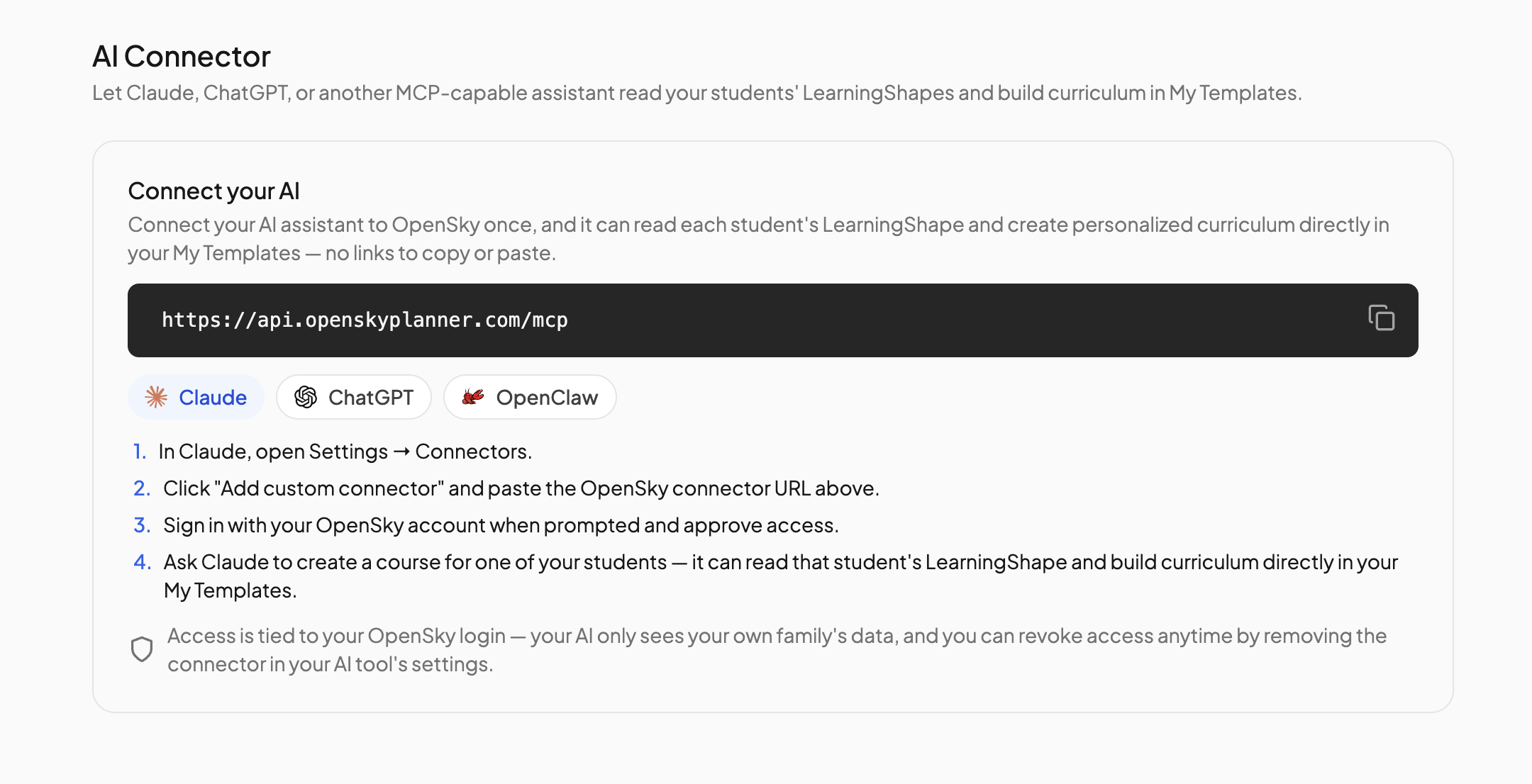
The AI Connector lets Claude, ChatGPT, or any other assistant that supports MCP connectors work with your OpenSky account. Once connected, your AI can read each student's LearningShape and build personalized courses straight into My Templates, with nothing to copy and paste.
Connecting your AI#
- Click your profile icon and go to Settings, then AI Connector in the left nav.
- Copy the connector URL shown on the page.
- Add it in your AI tool:
- Claude — open Settings → Connectors, click Add custom connector, and paste the URL.
- ChatGPT — open Settings → Apps & Connectors, turn on developer mode if you have not already, choose Add connector, pick MCP server, and paste the URL.
- OpenClaw — add an MCP server to your configuration using the URL.
- When prompted, sign in with your OpenSky account and approve access.
- Ask your AI to create a course for one of your students.
Access is tied to your OpenSky login. Your AI only sees your own family's data, and only a parent account can connect. If your account uses two-step verification, sign in to OpenSky in another browser tab first, then return to your AI tool and connect.
Gemini and Grok do not support MCP connectors, so they cannot be connected.
What your AI can do#
| Can | Cannot |
|---|---|
| List your students and read each one's LearningShape | Edit a LearningShape. You fill that in on the student's LearningShape tab |
| List and read templates in My Templates | Touch an enrolled course, its schedule, grades or attendance |
| Create a template, including its units, lessons and tasks | Enroll a student in anything |
| Add to, reorder, rename or edit an unenrolled template in My Templates | Read or change billing, settings, or another family's data |
Templates the AI creates are marked Created by AI in My Templates. Review one like any other template, then enroll a student from there. See Courses.
Disconnecting#
Remove the connector in your AI tool's settings. There is nothing to revoke inside OpenSky.
Need more help?#
Reach out any time at support@openskyplanner.com and we will be happy to help.