
Billing
Update billing info
Update the card on file and download invoices from your billing settings.
Updated
Everything about your subscription lives in one place: your card, your next charge, and your invoices.
Finding your billing settings#
- Click the three dots "..." by your profile icon and go to Settings.
- Click Billing & Passwords in the left nav and scroll to the Billing section.
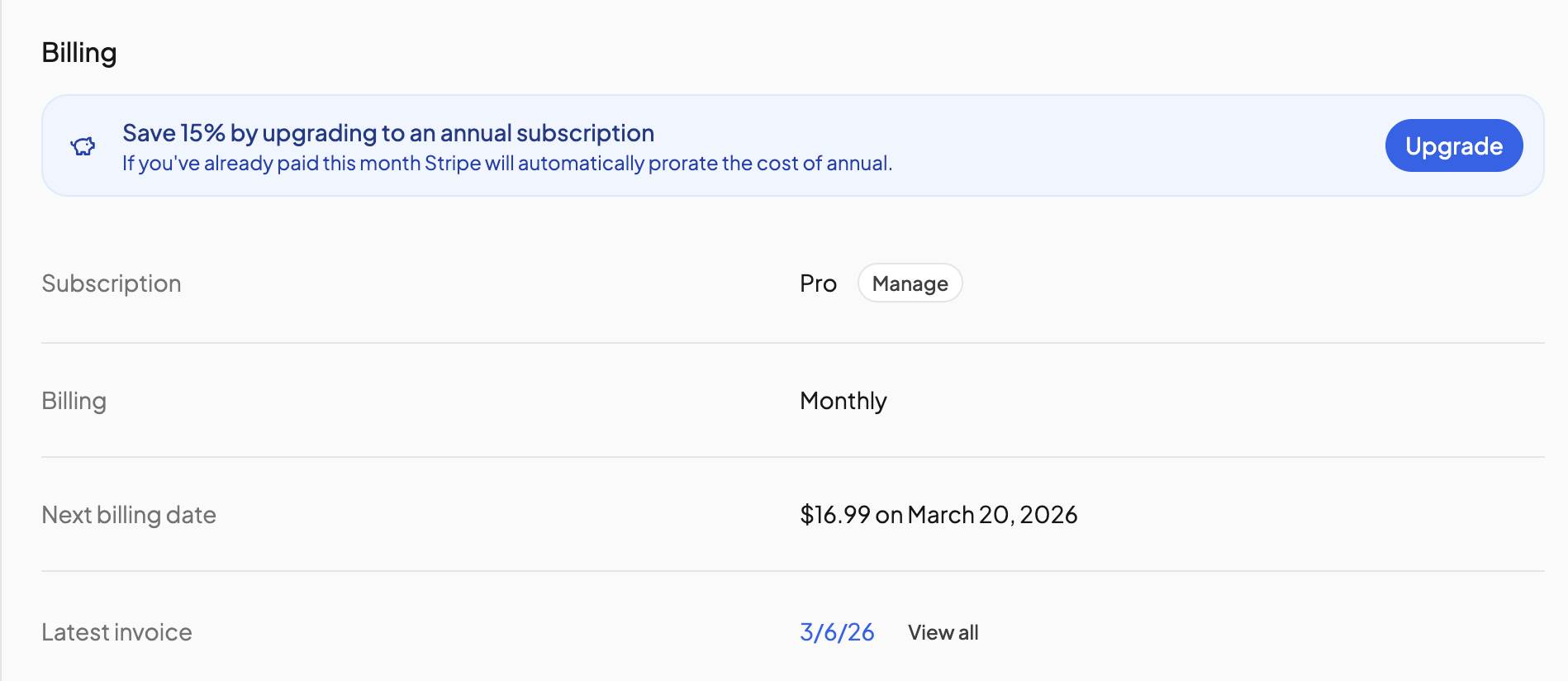
The section shows:
- Subscription — your plan, with a Manage button.
- Billing — Monthly or Annual. See Changing to annual.
- Next billing date — the amount and date of your next charge, including any discount still running.
- Latest invoice — the date of your most recent invoice, and a View all button.
Updating your card#
- Click Manage.
- Next to Payment method, click Update.
- Stripe's secure page opens. Enter the new card and save. OpenSky never sees the card number itself.
Do this from a web browser rather than the mobile app.
If a payment fails, OpenSky shows a Payment Failed notice with an Update Payment Method button. Once the new card is charged, access is restored.
Downloading an invoice#
- Click the date under Latest invoice to open the most recent one.
- Click View all for the full history. Each row shows the date, status and amount, with a View link that opens Stripe's invoice page, where you can download the PDF.
Invoices are listed while your subscription is active, so download anything you need before cancelling.
Cancelling is covered in Cancellation.
Need more help?#
Reach out any time at support@openskyplanner.com and we will be happy to help.