
Account
Profile swap PIN
Set a PIN so students cannot switch into a parent profile on a shared device.
Updated
On a shared device, OpenSky lets you switch between the people in your household without signing out. A four-digit PIN guards every switch, so a student cannot wander into a parent's profile, or another student's.
Setting the PIN#
- Click your profile icon and choose a student to change to. The first time you do this OpenSky will prompt you to create a pin.
- Once a pin is created, click the student again to switch to them.
- Enter the four-digit PIN.
Reset the pin#
- Click the three dots '...' near your profile icon and go to Settings, then Billing & Passwords in the left nav.
- Choose Change pin to reset to the pin to a new number
Only parents can set, change or remove a PIN. Each parent can have their own.
Switching profiles#
- Click your profile icon and choose Switch profile.
- Pick the person. Parents are listed first, then students.
- Enter the parent PIN and click Switch.
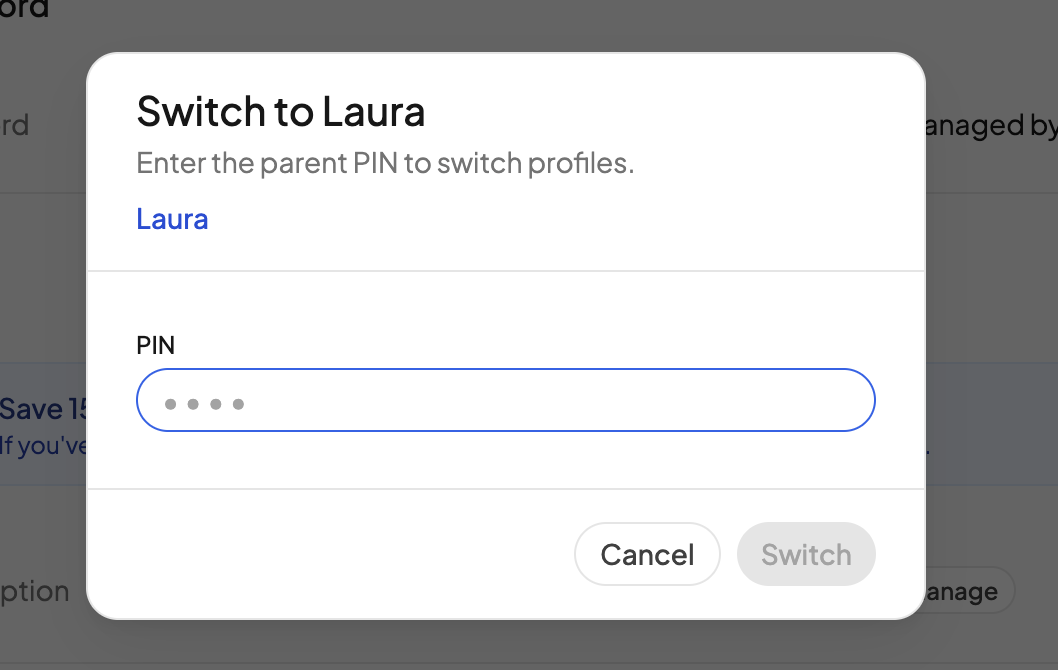
You can also switch straight from a student's page with Log in as {Name}, or by hovering a student in the sidebar and clicking the arrow.
Things to know#
- Every switch needs the PIN, in both directions. Switching from a parent to a student asks for it too, so a student cannot switch back without you.
- No PIN, no switching. Until a parent sets one, a student who tries sees "Ask a parent to set a profile-switch PIN in account settings."
- Five wrong tries locks switching for 15 minutes.
- Profile switching is one of three ways to give a student access. The other two, email sign-in and a one-time code, put the student on their own device. See Manage students.
Need more help?#
Reach out any time at support@openskyplanner.com and we will be happy to help.