
Account
School profile
Fill in your homeschool's name and details so they appear on reports and transcripts.
Updated
The School Profile describes your homeschool: its name, where it is, how you teach, and what it looks like. It is printed on transcripts and portfolios, so it is worth filling in once even if nobody else ever reads it.
Editing the school profile#
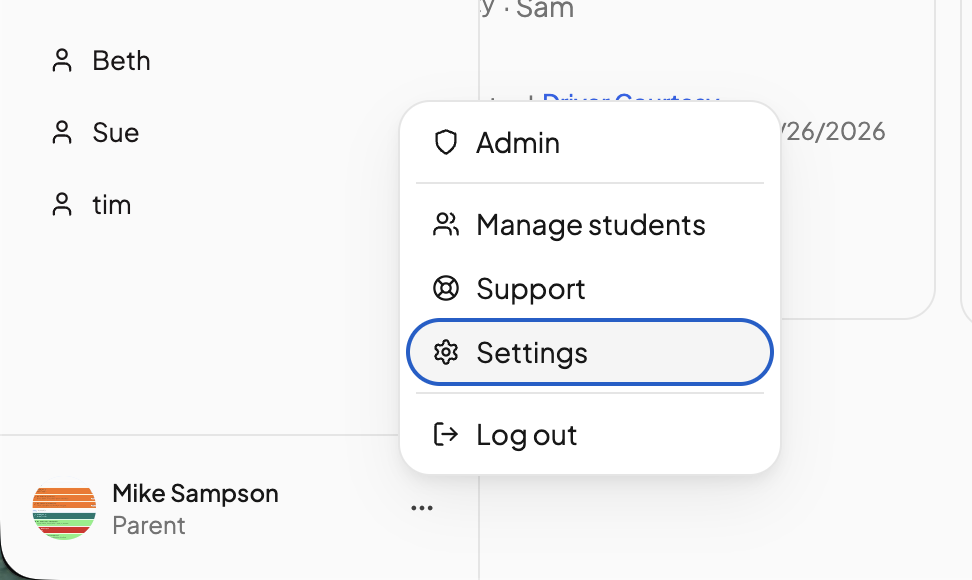
- Click the three dots '...' near your profile icon and go to Settings, then School Profile in the left nav.
- Click Edit profile.
- Make your changes and click Save changes.
Only a parent can edit the school profile.
What you can fill in#
- School name (required) and Tagline, a short line under the name.
- Logo — click Change logo to upload one.
- Philosophy tags — how you teach. Pick from suggestions such as Charlotte Mason, Classical, Eclectic, Montessori or Unschooling, or type your own. Up to 12.
- Photos — up to 20. The first one is your cover photo; drag to reorder. Photos save right away.
- About us — the paragraph that introduces your school on a portfolio.
- Our library — describe the library you use.
- School details — Main phone number, School email, Address, Year founded and Schedule type (Year-round, Traditional, 4-day week or Flexible).
- Transcript details — CEEB code (your College Board school code, if you have one) and Accreditation status.
Where it shows up#
- Transcripts print the school name, address, phone, email, CEEB code and accreditation status. See Transcripts.
- Portfolios build their Homeschool Profile section from the name, description, philosophy tags and photos. See Generating a portfolio.
- Your public profile, if you have turned one on under Settings → Public Profile, shows these details to other families.
Details about you as the teacher live on your Parent profile.
Need more help?#
Reach out any time at support@openskyplanner.com and we will be happy to help.