
Moving a lesson
Move one lesson to another day without disturbing the rest of the course.
Updated
Drag a lesson to another day, send it to tomorrow from its menu, or give it an exact date from inside the lesson. OpenSky only asks about the rest of the course when the move needs an answer.
Dragging a lesson#
On Today or Upcoming, drag the card onto another day. Moving forward into an open day happens at once; otherwise a dialog asks about the later lessons:
- Move future lessons earlier? — Move future lessons earlier pulls the rest of the course up too; Move only this lesson leaves it alone.
- Push lessons out? — the day already holds the next lesson. Reschedule future lessons pushes them back; Have multiple lessons on this day stacks them.
- This move requires all future lessons to be rescheduled — you moved past the next lesson, so Reschedule future lessons is the only way to keep the course in order.
A lesson cannot move earlier than the lesson before it or a completed lesson; OpenSky refuses rather than put the course out of order.
Using the lesson menu#
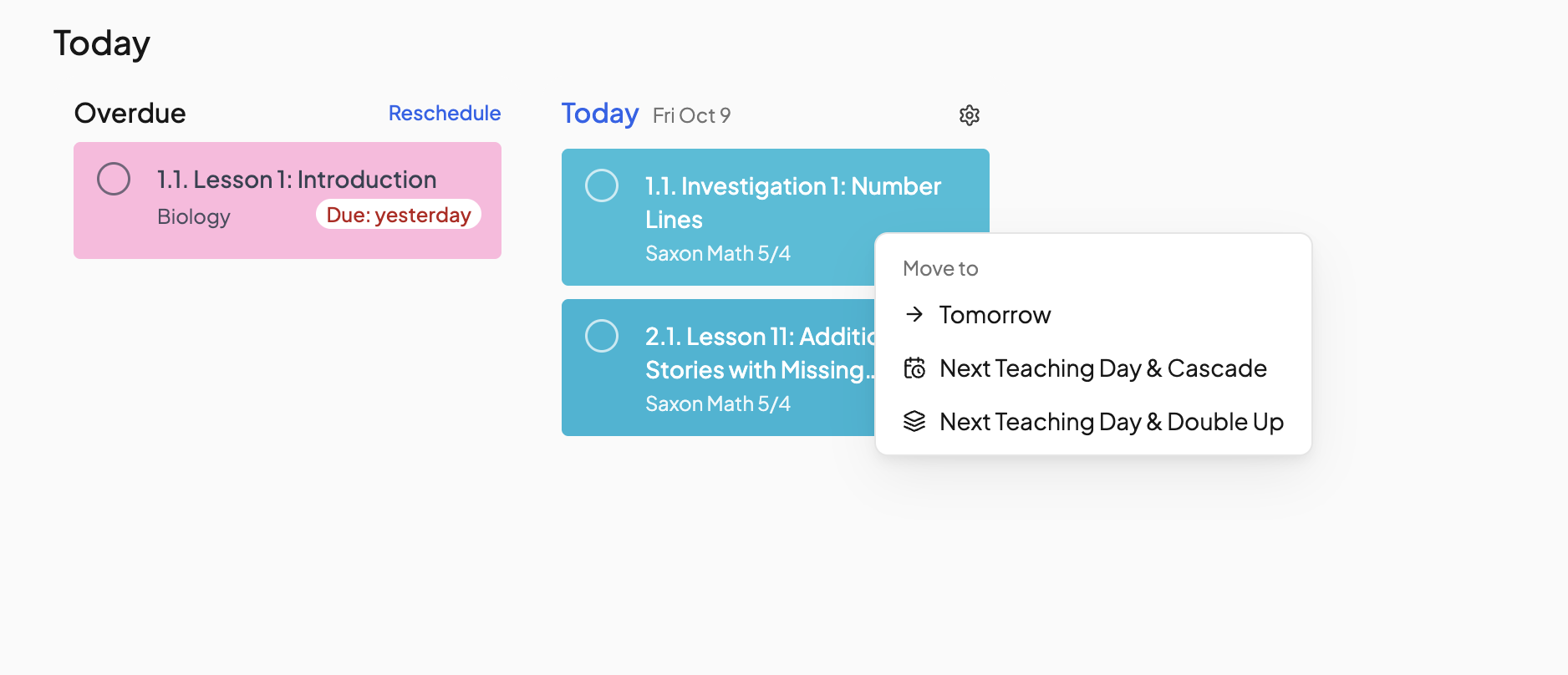
Right-click a card (press and hold on a touch screen) to open Move to: Tomorrow, Next Teaching Day & Cascade (later lessons shift to follow) or Next Teaching Day & Double Up (it joins the next lesson on its day). The … menu of an open lesson has the same rows. For an exact date, open the lesson, click Move, pick a day and click Move Lesson.
What a move leaves behind#
A moved lesson is pinned to its date. In the student's Enrollments tab the date shows a pin icon and the course row shows Upcoming lessons are manually pinned to dates. with a Reset scheduling button. Click the pin to clear one, or Reset scheduling to return the course to automatic scheduling. Completed lessons keep their dates.
Skipping instead#
Open the lesson and click Skip. Skip lesson only leaves the course in place; Skip and move next lesson here also pulls the next lesson onto that day. A skipped lesson never shows as overdue.
Back to pending#
Click the completion circle on a completed card to undo it, or in the Enrollments tab click the lesson's status badge and choose Mark pending. This also restores a skipped lesson.
Weekly lessons and activities#
A weekly lesson stands on every teaching day of its week, so drag it to another week to move it. Dragging one day of an activity moves only that occurrence. Students need the Move lessons and Skip lessons permissions. See Permissions.
Need more help?#
Reach out any time at support@openskyplanner.com and we will be happy to help.