
Course pacing
Choose how many lessons happen per week and which days they land on.
Updated
Pacing is set when you add a course and can be changed any time from the student's course list. OpenSky places lessons on the teaching days you choose and re-plans the course whenever something changes.
Setting pacing when you add a course#
- Click Add on the student's Enrollments tab and describe the course.
- In the Schedule section, pick a Cadence: Daily lessons puts individual lessons on specific days; Weekly lessons gives the course one lesson for the whole week.
- Set the Start date and tick the teaching days under Which days.
- Choose a Pacing style:
- Fixed pace — a set number of lessons on every teaching day. Pick Lessons per day (1 to 10).
- Finish by deadline — OpenSky spreads the remaining lessons so the course ends by the Finish by date. Distribution decides where the extra lessons go: Front-loaded schedules more early, Back-loaded leaves more toward the deadline.
- Optionally click Add time and set a Start time and Duration.
Weekly lessons have no pacing controls, since the course always moves one lesson per week.
Changing pacing later#
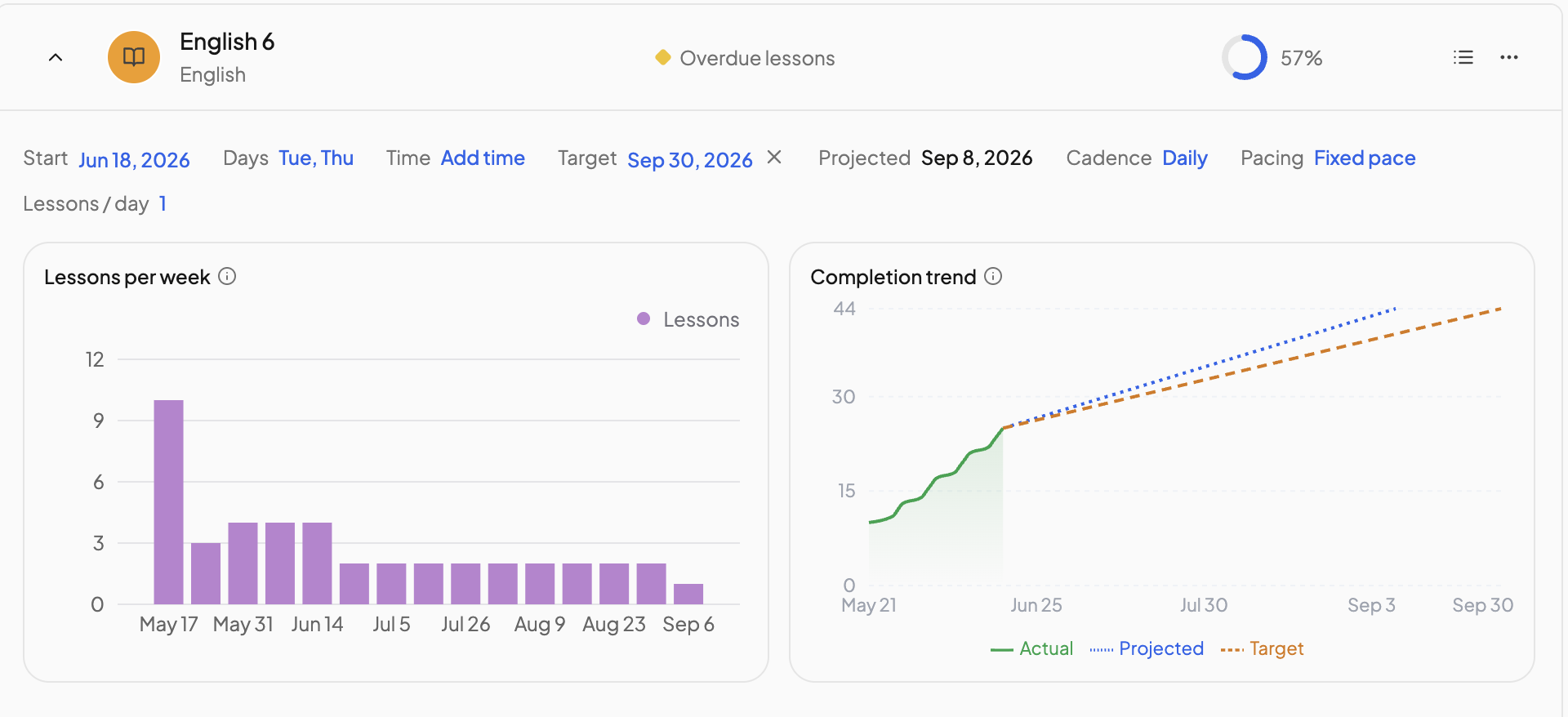
Open the student's Enrollments tab and expand the course row. The strip at the top shows Start, Days, Time, Target, Projected, Cadence and Pacing. Click any blue value to change it, then click Save. Choosing Deadline requires a Target date.
Start date, days and time belong to the course's block. If other courses share that block, a Block scheduled course dialog asks you to confirm, since the change reaches all of them. Days of a block with an A/B rotation are edited in Block scheduling instead.
Is the course on track?#
Each course row carries a status next to its title: On plan, Ahead of plan or Shifting Rhythm compare the projected end date with your target (a week either way counts as on plan). Without a target you see Beautiful as long as nothing is overdue, and Overdue lessons when something is. See Overdue lessons.
The expanded row adds two charts: Lessons per week, and Completion trend, which plots completions against the projected and target lines.
For the whole year at a glance, switch the toolbar from List to Timeline. Each course is a bar from its first to last scheduled lesson, with a progress ring. Zoom with the magnifier buttons; Reset View returns to the default range.
Need more help?#
Reach out any time at support@openskyplanner.com and we will be happy to help.