
Adding holidays and breaks
Mark days off so lessons skip them and the plan moves forward on its own.
Updated
A holiday or break is a named range of days off for the whole household. No lessons are placed on those days: each moves to the next teaching day and everything after it shifts along, so the plan stays intact on its own.
Adding a break#
- Open Calendar in the sidebar.
- Click the first day of the break on the calendar, then click the last day. A single holiday needs one click. Or click Add and pick the dates in the card.
- Give it a Name such as Winter Break, check the Start Date and End Date, and optionally choose a Color and Icon.
- Click Save on the card, then Save Changes at the bottom of the page.
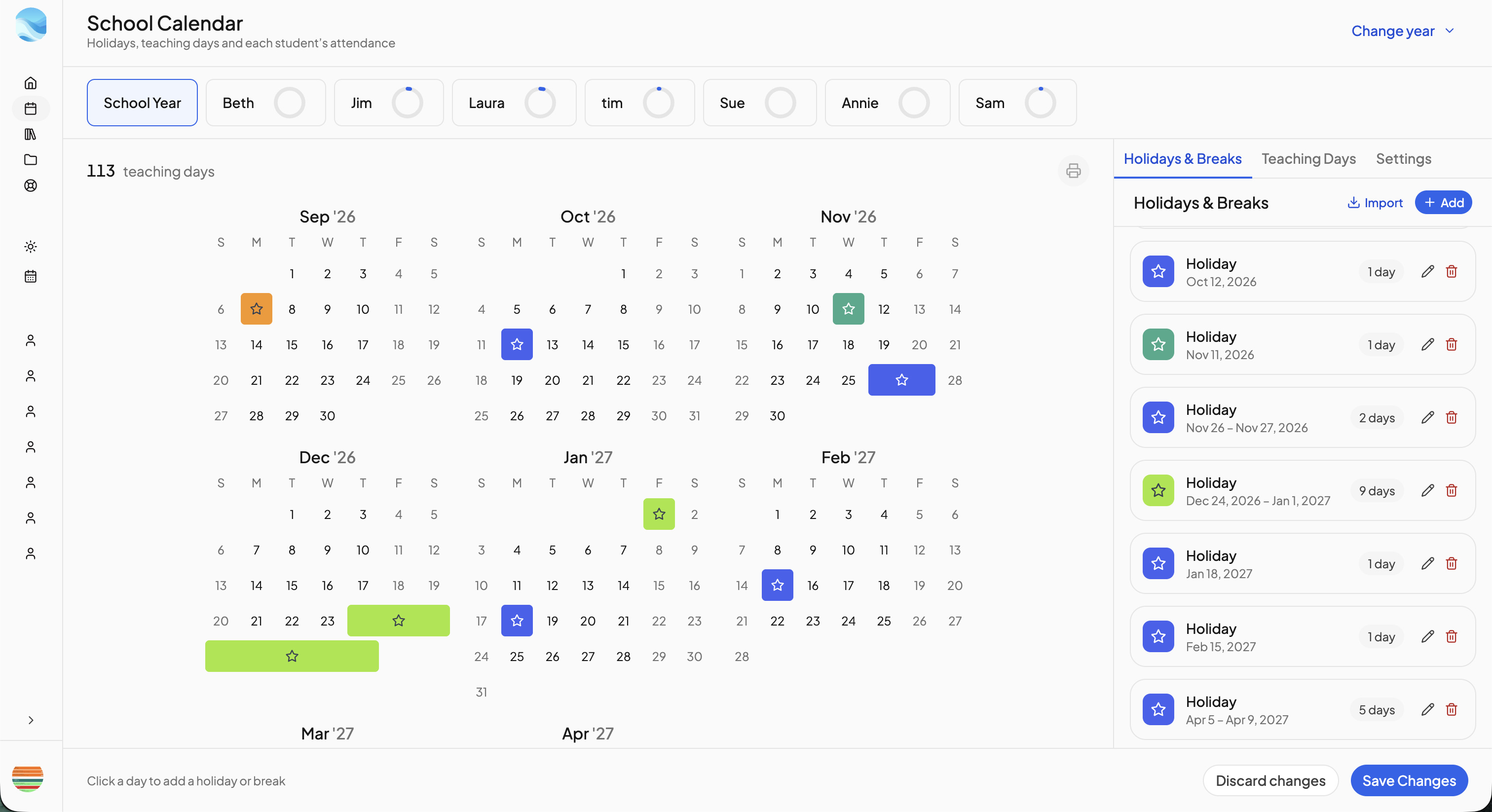
Nothing changes until you click Save Changes; Discard changes throws the edits away. The teaching-day count above the calendar updates as you draw, so you see what a break costs first.
Editing and removing#
Click a break on the calendar, or the pencil on its row, to edit it; the trash icon removes it. Both need Save Changes afterwards. The list shows the breaks in the range on screen and says how many sit outside it. If two entries overlap, the card warns you and the later entry wins on shared days.
For a standard set of breaks and public holidays for your region, see Importing standard holidays.
From the checklist#
On the Today or Upcoming checklist, click Add then Add day off. With Holiday selected and Everyone ticked, enter a title, pick the date (+ Add end date for a range) and click Add day off. It goes onto the school calendar straight away. The other kinds, Sick Day, Weather Day and Absent, are recorded per student; see Attendance.
A date's ⋯ menu offers the same for one day: Change day status, For all students, Holiday. On a holiday the menu instead shows Restore as school day and Edit school holidays.
What moves and what does not#
- Course lessons and scheduled book chapters move to the next teaching day.
- Activities stay where you put them. A repeating activity skips holidays only when Don't schedule on holidays is ticked; see Activities.
- A student can still be marked present on a break day, which counts it as a school day for that student alone; see Attendance.
Need more help?#
Reach out any time at support@openskyplanner.com and we will be happy to help.