
School year
Importing standard holidays
Add a standard set of holidays to your calendar in one step.
Updated
Rather than adding Thanksgiving, winter break and spring break by hand, import the usual set for your region and adjust from there.
Importing#
- Open Calendar in the sidebar and, with the School Year chip selected, open the Holidays & Breaks tab.
- Click Import. An empty list offers Import standard holidays instead.
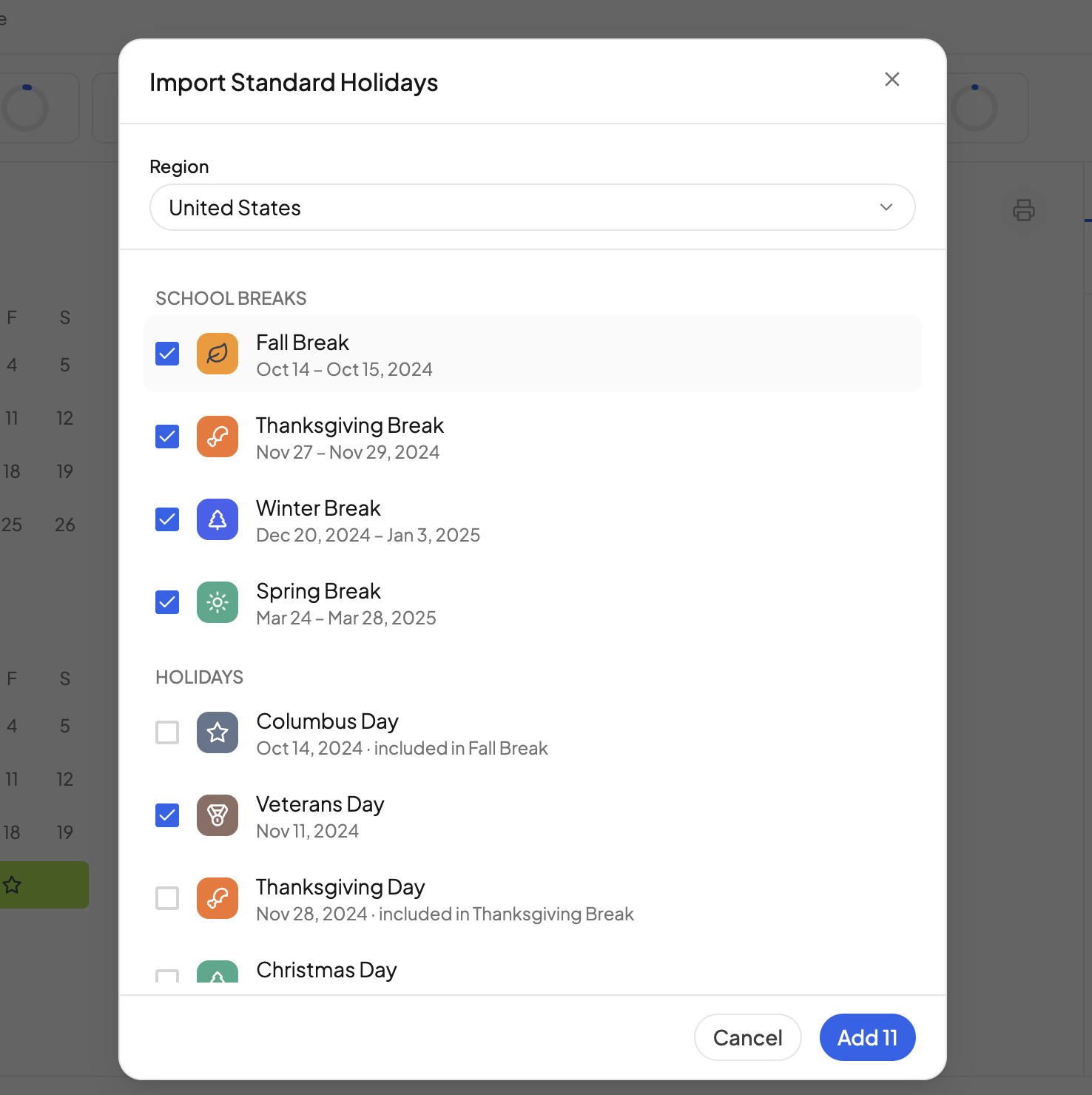
- Choose a Region: United States, Canada, England, Wales, Scotland, Northern Ireland, Australia or New Zealand.
- Tick what you want under SCHOOL BREAKS and HOLIDAYS. Breaks are ticked for you; a holiday that already falls inside a ticked break is left unticked and says which break includes it.
- Click Add. The entries appear in your list, where you can rename them, change dates, colours and icons, or delete any you do not want.
- Click Save Changes.
I imported last year. Do I need to do it again?
Usually not. The import covers five school years at a time, so the next few years are already on the calendar. Open the dialog any time to see whether anything is left to add.
How do I remove one of the imported holidays?
Click the trash icon on its row in the Holidays & Breaks list, then click Save Changes. See Adding holidays and breaks.
Need more help?#
Reach out any time at support@openskyplanner.com and we will be happy to help.