
Pausing a course
Pause a course for a while and pick it up again later.
Updated
Pausing takes a course off the checklist without losing your place. Progress, grades and any lessons you pinned to dates stay exactly as they were, and resuming puts the schedule back the way it was.
Pausing a course#
- Open the student's Enrollments tab.
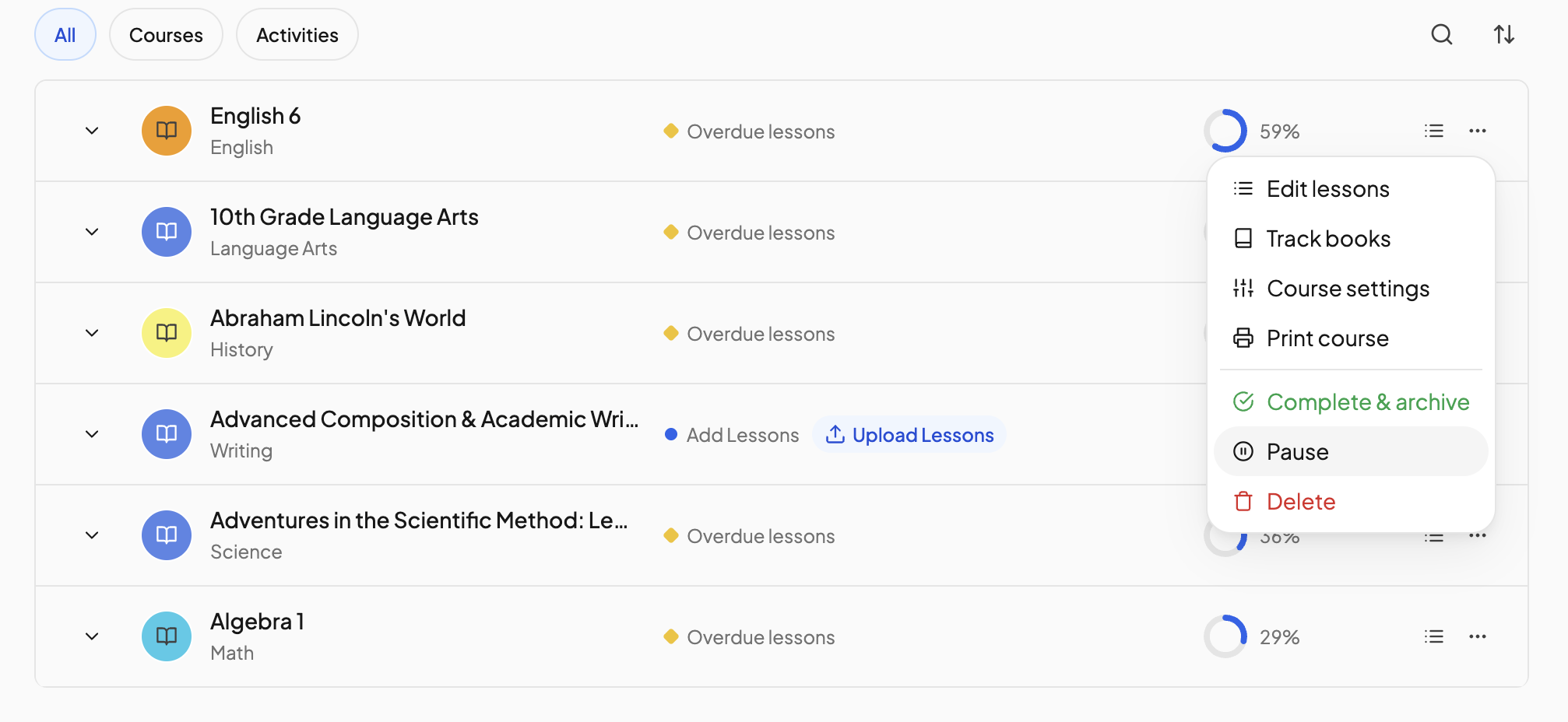
- Open the … menu on the course row and click Pause.
- The row shows a Paused badge. To pick it up again, open the same menu and click Resume.
The change applies straight away; there is nothing to save.
What happens while a course is paused#
- No lessons from the course appear on Today or Upcoming, and the course's lessons show no scheduled dates in the course list.
- Nothing is changed underneath: completed lessons, pins and lesson times are all kept.
- The course stays under the Active tab with its Paused badge, so it is easy to find later.
What happens when you resume#
The schedule comes back exactly as it was before the pause. Lessons whose dates passed while the course was paused will show as overdue, so after a long break you will usually want to move them forward. The Reschedule link in the Overdue section on Today does this for every course at once. See Overdue lessons.
Courses that share a block#
Pause and resume act on the course's block. If other courses share that block, a Block scheduled course dialog asks you to confirm, because they pause too. You can also pause from the block schedule builder with Pause block. See Block scheduling.
Planned breaks#
For a break the whole household takes, such as a holiday week, add it to the calendar instead of pausing. Lessons from every course shift past the break on their own, and nothing comes back overdue. See Adding holidays and breaks.
Need more help?#
Reach out any time at support@openskyplanner.com and we will be happy to help.