
Course editor
Build and edit lessons, tasks and attachments in the course editor.
Updated
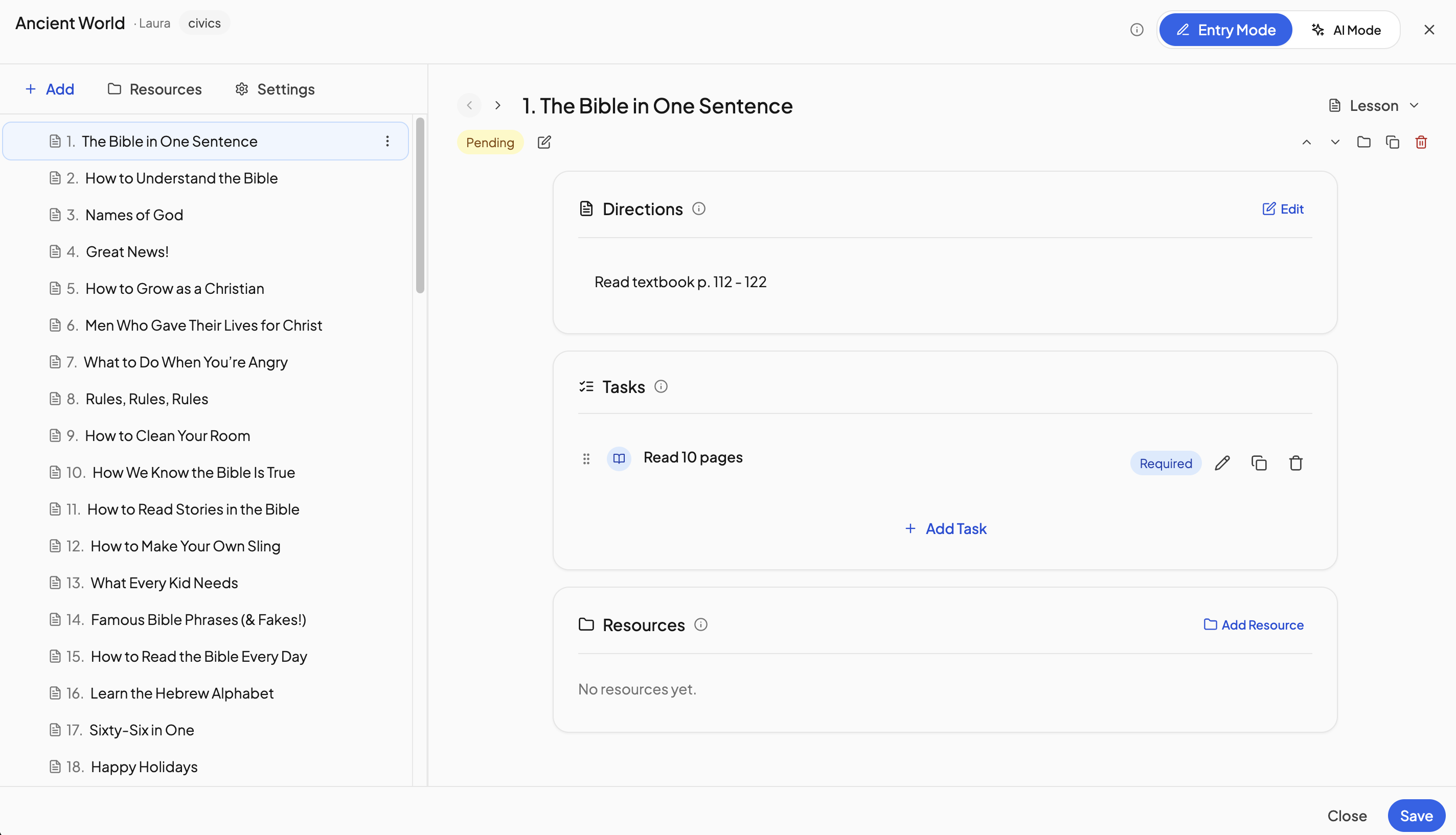
The course editor is where a course's lessons live. It has two modes: Entry Mode for hand edits, and AI Mode for building lessons with the help of an agent.
Opening the editor#
- For an enrolled course: open the student's Enrollments tab and click the list icon on the course row, or choose Edit lessons from its menu.
- For a template: open Courses in the sidebar, go to My Templates and click the template.
When you edit a template, a banner reminds you that changes do not reach students already enrolled.
Entry Mode#
- Click Add and pick Folder, Lesson, Quiz, Test, Lab or Activity. Folders group lessons into units or chapters and can nest. FYI you cannot do these in AI mode.
- Select a row to edit it on the right: title, type, Directions (click Edit), Tasks, and Resources (click Add Resource).
- Click Save.
Drag a row by its handle to move it, including into or out of a folder. The row menu also offers Move up, Move down, Duplicate, Wrap in folder, Promote out of folder and Delete.
Tasks must be checked off before a lesson can be marked complete. Files and links come from the Resource Library; see Resources.
AI Mode#
- Switch to AI Mode at the top of the editor.
- Under Add Course Table of Contents, drag in photos or PDFs (JPG, PNG, WebP, HEIC or PDF, up to 10MB each), or paste text and click Add text.
- Click Process with AI. The settings icon beside it chooses what to extract: Extract Lesson Titles and Order, Extract Page Numbers, Extract Directions as Text and Extract Directions as Tasks.
- Ask the OpenSky Agent for changes in the chat, such as renumbering lessons or adding tasks to every lesson.
- Click Save to keep the result, or Discard to throw it away.
AI Mode works in a sandbox. New lessons appear in the tree marked + NEW and nothing is written to the course until you save. Switching modes with unsaved work asks you to Save & switch or Discard. If a save would remove lessons that already have grades or completion history, OpenSky lists them and asks you to confirm.
Course details and settings#
The pencil beside the title opens Edit course details for the title, publisher, subject, grade range and description. Settings opens Course Settings; see Managing courses.
Need more help?#
Reach out any time at support@openskyplanner.com and we will be happy to help.