
Activities
Add one-off and recurring activities alongside your courses.
Updated
An activity is anything on the schedule that is not a course lesson: piano, chores, a field trip, an appointment. One-off or repeating, for one person or the whole family, with or without a time.
Adding an activity#
- On a student's page, click Add and type what you want, such as "Soccer practice every Monday and Tuesday", or pick Activity.
- On the Today or Upcoming checklist, click Add then Add activity, or choose Add activity from a date's ⋯ menu.
Then:
- Enter a title, a Category (To-do, Appointment, Art & Music, Chores, Class, Field Trip, Routine, Sports, or Other with your own word) and an optional Description.
- Pick the date. Tick Add time for a start and end time, or + Add end date for a one-off that spans several days, such as a camp.
- For a repeating activity, tick Repeats and set the Days, Repeat until and Repeats every so many weeks. Don't schedule on holidays is on by default.
- Under People, pick students and parents. Each person completes it separately.
- Click Add or Create Activity.
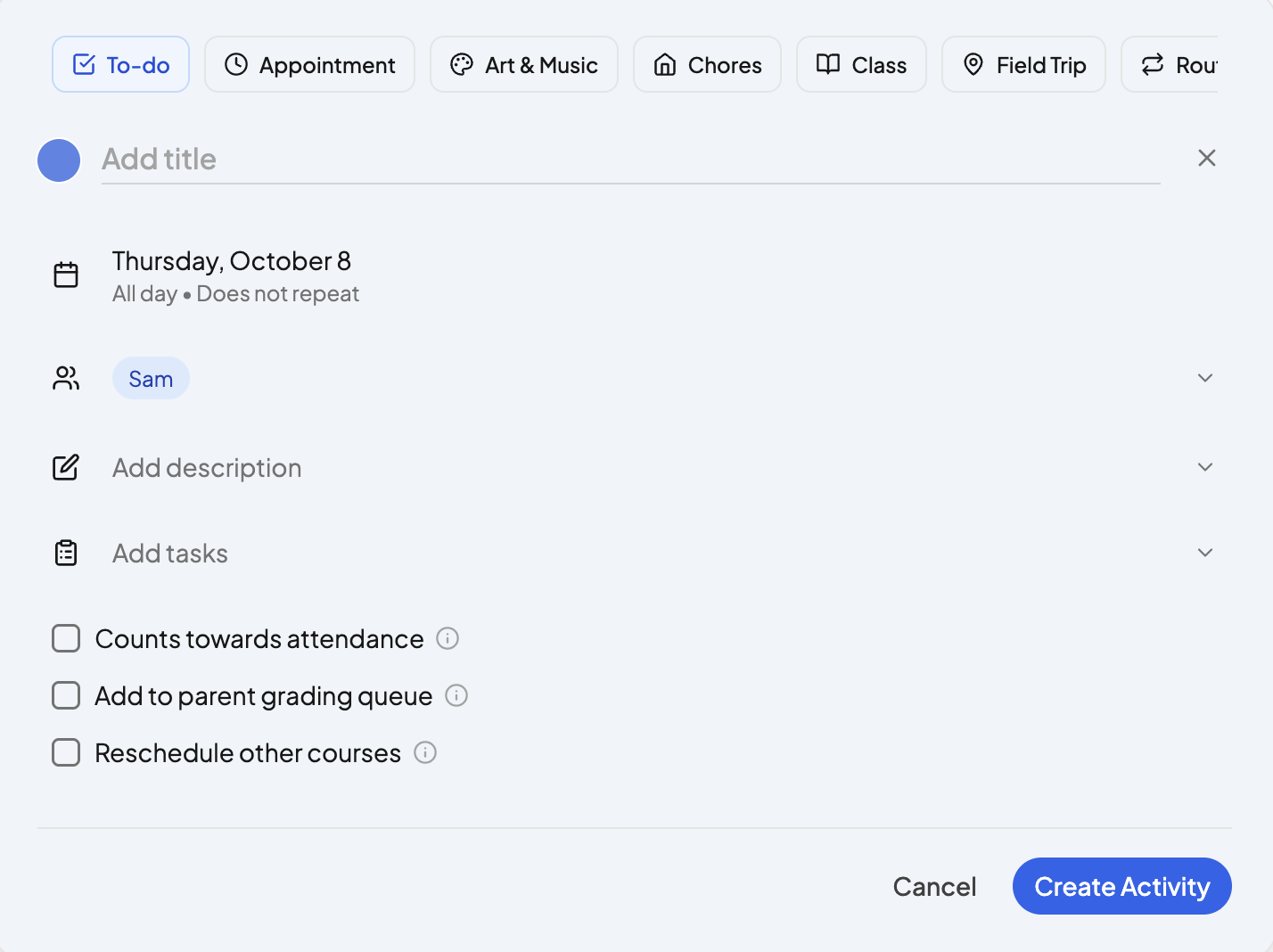
Additional options#
- Counts towards attendance — completing it marks the student present, even on a non-school day. See Attendance.
- Add to parent grading queue — each completed occurrence waits in the Ungraded column, and the activity appears in the gradebook and on transcripts. See Gradebook.
- Reschedule other courses — that day's lessons move to the next teaching day. Needs at least one student selected.
Holidays and teaching days#
Activities land on the days you choose. Teaching days never filter them, so a Saturday chore is fine, and holidays only matter when Don't schedule on holidays is ticked. Lessons always skip both; see Adding holidays and breaks.
Pasting a schedule#
For a class with its own timetable, click Paste or upload a schedule instead, then paste the dates and times or upload a photo or PDF. OpenSky turns it into occurrences you can review before adding.
Editing#
Click the activity on the checklist, then use Edit activity, Duplicate activity or Delete activity. An edit applies to every occurrence; a single day is moved on the checklist itself.
Replacing a day's lessons with an activity#
Learning at the zoo today? Open the date's ⋯ menu, choose Change day status, then Activity, no courses. The form opens with Counts towards attendance and Reschedule other courses already ticked, so the day counts and the lessons move on.
Need more help?#
Reach out any time at support@openskyplanner.com and we will be happy to help.