
Scheduling first lesson
Pick the start date that places a course's first lesson on the calendar.
Updated
A course's first lesson lands on the first teaching day on or after its start date. Set the date when you add the course, or change it later from the course list.
Setting the start date when you add a course#
- Click Add on the student's Enrollments tab and describe the course.
- In the Schedule section, fill in Start date. This is the first day lessons can be scheduled.
- Tick the teaching days under Which days and finish the rest of the form.
If the start date is not one of the course's teaching days, or falls on a holiday, the first lesson moves to the next teaching day after it. The rest of the course follows at its pace. See Course pacing.
Changing the start date#
- Open the student's Enrollments tab and expand the course.
- On the first lesson's row, next to the Next Lesson badge, click Change.
- In the Change start date dialog, pick a new Start date and click Confirm.
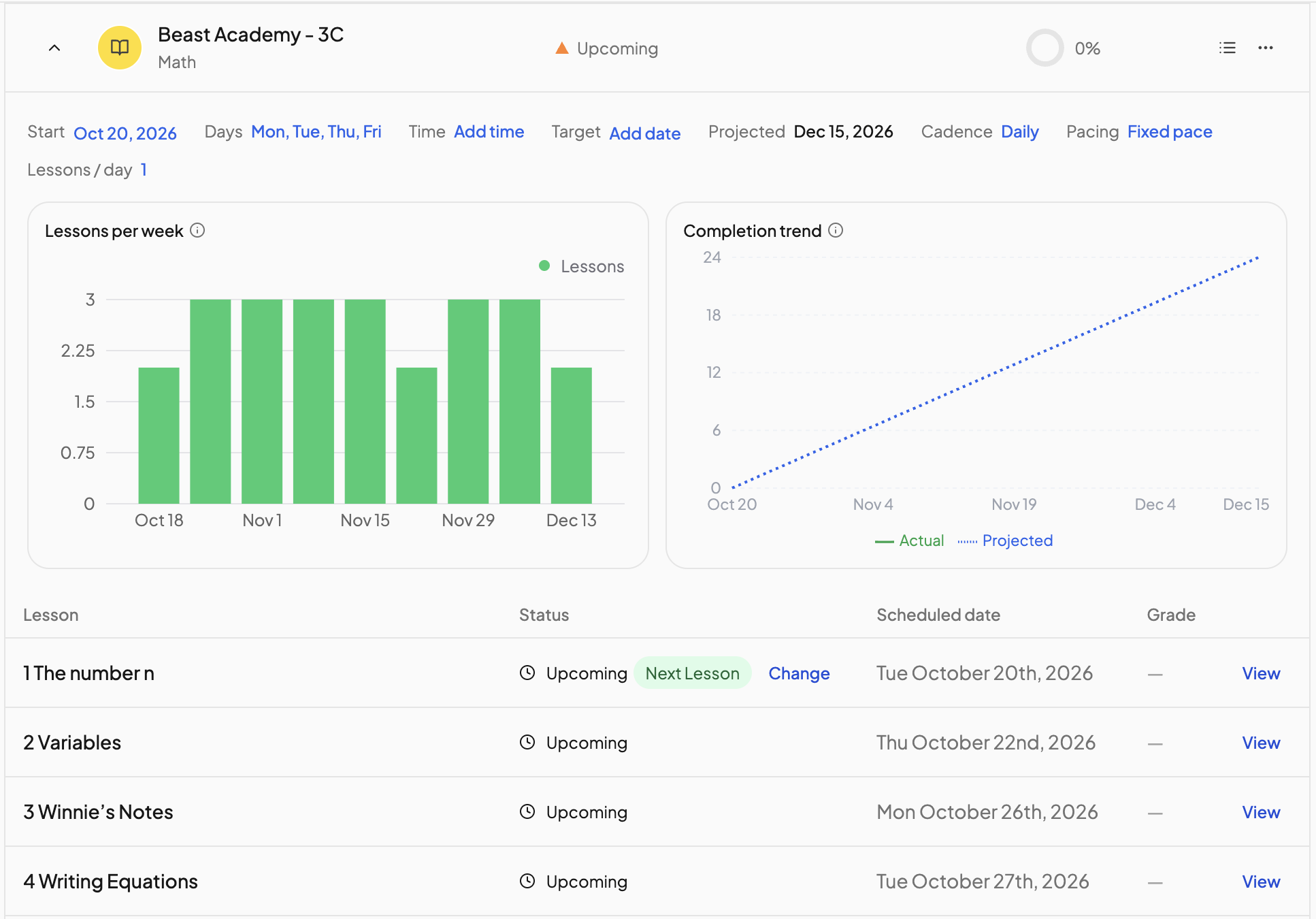
You can also click the Start date at the top of the expanded row, pick a day and click Save. OpenSky warns that changing the start date re-lays the schedule and unpins any lessons you moved by hand.
Courses that share a block#
The start date belongs to the course's block, not the course. If the course is block scheduled with others, Change opens Change which lesson you're on and pins the first lesson to a date instead; to move the block itself, edit Start and confirm in the Block scheduled course dialog, since every course in the block moves with it. To give one course its own start date, put it in its own block. See Block scheduling.
Starting in the past or the future#
- A start date before today schedules lessons into the past, so they show as overdue until you tell OpenSky where you are. See Scheduling a course that started already.
- A start date beyond next week parks the course under Upcoming until it begins. See Scheduling a course for the future.
Need more help?#
Reach out any time at support@openskyplanner.com and we will be happy to help.