
Student access
Give a student their own login and dashboard.
Updated
Each student can sign in to a portal of their own: their Today and Upcoming checklists, their lessons, and nothing else. Setup lives on the student's Student Portal tab.
Setting up a sign-in#
- Open the student's page and click the Student Portal tab.
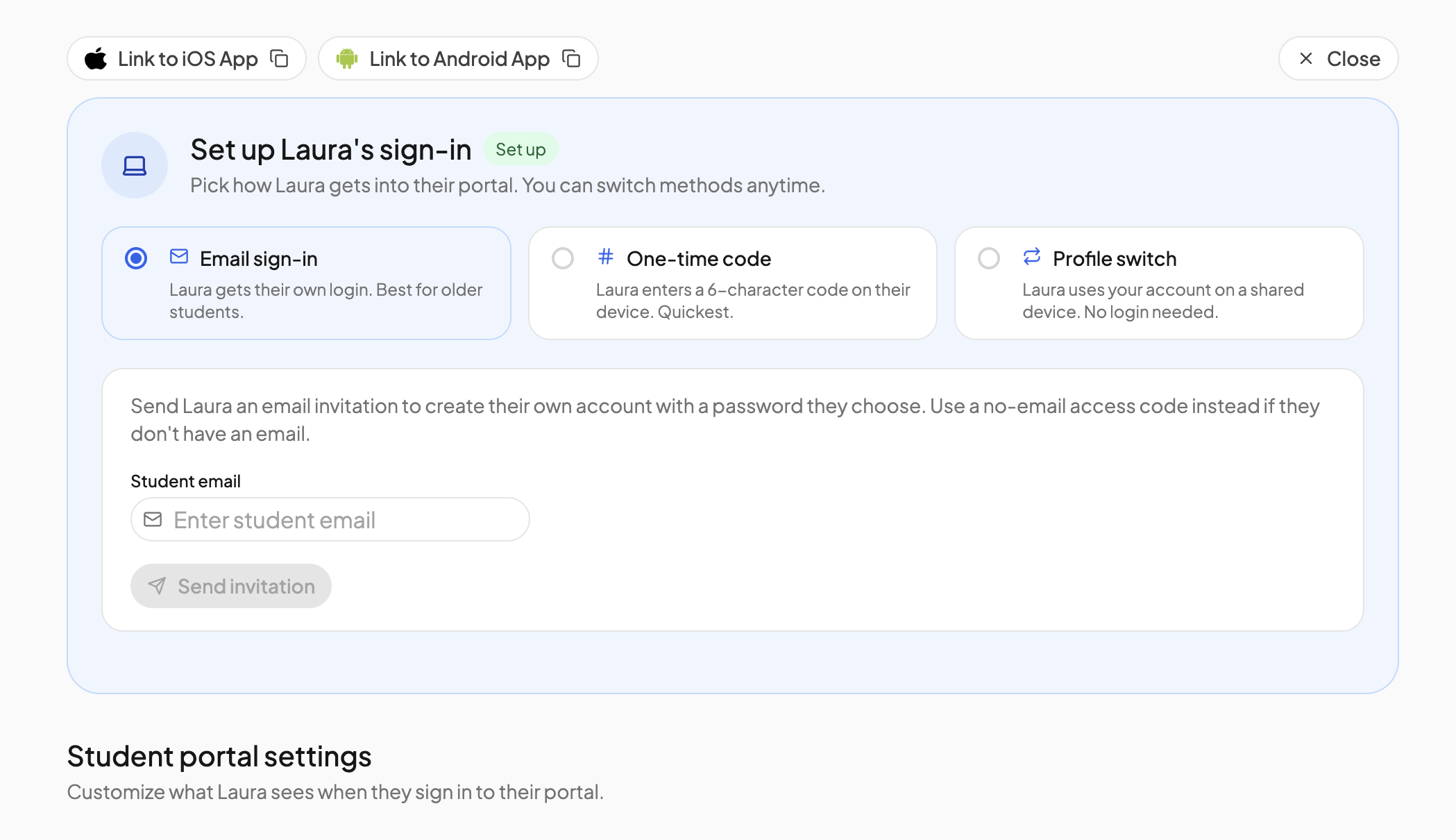
- Click Grant access. The Set up {Name}'s sign-in card offers three methods: Email sign-in, One-time code and Profile switch. You can switch methods at any time.
- Pick one and follow the steps below. The badge beside the heading reads Not set up until the student first opens their portal, Waiting for sign in while an invitation or code is outstanding, and Set up once they are in.
Email sign-in#
Best for an older student with their own email address.
- Enter the address under Student email and click Send invitation.
- The student opens the email and clicks Accept invitation. OpenSky sends a 6-digit code to the same address; they enter it and click Verify and continue. There is no password.
- The invitation shows as Pending, with its expiry date, until it is accepted, then Confirmed. Invitations last 7 days; after that, send a new one.
Click Revoke invitation to cancel a pending invite, or Revoke access to remove a confirmed sign-in.
One-time code#
For a student without an email address.
- Click Generate one-time use access code. A 6-character code appears with a Copy button.
- On the student's device, go to app.openskyplanner.com/access. The page is titled Student Dashboard Log In. Enter the code and click Access Dashboard.
- The student stays signed in on that device until they log out.
Each code works once and only one can be outstanding at a time, so generate it when the student is ready. If it expires unused, generate another. If someone else is signed in on that device, the page shows Log out to continue; tap it, then enter the code. Students signed in this way have no email address, so their notifications arrive in-app and by push only.
Profile switch#
On a shared device, switch between parent and student profiles from your profile icon, protected by a parent PIN. The student's page also has a Log in as {Name} button that opens the same switch. See Profile swap PIN.
The apps#
Link to iOS App and Link to Android App at the top of the tab copy the App Store or Google Play link so you can send it to the student's device.
What the student sees#
After signing in, the student lands on Today, with Upcoming beside it in the left nav and, on a phone, in the bottom bar. They open a lesson to read the directions, then tap the circle on its card to mark it complete. What else they can do is set in Student portal settings on the same tab. See Permissions and Today and Upcoming.
Revoking access#
Revoking removes the sign-in, not the student. Their courses, lesson history, attendance and grades stay in place, and you can set up a new sign-in later.
Need more help?#
Reach out any time at support@openskyplanner.com and we will be happy to help.