
Checklist
Checklist layouts
Switch between the list, board and calendar layouts.
Updated
Both checklist pages can be shown as a list, a board or a calendar, and Today adds Focus. The choice is remembered on your device, separately for Today and Upcoming; the board is the default.
Switching layout#
- Open Today or Upcoming and click Layout in the toolbar.
- Under Layout, pick List, Board, Calendar or, on Today, Focus.
- On Upcoming, a second row appears while the board or calendar is up to choose its span.
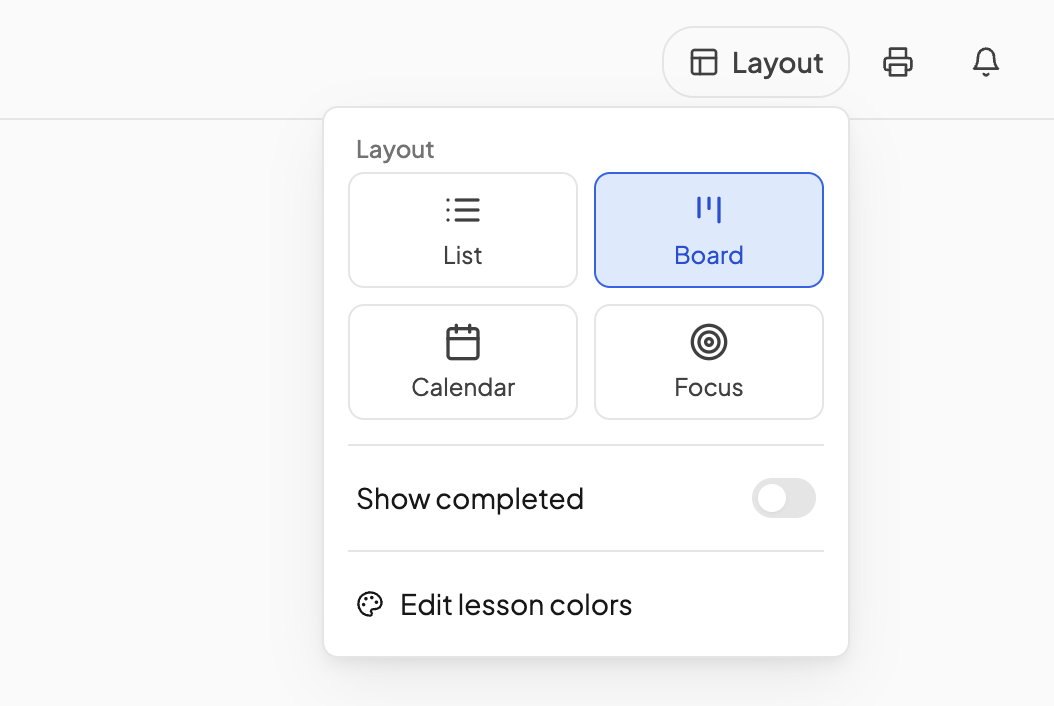
What each layout shows#
- List — one scrolling column. On Upcoming a date ribbon across the top jumps to a day.
- Board — a column per section: Overdue, Needs revision and Today on Today; the days ahead on Upcoming. Drag a card to another day to move it, or within a day to reorder (a student needs Move lessons). On Upcoming the Board row chooses Workflow, overdue work followed by the days ahead, or Week, a Sunday-to-Saturday grid you step through with the arrows and Today.
- Calendar — a time grid. Today shows the single day; on Upcoming the Calendar row chooses 3 day, Week or Month, and you can move back into the past.
- Focus (Today only) — one lesson at a time: a greeting, the current lesson with its directions, resources and steps, and Up next below. Use focus timer opens a 5, 10 or 20 minute countdown with a Focus music switch. It needs one student selected; under All students the card is greyed.
Other controls in the panel#
- Show completed — keep finished cards visible. On by default, and shared by both pages and every layout.
- Edit lesson colors — parents only. Opens Checklist Settings to pick the card color for each lesson status, including whether overdue cards get their own color.
Limiting a student's layouts#
On the student's page, open the Student Portal tab and find the Layout section:
- Today layouts allowed — tick List, Board and Calendar as you like; at least one stays on. With a single layout allowed, the Layout cards leave the student's panel.
- Focus mode only — pins the student to Focus. Upcoming leaves their nav and the Layout button is hidden. Timer clock and Focus music beneath it govern the timer whenever Focus is used, pinned or not.
- Allow Upcoming access — turn off to hide Upcoming without pinning Focus.
See Permissions.
Need more help?#
Reach out any time at support@openskyplanner.com and we will be happy to help.