
Submit for review
Have students hand work in for you to check before it counts as complete.
Updated
With the Submit for Review workflow, a student hands a lesson in and you decide when it counts as complete. It is off by default and can cover every course or just the ones you choose.
Turning it on#
- Open the student's page, click the Student Portal tab and expand Learning under Student portal settings.
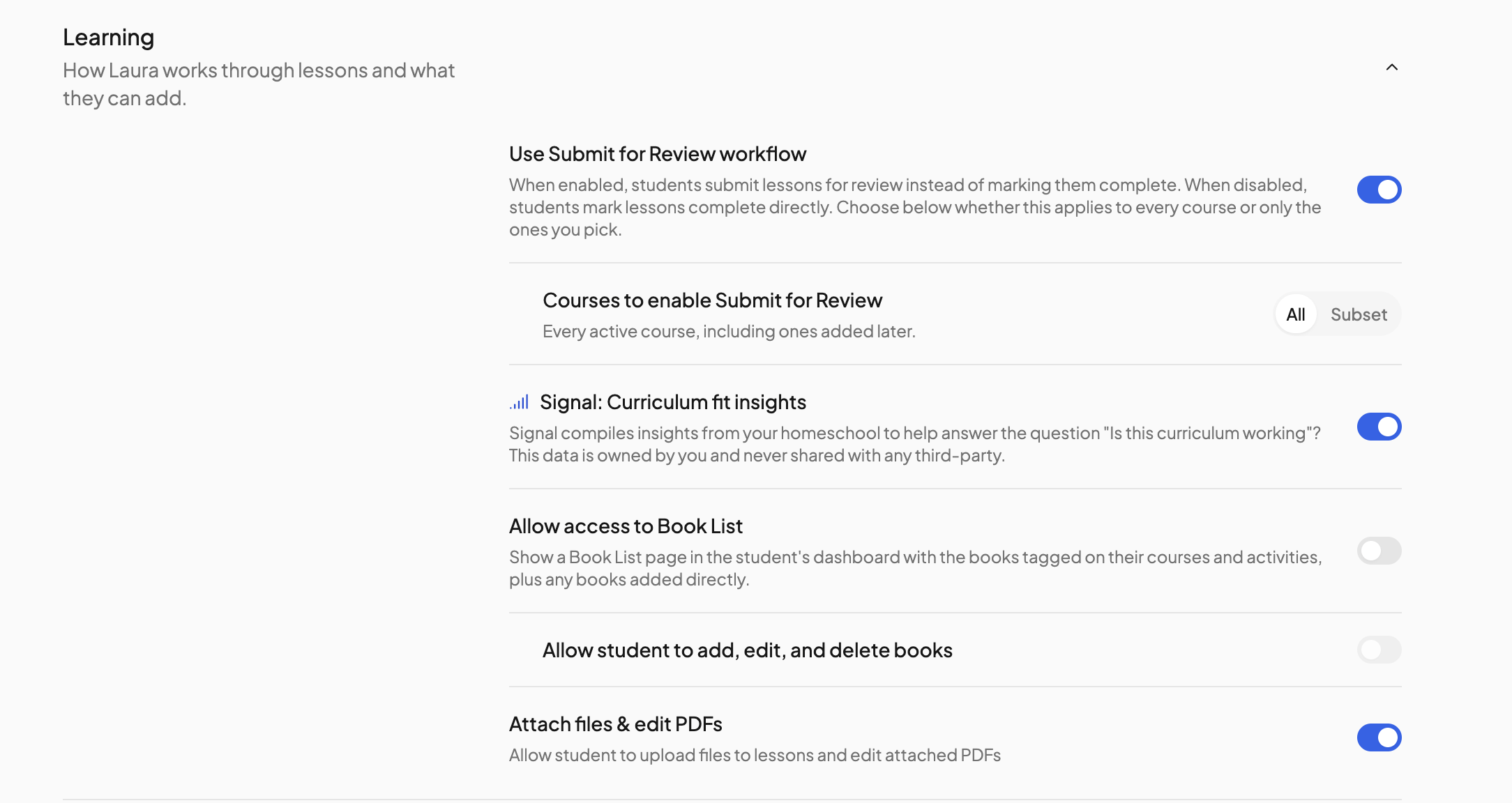
- Switch on Use Submit for Review workflow.
- Under Courses to enable Submit for Review, leave All to cover every active course, including ones added later, or choose Subset to pick courses. Subset opens the Submit for Review courses dialog: tick courses (or Select All) and click Save Changes. New courses start off in Subset mode, and at least one course stays on.
To put a single course on the workflow without touching the household switch, open that course's settings and, under Student Permissions, switch on Use the Submit for Review workflow for this course.
What the student sees#
- The circle on a lesson card reads Submit for Review instead of Mark Complete, and the lesson drawer's main button is Submit for Review. Any required tasks must be ticked first.
- A submitted lesson shows a Submitted badge and a clock in its circle. Until you act on it, the student can take it back with Mark Pending in the drawer.
- A lesson you send back appears in a Needs revision section at the top of Today with a Needs revision badge. The student fixes the work and submits it again.
What you get#
- A Submitted for review notification, on by default for parents, by email, in-app and push. See Notifications.
- A Submitted for review section on your own checklist, listing every student's submissions with Approve and Return for revision on each card.
Approve or return#
- Approve marks the lesson complete, dated to the day it was scheduled.
- Return for revision sends it back. The student gets a Returned for revision notification in-app and by push. To say what needs fixing, add a comment in the lesson's Discussion first. See Comments.
Return for revision is also offered in the lesson drawer on any lesson on the workflow, so you can send back work you checked in person or spotted a problem with after approving. A lesson that was submitted before you turned the workflow off can still be approved or returned.
Taking it back#
A student can withdraw a submission with Mark Pending in the drawer any time before you act, and the card leaves your Submitted for review section. The Moved back to pending notification, off by default, can tell you when that happens. If you approved by mistake, open the lesson and click Mark Pending to reopen it, or Return for revision to send it back.
For the files a student attaches to a lesson, see Student submissions.
Need more help?#
Reach out any time at support@openskyplanner.com and we will be happy to help.