
Today & Upcoming
The two checklist pages and what each one shows.
Updated
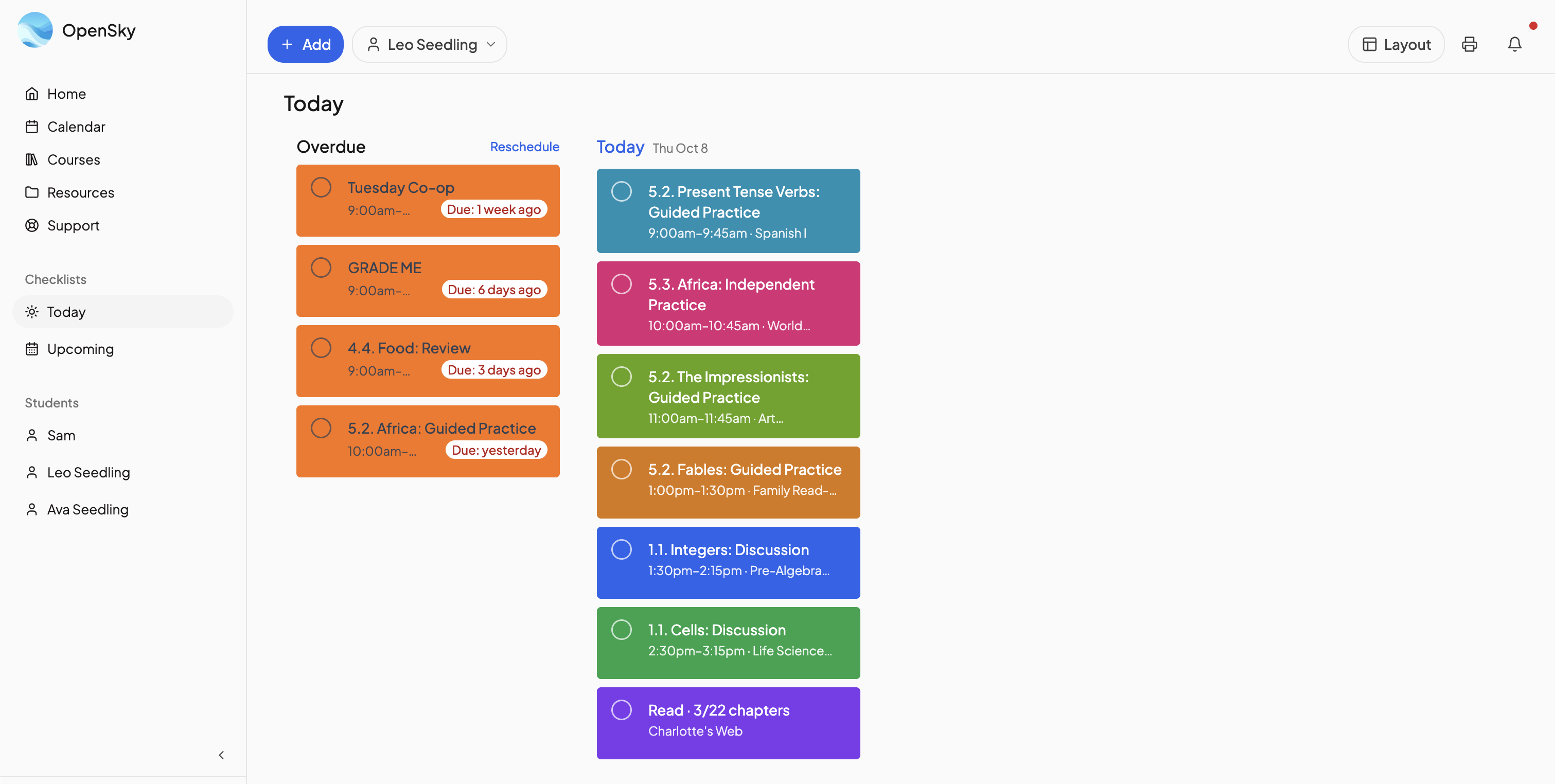
The checklist is two pages under Checklists in the left nav, and in the bottom bar on a phone.
- Today — what needs attention now: Overdue work, lessons that came back as Needs revision, and everything scheduled for Today.
- Upcoming — Overdue first, then one section per day ahead, for planning and moving work around.
Both pages share one toolbar: Add (an activity or a day off), the person menu, Layout, Print and the alerts bell. See Layouts and Checklist.
Choosing whose checklist#
Click the person menu. Your own row reads "Your name (Me)"; below it are Students, with All students when there are two or more, then Other parents. A student signed in to their own portal sees only their own work and has no menu.
Your own checklist (Me) adds two sections in front: Ungraded, completed work waiting on a grade, and Submitted for review, shown only when a student has handed something in.
The completion circle#
Every card has a circle at its top left. Tap it to act on the lesson:
- Mark Complete fills the circle with a check.
- Submit for Review takes its place on courses using the review workflow; the circle shows a clock while the lesson waits. See Submit for review.
- Done for today on a weekly lesson clears it from today without finishing the week; Reopen today puts it back.
- Mark Pending on a finished card undoes it.
Overdue cards carry a Due: pill, such as "Due: yesterday" or "Due: 3 days ago".
The lesson drawer#
Click anywhere else on a card to open the lesson: its status and date, then Directions, Tasks, the grade, Resources, Student Submissions and Discussion, with the main action button at the bottom. A student must tick every required task before Mark Complete or Submit for Review becomes available. See The lesson drawer.
The alerts bell#
A red dot on the bell means a lesson is waiting on you. Its Activity tab lists your notifications, and clicking one opens the lesson. Work a student has handed in also appears in the Submitted for review section at the top of your own checklist, with Approve and Return for revision on each card. See Submissions.
Day actions#
Hover a date heading and click the gear for that day's actions: change the day status, add a daily note, Mark everything complete, Move incomplete lessons or Add activity. See Attendance.
Today also has a Focus layout that shows one lesson at a time. See Layouts.
Need more help?#
Reach out any time at support@openskyplanner.com and we will be happy to help.