
Printing a course
Print a course outline or its lessons.
Updated
Each course can be printed as a checklist of its lessons: every lesson with a check-off box and its scheduled date, and its tasks as smaller boxes beneath it.
- Click the student in the nav. Their page opens on the Enrollments tab.
- On the course row, open the ⋯ menu and click Print course. Courses in the completed list have the same item.
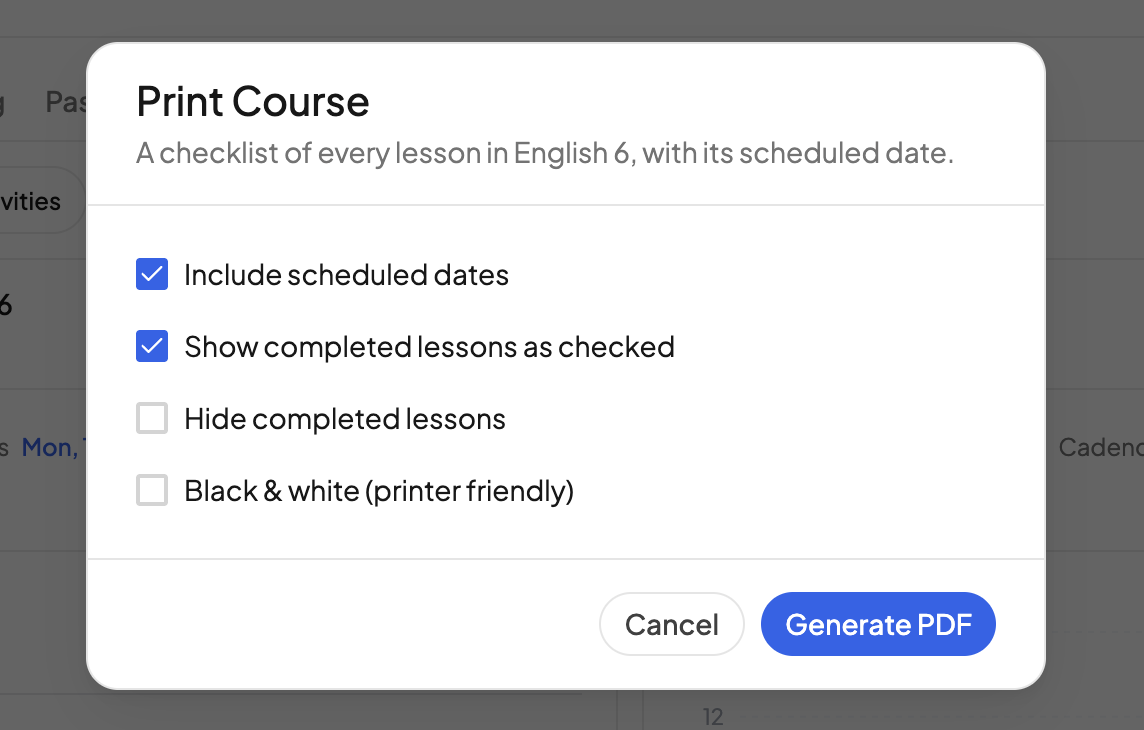
- In the Print Course dialog, set the options and click Generate PDF.
On a computer the PDF downloads. In the mobile app it opens in the viewer, where you can share or save it.
Options#
- Include scheduled dates — on by default. Each lesson shows its date from the schedule; a completed lesson shows the day it was actually done, and a weekly course names the week rather than a day. A lesson with no date, such as one that falls past the end of the school year, prints a dash.
- Show completed lessons as checked — on by default. Completed and skipped lessons print with their box ticked, and so do the tasks the student has checked off. Skipped lessons are tagged "Skipped" so a ticked box is not mistaken for finished work.
- Hide completed lessons — leave out completed and skipped lessons so the printout is only what is left. A unit whose lessons are all done drops out with them.
- Black & white (printer friendly) — no course color.
Your choices are remembered for next time.
What the printout contains#
The document flows like a table of contents rather than a calendar: the course title and publisher at the top, then the course's units and chapters as headings with their lessons beneath. Supplemental lessons are tagged "Supplemental". Tasks print under their lesson with a one-line preview of any details. The footer notes when it was generated.
A course with no lessons yet shows a notice in the dialog and prints empty. Lesson directions are not included; for those, print a day or week of the checklist in the Detailed format instead. See Checklist.
Need more help?#
Reach out any time at support@openskyplanner.com and we will be happy to help.