
Printing the checklist
Print a day, a week or a month of the checklist.
Updated
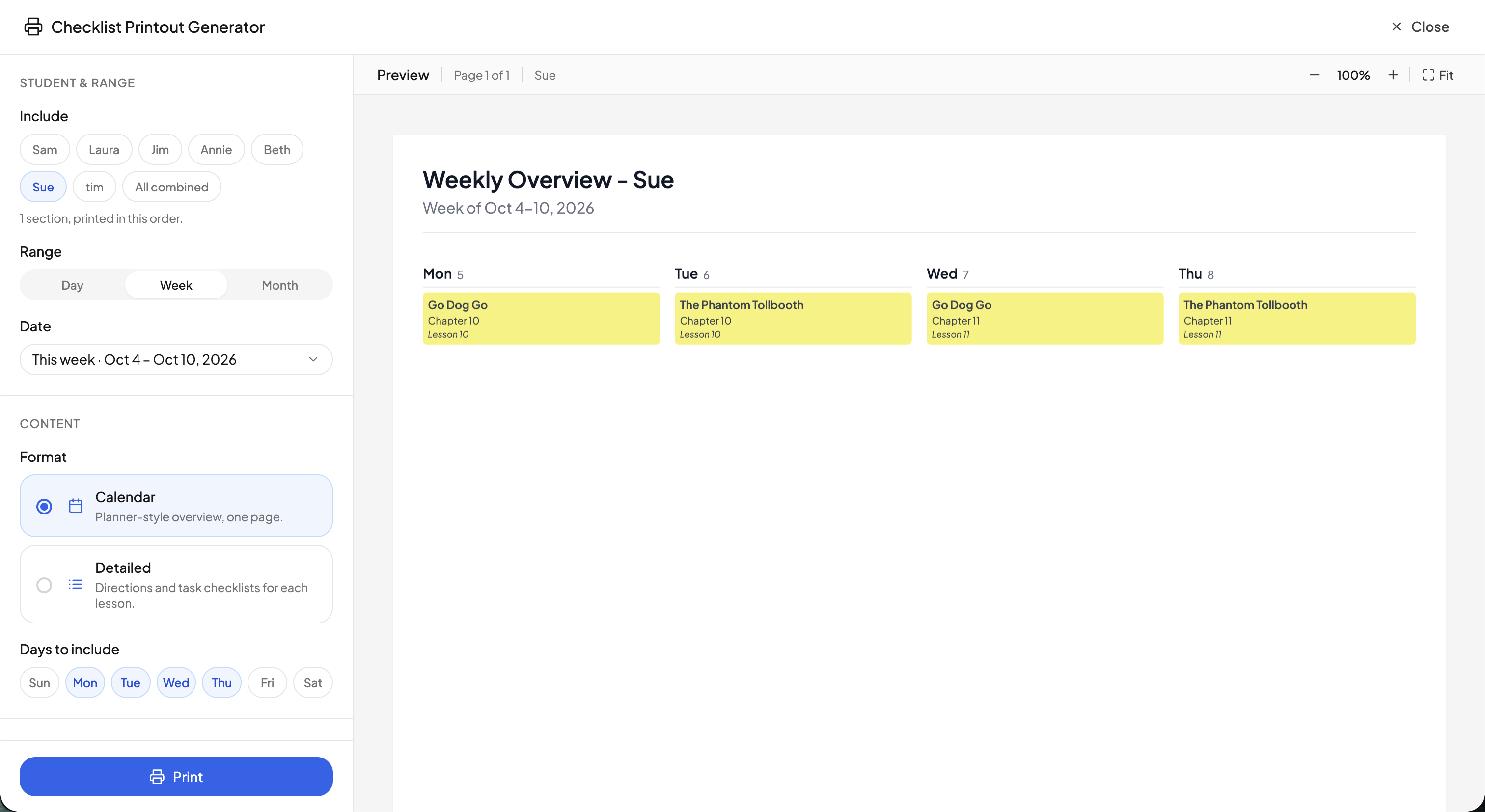
Any day, week or month of the checklist can be printed as a PDF from either checklist page.
- Open Today or Upcoming and click the printer icon in the toolbar.
- Under Include, tick the students to print. With more than one student, All combined adds a merged household section as further pages. Each pill is its own section, printed in that order.
- Choose the Range, Day, Week or Month, then pick the Date. The list offers the current period, labelled "Today · …", "This week · …" or "This month · …", and the nineteen after it.
- Set the format and options, check the preview on the right, and click Print.
On a computer the PDF downloads. In the mobile app it opens in the viewer, where you can share or save it.
Format#
For a day or a week, choose under Content:
- Calendar — a planner-style overview on one page.
- Detailed — directions and task checklists for each lesson.
For a week, the Days to include chips pick the weekdays. They start on whichever days have work scheduled, or Monday to Friday when nothing does yet.
Month always prints a calendar grid, so the format, days and options do not appear; only Orientation applies.
Layout and options#
- Orientation — Landscape or Portrait.
- Style — Day columns or Day rows.
- Show skipped lessons — on by default.
- Show checkmark on completed items
- Add lesson checkboxes
- Include planner events — the activities and other events on the schedule.
- Black & white (printer friendly)
Your settings are remembered for next time. On a computer the preview redraws as you change them; on a phone the dialog shows the settings alone.
Students printing their own checklist#
A student sees the printer icon in their own toolbar unless you turn off Print under Tools in their Student Portal settings. See Permissions.
Printing a whole course#
To print every lesson of one course rather than a span of days, see Course.
Need more help?#
Reach out any time at support@openskyplanner.com and we will be happy to help.