
The lesson drawer
Everything you can see and do when you open a lesson.
Updated
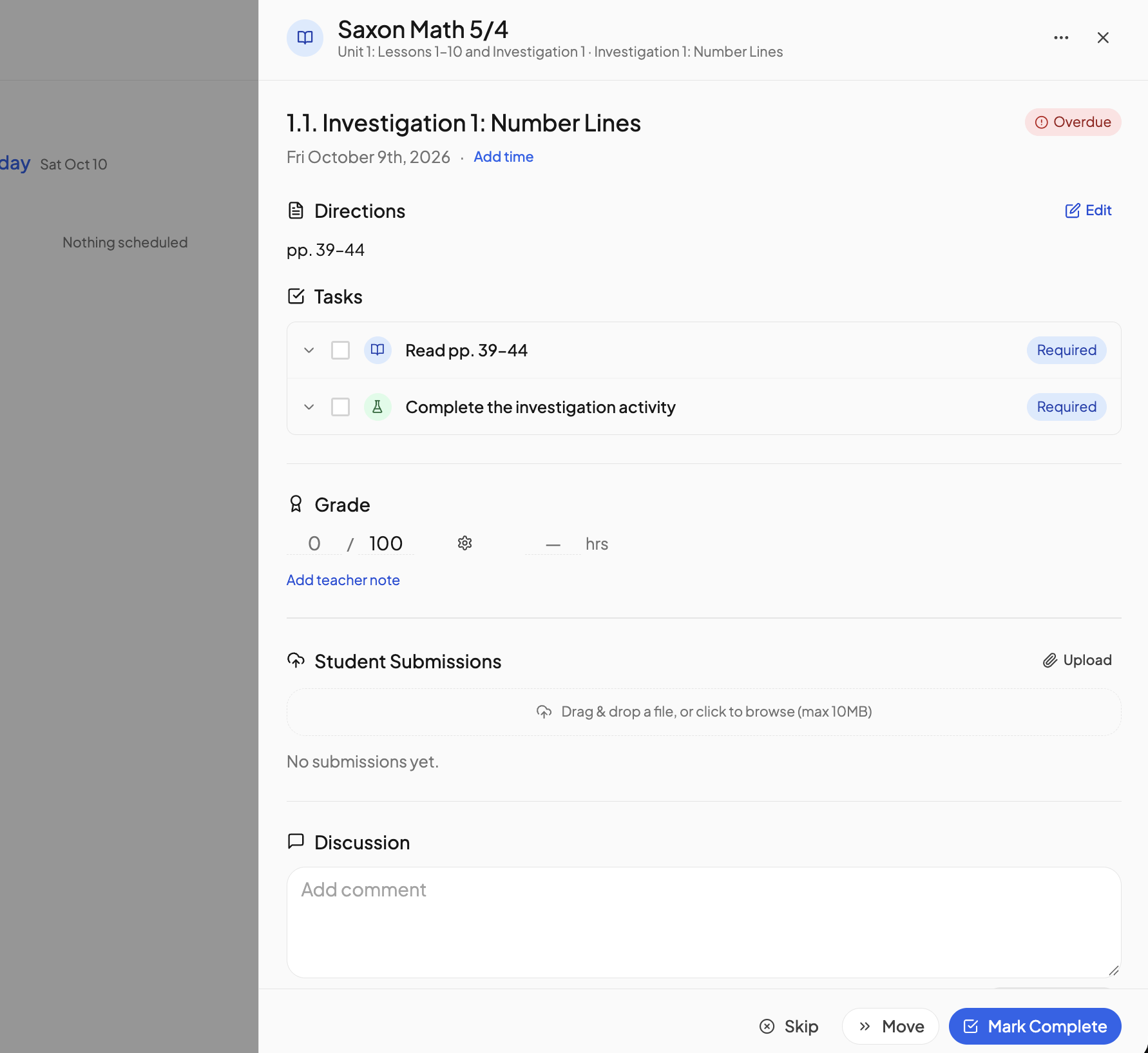
The lesson drawer is the panel that slides in when you open a lesson. It holds the directions, the tasks, the grade, the attached resources, the student's uploads and the discussion, with the lesson's actions along the bottom.
Opening a lesson#
Click anywhere on a lesson card except its completion circle, on Today or Upcoming in any layout. The same drawer opens from a Submitted for review card, from a notification in the alerts bell's Activity tab, from a lesson title in Homeschool Activity on the home page, and from a lesson in the student's Enrollments tab.
The header#
The top shows the course name and, beneath it, the unit or chapter the lesson sits in. The … button holds Move to with Tomorrow, Next Teaching Day & Cascade and Next Teaching Day & Double Up, the same choices as right-clicking the card. On an activity the menu offers Move to tomorrow and Edit instead. X closes the drawer.
Title, status and time#
The lesson title comes next, numbered if the course numbers its lessons, with a status badge when there is one: Complete, Overdue, Submitted or Needs revision. Under it sit the date and a time link reading Add time or the current time. Clicking it opens Edit time, with Start time and Duration (min). The change applies to that date only, and everything scheduled in the same block that day moves with it. Use block default removes a one-off time.
Directions and tasks#
Directions is the lesson text. Tasks lists each task with a checkbox, a type icon and a Required or Optional badge. Expand a row to read its details, open its files and links, and use Mark complete or Mark incomplete. A YouTube link plays in place with Watch and closes with Hide; one video plays at a time. Ticking a box throws confetti when Celebration animations is on for the student.
A student must tick every required task before the main button at the bottom becomes available; until then it reads "Complete all required tasks first" on hover. A parent is not held up: marking the lesson complete ticks every task. The exception is a weekly lesson, where the required tasks must be done by anyone.
Editing the lesson#
Parents see Edit beside Directions on a course lesson. The drawer becomes a form with Title, Type (Lesson, Quiz, Test, Lab or Activity), Directions, the tasks editor and Resources. Under Resources, Add Resource opens the picker, or drag files onto the dashed area (10MB each). Resource changes save as soon as they happen; everything else saves with Save. Closing with unsaved edits asks Discard, Keep editing or Save. Changes apply to this lesson everywhere it appears in the course. Activities and free-read items are not editable here.
Grade#
The Grade section is the same editor as the gradebook. The gear switches between Numeric, Pass / Fail and Standards-Based; X clears the grade. The lesson's hours sit beside it, and Add teacher note stores a private note. A student sees the grade read-only unless they have been allowed to edit grades, and sees no grade at all when See grades is off. See Grading lessons and Permissions.
Resources, submissions and discussion#
- Resources lists the files and links attached to the lesson, each with open and download buttons. See Resource library.
- Student Submissions is where work is uploaded. See Student submissions.
- Discussion is the comment thread. See Lesson comments.
Activities have resources but no submissions or discussion.
The buttons at the bottom#
- Mark Complete finishes the lesson. On a course using the review workflow a student sees Submit for Review instead. A weekly lesson shows Complete week beside Done for today, which clears today without finishing the week, and Reopen today.
- Mark Pending reopens a completed, skipped or submitted lesson.
- Skip asks Skip lesson only or Skip and move next lesson here. An activity skips in one click.
- Move opens a calendar; pick a day and click Move Lesson. When the move affects later lessons, OpenSky asks Reschedule later lessons too? or Move future lessons earlier?
- Return for revision, parents only, sends a lesson on the review workflow back to the student.
- Reset schedule appears when the course has lessons pinned to dates.
On a phone the secondary actions collapse under … next to the main button. Students need the Skip lessons and Move lessons permissions to see Skip and Move.
Completing a lesson that was scheduled for a later day asks Nice job working ahead! with Yes, move it up to pull the next lesson into the open spot, or No thanks. Students may also get a quick check-in after finishing. See Moving a lesson, Submit for review and Signal check-ins.
Activities and free-read books#
An activity opens in the same drawer with its directions, tasks and grade, plus Skip and the header's Move to tomorrow and Edit. A free-read book shows its chapter check-off list instead of tasks, with no buttons at the bottom; the book is done when every chapter is checked. See Activities and Scheduling books.
Need more help?#
Reach out any time at support@openskyplanner.com and we will be happy to help.