
Adding notes
Keep private notes on a course and its lessons, and add or edit them from the Teacher Notes tool, the lesson drawer, an activity or the gradebook.
Updated
Teacher notes are your private record of how a course is going: what a student struggled with, what you changed, what to remember for next year. These integrate with all of the reporting tools on OpenSky so they are a great way to track for compliance purposes.
Only parents can see them. A student never sees a teacher note in the app, so use the lesson's Discussion section for anything meant for them. See Comments.
Course notes and lesson notes#
There are two kinds, and the difference is what the note is attached to.
- Lesson notes belong to one lesson. A lesson holds a single note. Use them for the specifics: "Needed a hint on this", "Great day, loved this activity".
- Course notes belong to the course as a whole. Each one has a Title, a Date you choose and a body, and a course can have as many as you like. Use them for the bigger picture like semester recaps or end of year wrap-ups.
Activities work the same way. A note on one date of an activity is an occurrence note, and a note on the activity as a whole is an activity note.
In family mode, where several students share one enrolled course, both kinds of note are shared across those students.
Adding and editing notes#
There are many places to add lesson teacher notes to a course throughout OpenSky. But no matter where you add a lesson note, they all can be managed and edited in the Teacher Notes tool. Course notes are added only in the Teacher Notes tool.
In the Teacher Notes tool#
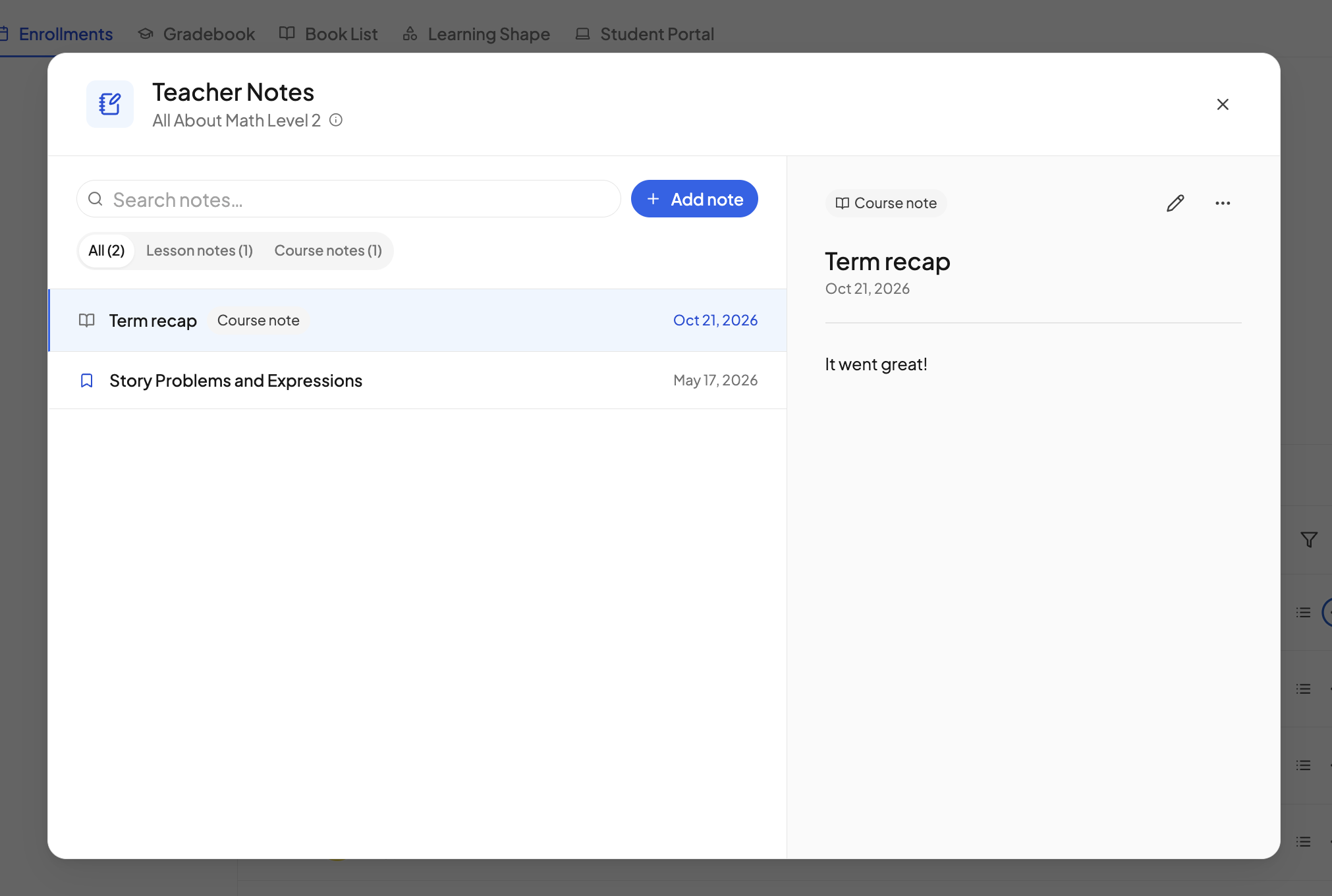
The Teacher Notes tool lists every note on a course in one place, both kinds together, and is where you add course notes.
- Open it from the student's Enrollments tab: on the course row, open the ⋯ menu and click Teacher notes. Or open the student's Gradebook and click the notebook icon on a course or activity row.
- Click Add note.
- Add the notes:
- A course note takes a Title, a Date and the Note itself.
- A lesson note takes the Lesson from the picker. A lesson that already has one is marked · has note, and saving replaces it.
- Click Save.
Notes list newest first, with a Lesson note or Course note badge on each. Filter with All, Lesson notes and Course notes, or type in Search notes to search titles and bodies. Click a note to read it; the pencil edits it and the ⋯ menu has Delete. A note cannot be moved between kinds once saved, so to turn a lesson note into a course note, add a new course note and remove the old one.
From the lesson drawer#
- Open a lesson from the checklist. See The lesson drawer.
- Find the Teacher note section below the Grade section. It reads No note until you add one.
- Click the section and type.
- Click Save, or press Ctrl+Enter (⌘+Enter on a Mac). Remove deletes the note.
This writes a lesson note. Open an activity's day the same way and the section writes an occurrence note for that date.
On an activity#
You can add teachers notes when creating an activity on the checklist, or via the details drawer by clicking on an activity on the checklist.
In the gradebook#
- Open the student's Gradebook and click a course row to open its grading view. See Grading lessons.
- Each lesson row has a note icon between Hours and Grade. A grey pencil means no note yet; a blue notebook means the lesson has one.
- Click it, type in the popup and click Save. Remove deletes the note.
An activity's grading view has the same cell on each date.
Printing your notes#
Notes stay out of every printout unless you ask for them. The course printout and the portfolio can both include lesson notes, course notes or both. See Printing teacher notes.
Can a student see teacher notes?
No. Notes are never shown to a student, and a student who opens a lesson or the gradebook sees no note cell at all. To leave a message a student will read, use the lesson's Discussion section.
Is there a limit to how much I can write?
A note can be up to 5,000 characters, roughly two pages of text. Lesson notes have no title or date of their own; they take the lesson's.
Need more help?#
Reach out any time at support@openskyplanner.com and we will be happy to help.