
Printing teacher notes
Include lesson notes and course notes on a course printout or in a portfolio.
Updated
Teacher notes stay out of every printout unless you ask for them, so a checklist handed to a student or a portfolio handed to an evaluator stays clean. Two printouts can include them: the course printout from a student's Enrollments tab, and the portfolio from their Gradebook. Both offer the same choices. See Adding notes for how notes are written.
Choosing what prints#
Each printout has a master switch for teacher notes and, under it, the same three choices:
- Lesson notes — each lesson's note prints in italics under that lesson.
- Course notes — the course's dated notes print together under the course title, oldest first, each with its title, date and body.
- All or Most recent — under Course notes, print every course note or only the one with the latest date.
Tick one kind or both. The choices are remembered, so next time the dialog opens the way you left it.
The course printout#
- Click the student in the nav. Their page opens on the Enrollments tab.
- On the course row, open the ⋯ menu and click Print course. See Printing a course for the other options.
- Turn on Show teacher notes. It starts off.
- Tick Lesson notes, Course notes or both, and choose All or Most recent.
- Click Generate PDF.
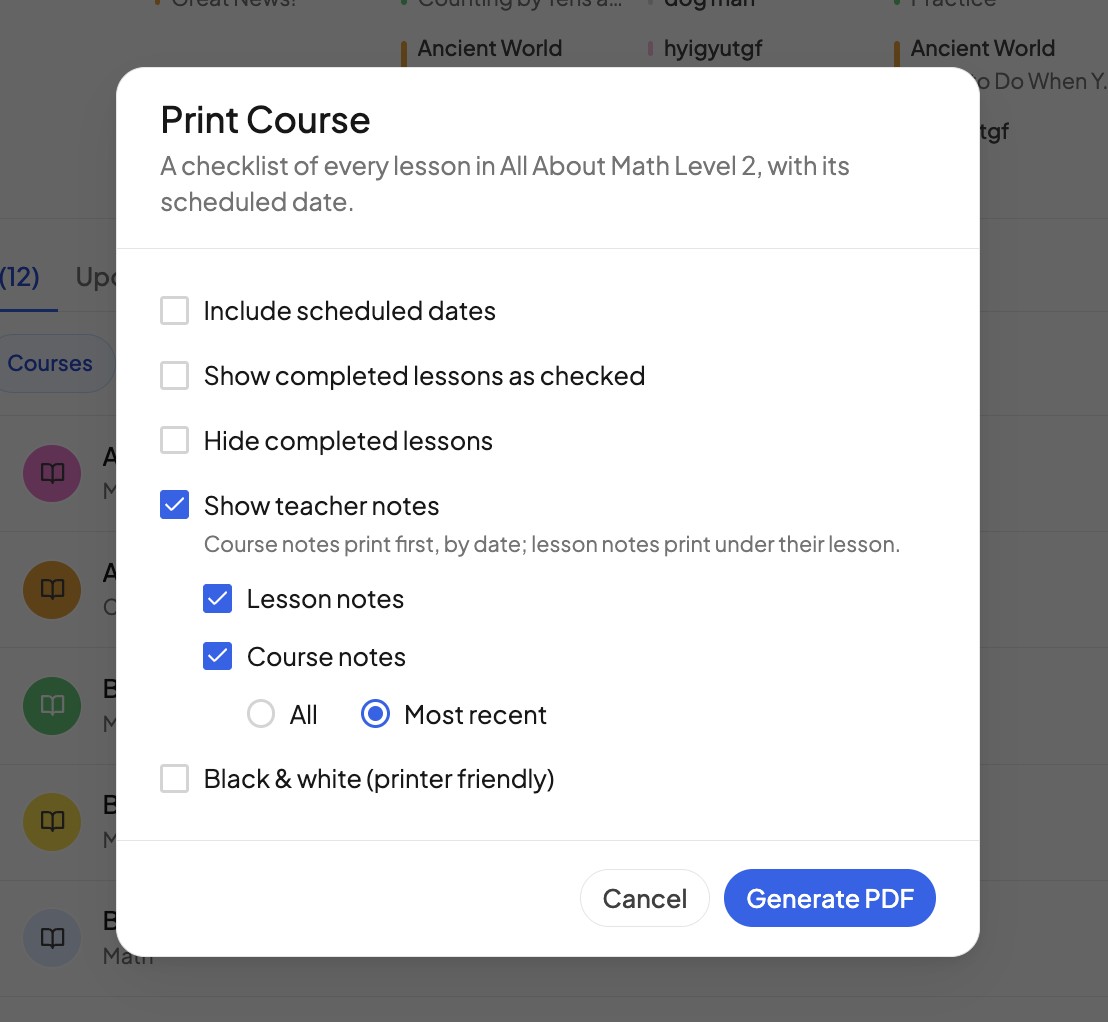
Course notes lead the document under a Course notes heading, right after the course title, so the printout opens with your summary of the course. When Most recent is chosen the heading reads Most recent course note. The lesson checklist follows, and a lesson's note prints in full beneath its title, above its tasks. A lesson hidden by Hide completed lessons takes its note with it.
The portfolio#
- Go to the student's Gradebook and click Generate portfolio. See Generating a portfolio.
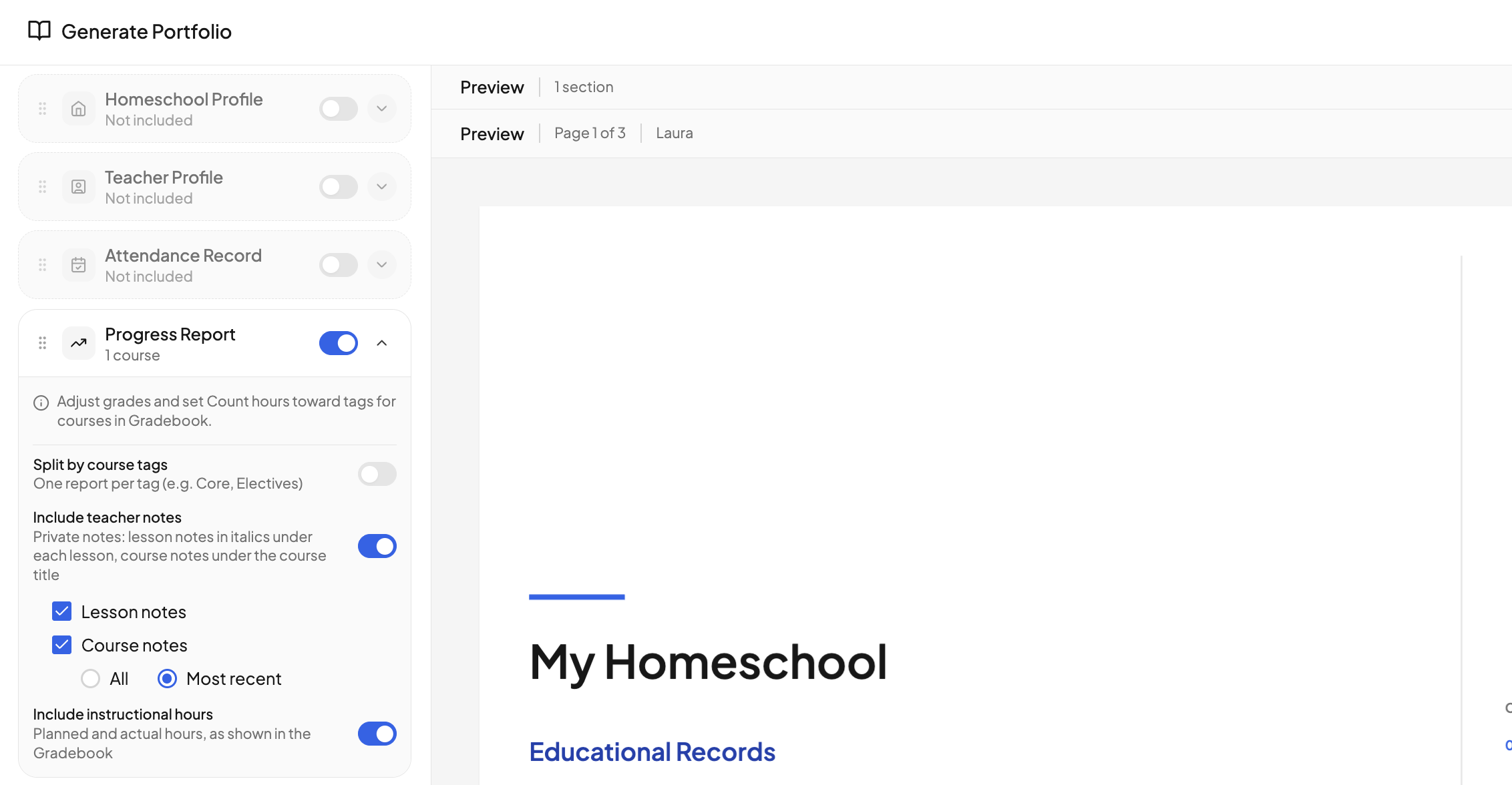
- Click the chevron on the Progress Report section to open its settings.
- Include teacher notes is on by default. Turn it off for a portfolio that goes to an evaluator, or leave it on and tick Lesson notes, Course notes or both, then choose All or Most recent.
- Click Download Portfolio.
In the portfolio each course has its own progress page. Course notes print on that page under a COURSE NOTES heading, below the course title and its progress line and above the lesson list. Lesson notes print as one italic line under each lesson, so a long note shows its opening words; the full text is in the course printout and in the Teacher Notes tool. The preview on the right updates as you change the settings.
Which note is "Most recent"?
The course note with the latest date. If two notes share a date, the one added last counts as most recent.
Need more help?#
Reach out any time at support@openskyplanner.com and we will be happy to help.